
Sometimes a customer invoice needs correction after it has been issued. A customer may return a product, receive a price adjustment, be charged too much, or cancel part of an order. Once an invoice has been posted, simply deleting it is generally not the right accounting approach.
Odoo uses credit notes to document reductions or reversals of customer invoice amounts. Depending on the situation, a credit note can reduce what a customer owes, leave a credit balance to use later, or be followed by a refund payment. The accounting document and the actual movement of money are related, but they are not the same action.
What is a credit note in Odoo?
A credit note is an accounting document that reduces or reverses all or part of an amount previously invoiced to a customer. It creates a traceable record of the adjustment and helps preserve the audit trail of the original invoice.
Common reasons to issue a customer credit note include:
- A customer returns all or part of an order.
- An invoice contains an incorrect price or quantity.
- A discount or commercial adjustment is agreed after invoicing.
- An order or service is cancelled after an invoice has been posted.
- A billing error needs to be corrected without deleting the original posted invoice.
A credit note is not necessarily a cash refund. It can reduce the customer’s outstanding balance, offset another invoice when properly reconciled, or create a credit that is refunded later.
Credit note vs customer refund
| Term | Meaning | Typical result |
| Credit note | Document that reduces or reverses an invoiced amount. | Reduces receivable and adjusts relevant income/tax entries. |
| Refund payment | Payment transaction that returns money to the customer. | Records the outgoing payment and reduces the credit balance when properly matched. |
| Reconciliation | Matching related accounting entries, such as a credit note and a refund. | Updates the open/residual balance of the related items. |
Example: a customer paid ₹2,20,000 for four laptops and later returns them because of a malfunction. The credit note documents the ₹2,20,000 reduction. If the business returns the money, it must also record the refund payment and reconcile it with the credit note. Creating only the credit note does not prove that money has been sent back.
Before creating a credit note
- Confirm that the original customer invoice exists and is posted, if the adjustment relates to an issued invoice.
- Check the reason for the adjustment and the amount to credit.
- Confirm whether the credit is full or partial.
- Review the tax treatment and fiscal localization that applies to the original transaction.
- Check whether the customer has already paid and whether a cash refund, account credit, or offset is intended.
- Use the correct company and customer record.
For tax or statutory reporting, follow the rules applicable to your country and company. Odoo calculates taxes based on configuration, but the appropriate legal treatment should be confirmed with your accountant.
Create a credit note from a customer invoice
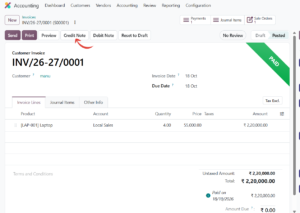
For an adjustment linked to an existing invoice, open that invoice and use its Credit Note button. This preserves the link between the original invoice and the reversal. The screenshots follow one example: invoice INV/26-27/0001 for four laptops at ₹55,000 each (₹2,20,000.00 in total, already paid) is credited because of a product malfunction.
- Open Accounting and go to Customers > Invoices (the exact menu label may vary).
- Open the posted customer invoice that needs correction, INV/26-27/0001 in this example.
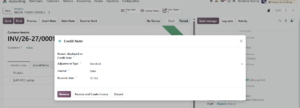
- Click Credit Note (Figure 1). The Credit Note window opens (Figure 2).
- Enter the Reason displayed on Credit Note (“Product malfunction” here) and check the Adjustment Type (Standard), Journal (Sales) and Reversal date.
- Click Reverse to create a draft credit note, or Reverse and Create Invoice if a corrected replacement invoice is also needed.
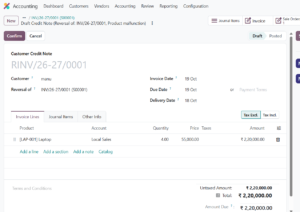
- For a full credit, keep the lines unchanged. For a partial credit, adjust the quantity or amount on the draft credit note’s lines (Figure 3).
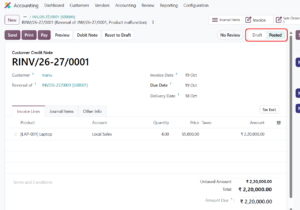
- Review customer, dates, product lines, taxes, accounts, and total on the draft credit note, which shows Confirm and Cancel buttons (Figure 3).
Full credit note vs partial credit note
Full credit note
Use a full credit note when the entire invoiced amount must be reversed, such as when a complete order is cancelled or all invoiced products are returned. Depending on the situation, a corrected replacement invoice may also be needed.
Partial credit note
Use a partial credit note when only part of the invoice needs adjustment. For example, if a customer was invoiced for four laptops at ₹55,000 each but returns one, the credit note covers ₹55,000, plus applicable taxes depending on the original invoice setup and tax treatment. The invoice in the screenshots has no tax applied.
| Example | Amount before tax | Illustrative treatment |
| Full return of 4 laptops at ₹55,000 each (the screenshot example) | ₹2,20,000 | Credit the full line amount, with applicable taxes reversed as configured. |
| Return of 1 laptop at ₹55,000 | ₹55,000 | Credit only the returned unit and its applicable tax. |
| Agreed price adjustment | ₹5,000 | Credit the agreed adjustment and apply the correct tax treatment. |
These figures are illustrative and exclude specific tax calculations. Review the tax lines generated by your Odoo configuration before posting.
Post the credit note
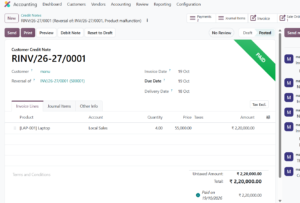
A draft credit note is not the same as a posted accounting document. After checking the customer, date, lines, tax, and total, click Confirm (Figure 3). Odoo then assigns the credit note its number (RINV/26-27/0001 here) and the status changes from Draft to Posted (Figure 4). The posted credit note creates relevant accounting entries and becomes part of the customer’s accounting history. A Pay button appears, and the Amount Due equals the credit total until a refund is recorded.
- Verify the credit note references the correct original invoice where applicable.
- Check the document date and accounting date.
- Review taxes and totals against the reason for the credit.
- Post the credit note when approved.
- Reopen the document and confirm its status and residual amount.
Process a customer refund
If the business must return money to the customer, record the refund payment in addition to creating the credit note. The exact workflow depends on whether the customer paid through bank, cash, or another method and on the payment features configured.
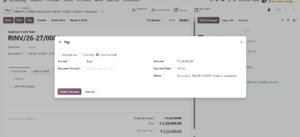
- Open the posted credit note and click Pay (Figure 5).
- In the Pay window, choose Payment Only. The TDS options appear because this database uses the Indian localization.
- Check the Journal (Bank here), Recipient Account, Amount (₹2,20,000.00), Payment Date, and Memo.
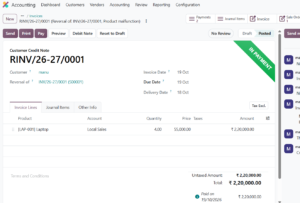
- Click Create Payment. The credit note moves to In Payment (Figure 6).
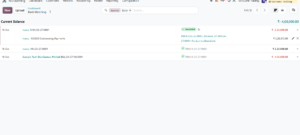
- Match the payment with the bank transaction in Bank Matching (Figure 7). The credit note then shows Paid (Figure 8).
If the customer has not paid the original invoice, a credit note may simply reduce the outstanding amount rather than trigger a cash payment. If the customer has already paid and the credit note creates a credit balance, a refund may be needed to return the money. Follow your company’s payment controls and approval process.
After you click Create Payment, Odoo matches the payment with the credit note and the status becomes In Payment (Figure 6); the payment is not yet confirmed against the bank. The refund bank transaction is then reconciled in Bank Matching, where it is marked Reconciled against the payment on the Outstanding Payments account (Figure 7). Once reconciled, the credit note status changes to Paid (Figure 8).
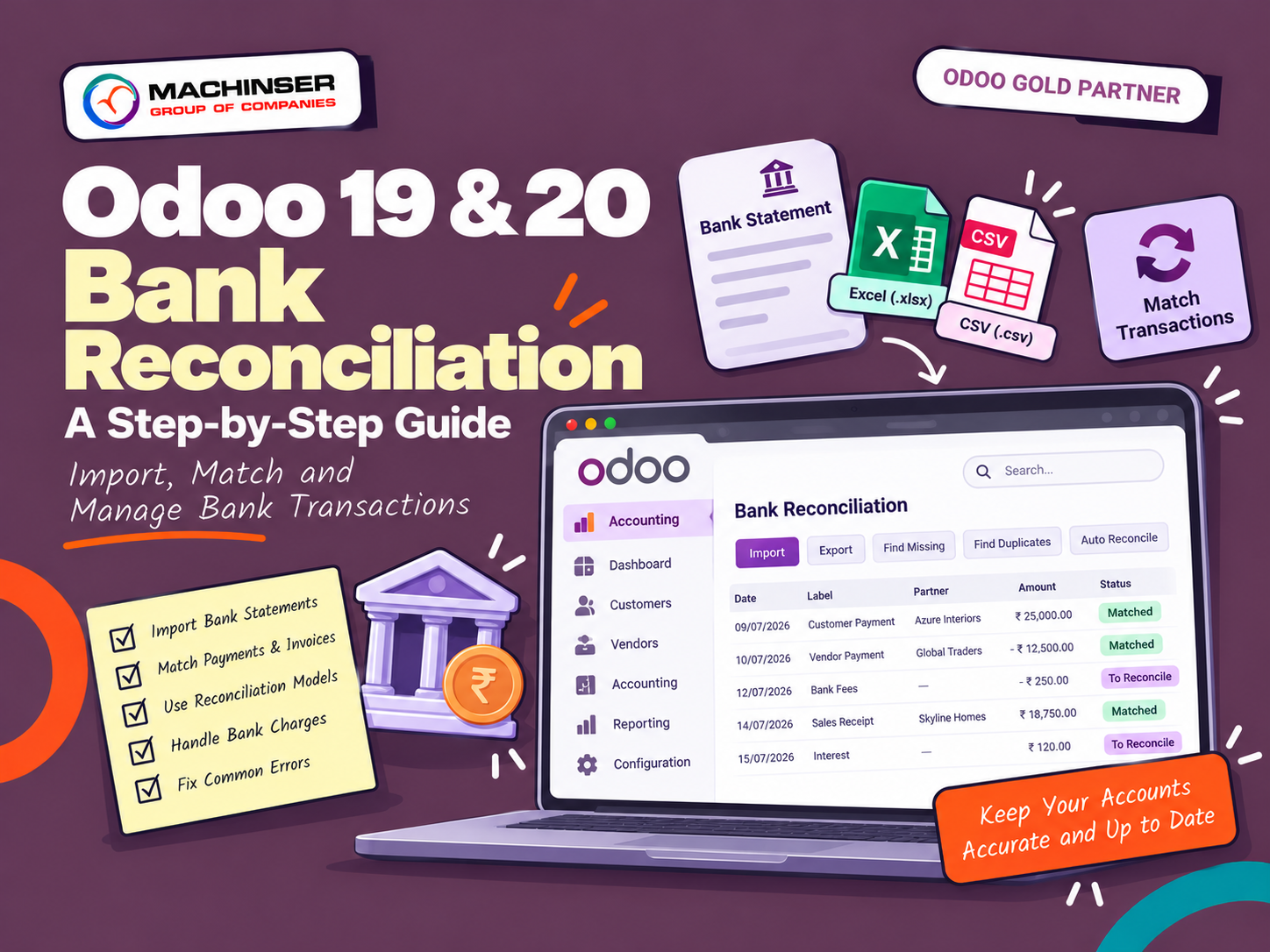
(To know more about bank transaction and reconcilation:Odoo 19 & 20 Bank Reconciliation: A Step-by-Step Guide )
What happens in accounting?
Exact journal entries depend on the product, income account, tax configuration, fiscal localization, and payment method. In a common workflow, a credit note reverses the relevant part of the original invoice: the customer receivable is reduced and income/tax effects are adjusted. A refund payment also affects the selected outstanding, bank, or cash accounts. In the screenshots, the refund is recorded on the 100203 Outstanding Payments account until it is matched with the bank transaction (Figure 7).
| Action | Typical accounting effect | What to verify |
| Post customer invoice | Recognizes receivable and relevant income/tax entries. | Invoice status, customer balance, tax and income accounts. |
| Post credit note | Reduces receivable and reverses or adjusts relevant income/tax amounts. | Credit-note lines, taxes, accounts, and residual balance. |
| Register refund payment | Records money returned using the selected payment journal and accounts. | Payment status, journal, bank/cash account, and matching. |
| Reconcile related entries | Matches credit and payment entries where appropriate. | Whether customer balance and credit note residual are correct. |
Do not rely on a generic debit/credit example for every localization. Confirm the journal items in your database and follow your organization’s accounting policy.
Common scenarios
Scenario A: Customer returns a product before paying
Create and post a credit note for the returned items. If it fully offsets the invoice, the amount due may become zero after relevant entries are matched. No cash refund is required if the customer never paid.
Scenario B: Customer returns a product after paying
Create and post the credit note, then record the refund payment. Reconcile the payment and credit note so the customer credit is settled. This is the scenario shown in Figures 1 to 8.
Scenario C: Incorrect price on an invoice
Issue a credit note for the amount that needs to be reversed. Depending on the correction, create a new invoice with the correct price and tax treatment. Keep a clear link between the documents.
Scenario D: Customer receives a discount after invoicing
A credit note may be appropriate. Credit only the agreed amount and verify the tax treatment.
Common mistakes and troubleshooting
Credit note created for the wrong invoice: Check original invoice reference, customer, amount, and date before posting. If already posted, follow the accounting process for correcting it rather than deleting posted records.
Customer balance is still open: Check whether invoice and credit note have been reconciled or matched, and whether the credit note covers the full residual amount.
Credit note posted but customer has not received money: A credit note records the accounting adjustment; it does not necessarily mean a cash refund was executed. Check whether a separate refund payment is required and recorded.
Refund payment is not matched: Review payment status, payment journal, outstanding accounts, and reconciliation. Verify the transaction was posted successfully.
Tax amount differs from expectations: Review product taxes, fiscal position, invoice lines, tax-included pricing, and applicable localization. Ask an accountant to verify statutory treatment.
Credit note action is unavailable: Check invoice status, user access rights, installed accounting features, and whether the invoice is eligible for reversal.
New invoice and credit note do not offset: Confirm amounts, taxes, customer, dates, and reconciliation. They may remain open separately until matched according to the workflow.
Best practices
- Start from the original invoice when the credit relates to an existing invoice.
- Record a clear reason for every credit note.
- Check quantities, prices, taxes, and totals before posting.
- Separate the accounting credit note from the actual refund payment in internal procedures.
- Use approval controls for large refunds and unusual adjustments.
- Reconcile credit notes and payments to keep customer balances accurate.
- Retain supporting documents such as return records, customer emails, and approval notes.
- Use demo or anonymized data for screenshots and training materials.
Frequently asked questions
Is a credit note the same as a refund in Odoo?
No. A credit note adjusts the invoiced amount. A refund payment records money returned to the customer. Both may be needed in a paid-invoice return scenario.
Can I create a partial credit note?
Yes. When only part of an invoice needs adjustment, credit the relevant lines or amounts using options supported by your version. Review taxes before posting.
Should I delete an invoice to correct it?
For a posted invoice, use the appropriate credit-note or reversal process rather than simply deleting the accounting document.
Does posting a credit note automatically send money back?
Not necessarily. You may need to record a separate refund payment and reconcile it.
Can a credit note be used when the customer has not paid?
Yes. It can reduce or cancel the amount the customer owes. A cash refund is generally relevant only when money has actually been received and is being returned.
Where can I see the accounting impact?
Open the posted credit note and review its journal items or related accounting entries. Labels depend on interface and access rights.
Are the steps exactly the same in Odoo 19 and Odoo 20?
The core flow is similar, but button labels, wizard options, and payment workflows should be checked in the exact version and configuration.
Conclusion
Credit notes help businesses correct customer invoices in a traceable way, while refund payments record money returned to customers. In Odoo, a reliable process is to open the original invoice, create the appropriate full or partial credit note, review tax and accounting details, post it, and record a refund payment if money must be returned. Finally, verify the resulting journal entries and reconcile related items.
Before relying on any step, confirm the exact wizard labels and payment options in your own Odoo 19 or Odoo 20 database. Use anonymized demo records when creating screenshots or training material.
Sources and further reading
Odoo 19 Documentation Credit notes: https://www.odoo.com/documentation/19.0/applications/finance/accounting/customer_invoices/credit_notes.html
Odoo 19 Documentation Payments: https://www.odoo.com/documentation/19.0/applications/finance/accounting/payments.html
Odoo 19 Documentation Accounting:
https://www.odoo.com/documentation/19.0/applications/finance/accounting.html
.