

Bank reconciliation checks that transactions recorded in accounting agree with activity reported by the bank. When this process is delayed or handled manually in spreadsheets, businesses can overlook bank charges, duplicate entries, missing payments, or differences between invoices and actual receipts.
Odoo 19 and Odoo 20 provide a Bank Matching workflow to review bank transactions, match them with existing invoices, bills, and payments, and record transactions that need a separate accounting entry. Odoo can suggest matches automatically, while reconciliation models help handle recurring cases such as bank fees.
This guide explains how to prepare a bank journal, import transactions, match customer and supplier payments, handle unmatched amounts, and troubleshoot common issues.
What Is Bank Reconciliation in Odoo?
Bank reconciliation is the process of comparing transactions on a bank statement with the corresponding records in accounting. Transactions may include customer receipts, supplier payments, bank fees, interest, refunds, and transfers between bank accounts.
In Odoo, the Bank Matching view lists transactions for a bank journal and helps users match each transaction to existing accounting entries or create the necessary counterpart entry. Default matching rules can suggest entries based on partner, amount, references, and transaction labels. You reach it from the Bank card on the Accounting dashboard.
Prepare the Bank Journal
Before importing transactions, confirm that the company has a correctly configured bank journal. Odoo generally creates a bank journal and associated account when a bank account is added through the Accounting dashboard. If the bank is not supported for synchronization, the account can still be configured manually and transactions imported.
- Install and open Accounting with the necessary user permissions.
- Confirm the company, currency, bank journal, and linked bank account are correct.
- Review the chart of accounts and relevant receivable, payable, bank, suspense, and expense accounts.
- Record invoices, vendor bills, and payments correctly before matching them.
- If starting mid-year, verify the opening bank balance and the date from which transactions will be imported.
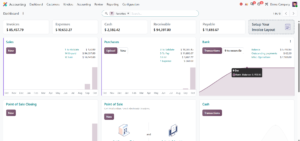
An opening transaction is important when starting synchronization or importing statements partway through a period. Without a correct starting balance, Odoo’s bank balance may not agree with the bank statement. To review the journal itself, open Accounting > Configuration > Journals and check the Bank journal’s type, sequence prefix and default account (Figure 2).
Choose How to Import Bank Transactions
Option A: Bank synchronization
Where a supported bank and provider are available, Odoo can connect to the bank and import transactions. Odoo documentation states that bank synchronization requires a valid Odoo Enterprise subscription. Availability depends on the bank, country, and third-party provider.
To connect a supported bank, open the Accounting dashboard, choose the option to add or connect a bank account, select the institution, and follow the provider’s authorization steps. Transactions may then be fetched on a schedule; refresh is not necessarily real-time.
Option B: Import a statement file
Odoo 19 documentation lists CAMT.053, CSV, XLSX, OFX, QIF, and CODA for Belgium among supported formats. Available formats can depend on version and localization, so check the import screen in your database.
For guidance on handling massive data files without encountering formatting errors or timeout issues, review our tips on Odoo 19 & 20 Import and Export Best Practices for Large Datasets.
- Download a statement or transaction file from your bank in a supported format.
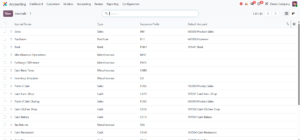
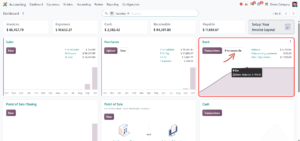
- On the Accounting dashboard, click Transactions or the “9 to reconcile” button on the Bank card (Figure 3) to open the Bank Matching view.
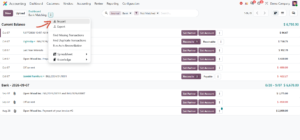
- Click the ⋮ Actions menu next to the view title and select Import (Figure 4). You can also use the Upload button, drag and drop the file onto the Bank Matching view, or choose Import file from the journal’s ellipsis menu on the dashboard.
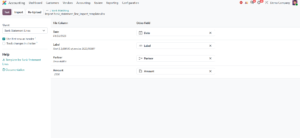
- Select the file. For CSV or XLSX, choose the sheet, tick “Use first row as header” if the file has one, and map each file column to an Odoo field: Date, Label, Partner and Amount (Figure 5). The “Template for Bank Statement Lines” link in the Help panel downloads a ready-made file.
- Click Test to check the file, verify dates, labels, amounts, and signs, then click Import.
Make sure each row represents the intended transaction and that dates and debit/credit signs are interpreted correctly. Avoid importing the same statement twice.
Option C: Enter a transaction manually
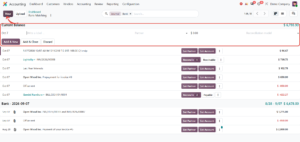
For a small number of transactions, open the Bank Matching view and click New (Figure 6). A new line appears at the top of the list. Enter the date, a label, and the amount (use a negative amount for money leaving the bank). The label and date are required; adding the partner can make reconciliation easier, and a reconciliation model can be chosen on the same line. Click Add & New to enter another transaction, Add & Close to finish, or Discard to cancel. For high transaction volumes, use a consistent import or synchronization process.
4. Open the Bank Matching View
After transactions are available in Odoo, open the Accounting dashboard and click the Bank journal’s Transactions button. To focus on items needing attention, click the “to reconcile” button, which shows the count of transactions still to reconcile (Figure 3).
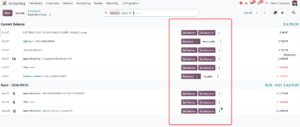
The Bank Matching view lists each transaction with its date, label, partner where available, and amount. Recent transactions appear under Current Balance, and older ones are grouped by statement, such as Bank – 2026-09-07. Each row has action buttons (Figure 7): Set Partner and Set Account for transactions that have nothing to match yet, and a Reconcile button with a count badge showing how many candidate entries Odoo found. When the partner is known, a Receivable or Payable button also appears. The Not Matched filter hides reconciled items; remove it to review previously reconciled entries.
Reconcile a Customer Payment
Example: a customer, LightsUp, has an open invoice INV/2026/00008 for $738.75 and transfers the full amount to the company bank account. The bank line appears on Oct 07 with the invoice reference in its label, and its row shows Reconcile 1 and Receivable (Figure 7).
- Make sure the customer invoice INV/2026/00008 for $738.75 is confirmed and still open.
- Import or fetch the matching $738.75 credit transaction from the bank.
- Open Bank Matching and find the LightsUp row. The Reconcile button shows how many candidate entries Odoo found.
- Click Reconcile and check the customer, amount, reference, and date of the proposed entry.
- Select the entry and confirm. The row then shows the matched entry instead of the action buttons, as in Figure 10 for a vendor bill.
The exact accounting entries depend on how the invoice was paid. If the payment was already registered in Odoo, the bank movement is matched against that payment (typically through the outstanding receipts account). If not, as in this example, the bank line is matched directly against the open invoice. Do not create a second payment simply because the bank transaction appears.
Reconcile a Supplier Payment
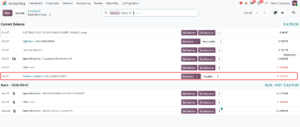
Example: a vendor bill from Gemini Furniture for $622.27 has been recorded, and the company pays it from its bank account. The bank line appears on Oct 07 as -$622.27 with the label BILL/2024/01/0001, and its row shows Reconcile 2 and Payable (Figure 8).
- Make sure the vendor bill BILL/2026/09/0001 for $622.27 is confirmed and still open.
- Import or fetch the $622.27 debit transaction from the bank.
- Open Bank Matching and find the Gemini Furniture row (Figure 8). The badge shows 2 because the partner has two open items.
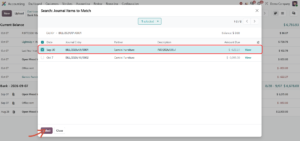
- Click Reconcile. The “Search: Journal Items to Match” window lists the open items for the partner: BILL/2026/09/0001 (-$622.27) and BILL/2026/10/0002 (-$3,095.00) (Figure 9).
- Tick the item whose amount equals the bank line, BILL/2026/09/0001. Confirm that “1 selected” is shown and the balance is $0.00, then click Select.
- The transaction is now reconciled: a green check and the matched entry BILL/2026/09/0001 replace the action buttons (Figure 10).
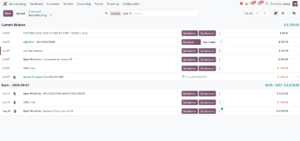
Note that the bank label (BILL/2024/01/0001) differs from the bill number (BILL/2026/09/0001), so confirm the match by partner, amount, and direction rather than by reference alone. If the bank transaction and the recorded entry agree, reconcile against the existing entry. If the amount or reference differs without explanation, investigate instead of forcing a match. If a payment was already registered for the bill, Odoo proposes that payment instead.
Handle Bank Fees and Unmatched Transactions
Not every bank transaction has an invoice or payment already recorded in Odoo. Bank charges, interest, service fees, and some adjustments may need a new counterpart entry during reconciliation.
Example: in Figure 7, the lines “Last Year Interests” ($102.78) and “Office rent” (-$850.00) have no partner and nothing to match, so only Set Partner and Set Account are offered. For each one, click Set Account and select the appropriate account (for example an interest income account for the interest and a rent expense account for the rent), then validate the entry according to the company’s accounting policy and applicable tax treatment. A bank service charge is handled the same way.
For recurring cases, reconciliation models can suggest or apply counterpart entries based on conditions such as transaction label, journal, partner, or amount. Use specific conditions to avoid classifying unrelated transactions incorrectly, and review taxes, analytic distributions, partner details, and expense accounts.
Configure Reconciliation Models
Reconciliation models complement Odoo’s default matching rules and are useful for recurring transactions such as bank fees, cash discounts, or internal transfers. In Odoo 19 and 20, official documentation describes the path as Accounting dashboard → dropdown menu on the bank journal → Models under Reconciliation; placement may vary slightly by interface.
- Manual models appear as action buttons during reconciliation.
- Automated models apply to transactions that meet configured conditions.
- Conditions can include journal, partner, amount, and transaction label.
- Counterpart items define the account and other details used to create the resulting journal item.
If multiple automated models match a transaction, the first model in the sequence is applied. Review the sequence and test rules on sample transactions before using them in a live database.
What If the Amounts Do Not Match?
Differences can result from bank fees, partial payments, cash discounts, withholding, currency conversion, or an incorrect amount in one system.
- Check the bank statement and transaction reference.
- Confirm the customer or vendor and related invoice or bill.
- Check whether the payment is partial or covers multiple invoices.
- Look for a separate fee or adjustment in the bank statement.
- Use a reconciliation option only after identifying the reason for the difference.
- If the cause is unclear, leave the transaction unmatched and ask the responsible accountant to review it.
Do not write off a difference simply to clear the queue. The selected account, tax treatment, and accounting entry should reflect the real business event.
Reconcile Internal Transfers
When money moves between two company bank accounts, the outgoing and incoming transactions should be linked through the internal-transfer accounting process. Avoid treating the transfer as revenue or an expense.
Odoo provides an Internal Transfers reconciliation model in common localizations. Depending on configuration, it is used on both sides of the transfer to move the amount through the internal transfer account. Confirm the configured accounts and ensure both transactions are recorded.
Odoo 19 vs Odoo 20
The core workflow is documented in both Odoo 19 and Odoo 20: configure a bank journal, bring transactions into Odoo, review Bank Matching, match transactions with existing accounting entries, and use reconciliation models for recurring cases. The official documentation for both versions describes the same main concepts and similar navigation. Button labels, layout, supported import options, bank-sync providers, and localization details can vary.
Common Problems and Fixes
A transaction does not match automatically
Check amount, partner, invoice or bill reference, transaction label, and whether the payment was registered. Missing or inconsistent references can prevent a suggested match.
A transaction appears twice
Check whether the statement was imported twice or the provider returned duplicates. Review date, amount, account, and transaction identifiers before deleting or reversing anything.
The bank balance does not match
Verify opening balance, date range, missing transactions, duplicate imports, and unreconciled entries.
A bank fee remains unmatched
Use the appropriate expense account and accounting treatment. For recurring fees, consider a narrowly defined reconciliation model.
Bank synchronization fails
Check whether the bank is supported, authorization is valid, and the provider reports an error. Some providers limit refresh frequency or historical data.
A transaction is missing
Check the statement and confirm whether the transaction is posted or pending. If posted, import it from a supported statement file where appropriate.
Best Practices
- Reconcile transactions regularly instead of leaving a large backlog.
- Import only the required statement period and avoid duplicate imports.
- Record invoices, bills, and payments correctly before matching bank transactions.
- Use consistent payment references to improve matching.
- Keep reconciliation models specific and review their sequence.
- Investigate unexplained differences rather than forcing a match.
- Check opening balances when implementing Odoo or starting a new statement period.
- Use a test database for training and screenshots; never expose confidential bank data.
Conclusion
Odoo 19 and Odoo 20 provide a structured way to review bank transactions, match payments and invoices, and record transactions that need additional accounting entries. A reliable workflow starts with a correctly configured bank journal and accurate transaction data, then uses Bank Matching and reconciliation models to handle routine cases efficiently.
Reconcile regularly, verify suggested matches, configure automation carefully, and investigate unexplained differences. Bank synchronization can reduce manual work where a supported provider is available, while statement imports remain a practical alternative for other banks.
Official research sources
- Odoo 19 — Transactions and importing bank transactions: https://www.odoo.com/documentation/19.0/applications/finance/accounting/bank/transactions.html
- Odoo 19 — Bank and cash accounts: https://www.odoo.com/documentation/19.0/applications/finance/accounting/bank.html
- Odoo 19 — Reconciliation models: https://www.odoo.com/documentation/19.0/applications/finance/accounting/bank/reconciliation_models.html
- Odoo 20 — Bank and cash accounts: https://www.odoo.com/documentation/20.0/applications/finance/accounting/bank.html
- Odoo 20 — Bank synchronization: https://www.odoo.com/documentation/20.0/applications/finance/accounting/bank/bank_synchronization.html
- Odoo 20 — Reconciliation models: https://www.odoo.com/documentation/20.0/applications/finance/accounting/bank/reconciliation_models.html
83 Comments