Not every employee needs full access to an ERP system. A warehouse operator may only need to scan products, while another employee may need to submit leave requests, record attendance, or view a payslip. Giving every employee broad access can make user management more complicated than necessary.Odoo Light users role: a lower-priced user type for people who only need a limited set of employee-focused features rather than the full range of business applications. It also changes how employees are counted under the Odoo Enterprise subscription. This guide explains what Light Users can do, how they compare with other user types, how to set one up, and what to check before assigning access.
What Is an Odoo Light User?
In Odoo 20, a Light User is an active user account whose Role is set to Light. Under the Odoo Enterprise Subscription Agreement, the term also covers any active employee record in the Employees app that is not linked to an active non-portal user account, even if that person never logs in. The definition applies only where your Odoo version supports it, and the Light role is new in Odoo 20.
A Light User is not a Portal User. Portal accounts are for external contacts and are not counted as Users, but an employee who is linked only to a portal account still falls under the Light User definition. A Light user who is granted access beyond the default reduced permissions is automatically upgraded to the User role, which changes the price. Always confirm the details against your own subscription.
What Can a Light User Do?
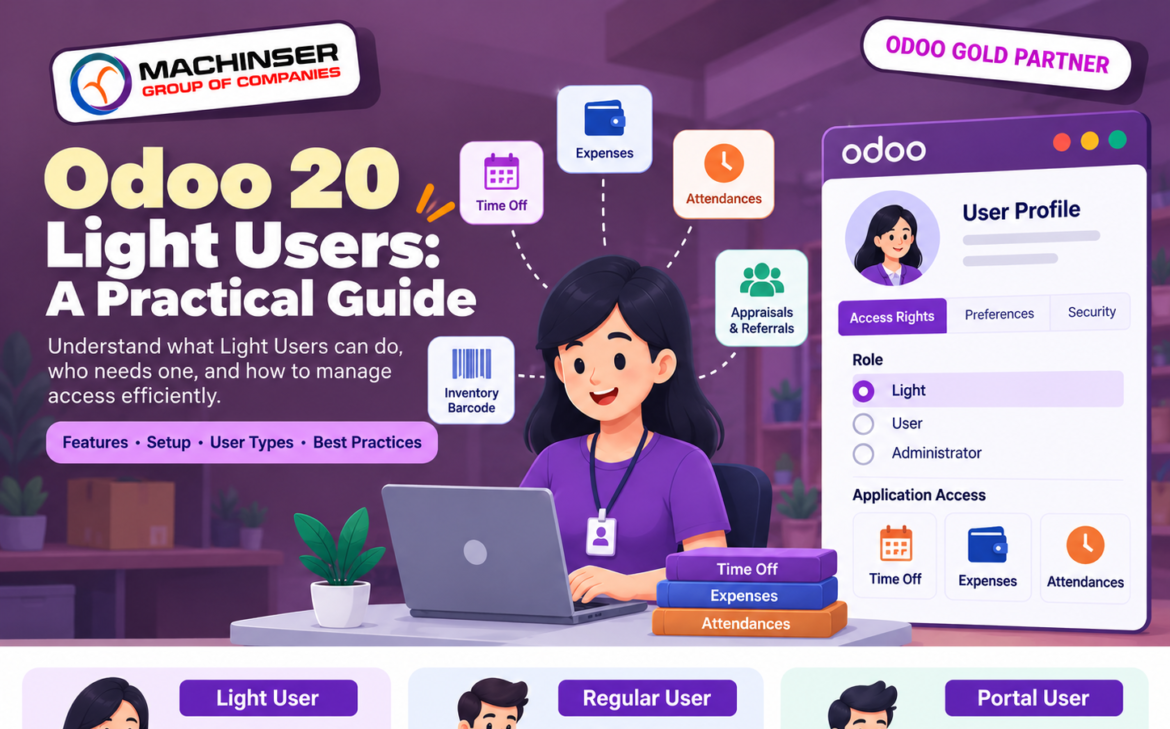
Odoo’s pricing page and documentation list the following features for Light Users. Availability also depends on the apps installed in your database.
- Time Off: request and track personal time off (My Time Off).
- Expenses: submit personal expense reports.
- Attendances: record attendance and view relevant personal records.
- Appraisals and Referrals: use My Appraisals and My Referrals.
- Planning: view their own planning (My Planning).
- Field Service: use the Field Service app.
- Inventory Barcode: work as a barcode operator without full Inventory access.
- Knowledge: read-only access to Knowledge.
- Employee features: view their own payslips, use Point of Sale, and work in the Manufacturing Shop Floor.
What Is Usually Outside the Light User Role?
Light Users are not intended to run core business operations. Odoo’s documentation lists Sales, Purchase, Projects, and Accounting as apps a Light user cannot use. A person who needs to create quotations or purchase orders, manage projects, or post accounting entries needs the regular User role.
Do not use a Light User role as a substitute for properly designed access rights. Assign only the permissions required for the employee’s job, and verify the available features in your own Odoo database.
Light User vs Regular User vs Portal User
| User type | Main purpose | Typical access | Common example |
| Light User | Limited employee tasks | Own HR tasks and front-line tools, such as Time Off, Expenses, Attendances, or barcode scanning | Employee submitting leave or scanning items |
| Regular internal user | Daily business operations | Backend apps according to assigned access rights | Accountant, sales representative, purchasing officer |
| Portal User | External access to shared records | Portal pages and records made available to that contact | Customer viewing an invoice or supplier viewing a purchase document |
| Public user | Website access without a login | Public website content and permitted website interactions | Visitor browsing the company website |
When Should a Business Use Light Users?
Light Users may be a good fit when employees need to complete a small number of defined tasks but do not need the full backend. Examples include:
- Warehouse staff who use a supported barcode workflow.
- Employees who submit leave requests or expenses.
- Field staff who use supported Field Service features.
- Production employees who use the Manufacturing Shop Floor.
- Employees who need supported self-service information rather than access to accounting, sales, or purchasing records.
For example, in a company with 40 employees, a few accountants and purchasing officers need the regular User role, while warehouse staff who only scan barcodes can be Light Users. Active employee records with no login count as Light Users too, so archive the records of people who have left. Map each job to the minimum required permissions, then confirm the applicable license category with Odoo.
How to Manage a Light User in Odoo 20
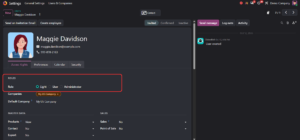
Light Users are set up on the user form, as shown in Figure 1.
- Open Settings, go to Users & Companies – Users, and open an existing user or click New. Check the Employees app first so you do not create a duplicate for a person who already has a user.
- If the user has no employee record yet, click Create employee on the user form.
- Open the Access Rights tab. In the Roles section, set Role to Light, User, or Administrator. Choose Light for limited employee tasks.
- Review the application access fields below the role, such as Sales or Point of Sale, and keep them within what the person needs. Access beyond the Light permissions upgrades the role to User automatically.
- Save the user, send the invitation email if the user has not been invited yet, and test the account with a non-administrator login.
- If the employee later needs broader access, change the role to User only when the job requires it.
How to Choose the Right Access Level
- List the tasks the employee must perform, not just the app names they might use.
- Check whether the employee needs to create or edit business documents, or only view personal information.
- Avoid granting accounting, sales, purchase, or administration access unless the role genuinely requires it.
- Test the permissions with a non-administrator account before rolling them out to a team.
- Review access whenever responsibilities change, and archive user accounts and employee records when they are no longer needed.
Licensing and Pricing: What to Check
Light User pricing is listed on Odoo’s official pricing page and varies by region and plan. Odoo has also indicated that Light User pricing may require signing the current Enterprise agreement, so confirm the price and eligibility with Odoo or your account advisor before budgeting. Do not rely on a price quoted in a blog or forum.
Remember that the Light User count can be higher than the number of Light-role logins: under the Enterprise Subscription Agreement, active employee records without an active non-portal user account are counted too. Review your employee list before upgrading. Licensing and security are also separate questions: a license category describes the terms under which a person may use Odoo, while access rights determine what that person can do in the database. Review both.
Common Mistakes to Avoid
- Treating Light User and Portal User as the same thing. A Light User is intended for limited employee workflows; a Portal User is generally an external contact with access to selected portal records.
- Assuming every employee needs the same access. Roles should match each employee’s actual responsibilities.
- Assuming all listed features are available automatically. Installed modules, permissions, and subscription terms affect availability.
- Giving extra access to solve a small issue. Use the smallest appropriate permission set and test the result.
- Using outdated pricing. Check the official pricing page and your contract for current terms.
- Forgetting employee records. Only counting Light-role logins misses active employee records that have no linked user.
Frequently Asked Questions
Is a Light User the same as a Portal User?
No. Portal Users access selected records through the portal, typically as customers or suppliers. Light Users are intended for supported, limited employee workflows.
Can a Light User use every Odoo application?
No. The role is limited to supported features and permissions. Full operational access to apps such as Sales, Purchase, Accounting, or Projects requires the regular User role.
Can a Light User later become a regular user?
Yes. An administrator can change Role from Light to User on the Access Rights tab. A Light user who is given access beyond the Light permissions is upgraded to User automatically, so check the pricing impact first.
Does every employee record count as a Light User?
Not every record, but many. An active employee record counts as a Light User when it is not linked to an active non-portal user account, which includes employees with no login and employees linked only to a portal account. Employees linked to an active User are counted through that account, and archived records are not counted. This applies where your Odoo version supports it, so check your agreement.
Where can I verify current pricing and features?
Use Odoo’s official pricing page, the Enterprise Subscription Agreement, and the Odoo 20 documentation for Users and Access rights.
Conclusion
Odoo Light Users help businesses provide selected employee-focused features without automatically giving every employee the broad access of a regular internal user. They can be useful for self-service, warehouse, field-service, and production workflows, provided the required features are supported by the database and subscription.
Before assigning the role, map the employee’s tasks, check the available permissions, test the account, and confirm the current licensing terms, including how active employee records are counted. The best setup is one that gives every employee enough access to do their job—without exposing unnecessary business information.
Official References
- Odoo Pricing and Light User definition: https://www.odoo.com/pricing
- Odoo 20 Enterprise Subscription Agreement: https://www.odoo.com/documentation/20.0/legal/terms/enterprise.html
- Odoo 20 documentation: Users: https://www.odoo.com/documentation/20.0/applications/general/users.html
- Odoo 20 documentation: Access rights: https://www.odoo.com/documentation/20.0/applications/general/users/access_rights.html