
Every accounting transaction needs to be recorded in the right place. Sales, supplier bills, bank payments, equipment purchases, taxes, and operating expenses flow into accounts that form the company’s general ledger. If those accounts are poorly structured, financial reports become harder to understand and routine accounting processes can produce confusing results.
In Odoo, the chart of accounts (COA) is the list of accounts used to record financial transactions. Each account has a code, a name, and an account type. The account type is especially important because Odoo uses it to determine how an account behaves in reports and other accounting processes.
This guide explains how the chart of accounts works in Odoo 19 and 20, how to review default accounts, create or update an account, understand common account types, and avoid configuration mistakes. Labels and options can vary with localization, installed modules, and access rights.
What is a chart of accounts?
A chart of accounts is an organized list of financial accounts a business uses in its general ledger. It groups transactions into categories that help prepare reports such as the Balance Sheet, Profit and Loss, and Trial Balance.
A retailer, for example, might have separate accounts for bank balances, customer receivables, inventory, supplier payables, sales revenue, cost of goods sold, salaries, rent, and utilities. These are individual accounts within one structured ledger.
Odoo uses double-entry bookkeeping. Each posted transaction creates balanced debit and credit entries across relevant accounts. Choosing the correct account and account type helps ensure transactions appear in the right reports. To see the chart, go to Accounting > Configuration > Chart of Accounts
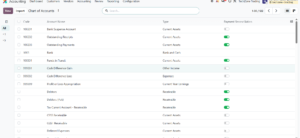
The list shows each account’s Code, Account Name, Type and a Payment Reconciliation toggle, with New and Import buttons above it and a side panel that groups accounts by code. In the demo database the chart has 122 accounts, shown 80 per page, and some default accounts, such as Debtors, have no code.
Fiscal localization and the default chart
When a database or company is created, the selected country determines the fiscal localization package installed by default. This package provides a standard chart of accounts and may configure taxes, fiscal positions, and legal reporting features for that country.
Before making changes, confirm that the company has the correct fiscal localization. Odoo warns that fiscal localization cannot be changed after a journal entry has been posted, so validate it early.
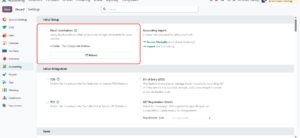
- Open Accounting > Configuration > Settings and, under Initial Setup, locate Fiscal Localization (Figure 2).
- Confirm that the company country and localization package (India – Non-Corporate Entities in the screenshot) match the company’s requirements.
- Review the default chart before adding accounts.
- Compare the structure with the company’s approved accounting plan.
A standard chart is a starting point, not a substitute for accounting review. Country-specific reporting requirements and company policy should guide changes. The same Settings page offers Accounting import options (Review Manually for end-of-year balances, Import for full history) and, with the Indian localization, an Indian Integration section for TDS, TCS, Bill of Entry and GST registration. Avoid clicking Reload on a live database unless you understand its effect.
Open and review the Chart of Accounts
- Open the Accounting app.
- Go to Configuration > Chart of Accounts.
- Review account codes, names, and types.
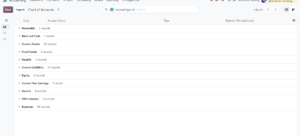
- Group accounts by Account Type from the search options (Figure 3), or use the side panel to browse by code.
- Open an account to inspect its configuration.
Review the existing structure before creating accounts. Some standard accounts are defaults on products, product categories, contacts, or accounting settings. Deleting them or changing their types can disrupt workflows. Odoo recommends renaming or recoding a suitable standard account rather than deleting it when adapting the chart.
Grouped by Account Type, the demo chart shows Receivable (3 accounts), Bank and Cash (1), Current Assets (18), Fixed Assets (8), Payable (3), Current Liabilities (31), Equity (2), Current Year Earnings (1), Income (8), Other Income (3) and Expenses (44), 122 accounts in total (Figure 3).
Understanding account types
The Type field is one of the most important account settings. Odoo uses it to describe an account’s purpose, place balances in country-specific financial reports, set fiscal-year closing rules, and generate opening entries.
| Report/category | Common account types | Typical use |
| Balance Sheet- Assets | Receivable; Bank and Cash; Current Assets; Non-current Assets; Prepayments; Fixed Assets | Customer balances due, cash, short-term assets, long-term assets, advance payments, and tangible assets. |
| Balance Sheet – Liabilities | Payable; Credit Card; Current Liabilities; Non-current Liabilities | Supplier balances, credit-card balances, short-term obligations, and long-term debt. |
| Balance Sheet – Equity | Equity; Current Year Earnings | Owner/shareholder interest and current-year profit or loss. |
| Profit and Loss – Income | Income; Other Income | Main business revenue and secondary or non-operating income. |
| Profit and Loss – Expenses | Expenses; Depreciation; Cost of Revenue | Operating costs, depreciation, and direct costs of goods or services. |
| Other | Off-Balance Sheet | Transactions not presented on the Balance Sheet or Profit and Loss in the standard way. |
This is a practical summary of common types, not a replacement for the full list in your database. Available types and report behavior can depend on localization and version.
Examples of choosing the right type
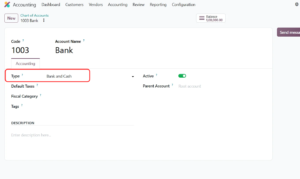
- Bank account: Bank and Cash (account 1003 Bank in Figure 4).
- Customer receivables: Receivable.
- Supplier payables: Payable.
- Office rent: an appropriate Expenses type.
- Product sales: Income.
- Equipment used over several years: an appropriate Fixed Assets or Non-current Assets type, based on its nature and local accounting treatment.
Figure 4 shows account 1003 Bank with its Type set to Bank and Cash. The form also shows Default Taxes, Fiscal Category (with the Indian localization), Tags, a Description, an Active toggle, a Parent Account (Root account) and a Balance button.
Create a new account
Create a new account only when the existing chart does not contain a suitable account for the purpose. The standard workflow is:
- Go to Accounting > Configuration > Chart of Accounts.
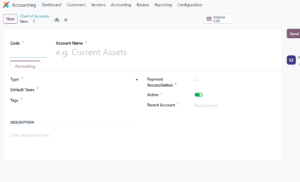
- Click New (Figure 5).
- Enter a unique account Code.
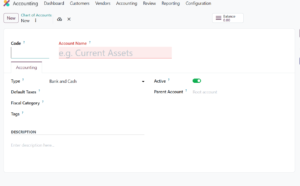
- Enter a clear Account Name. It is required, and Odoo highlights it in red while it is empty (Figure 6).
- Choose the correct Type. The other fields change with the type (Figure 6).
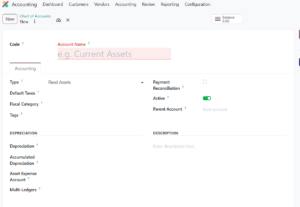
- Review relevant additional fields such as Default Taxes, Tags, Payment Reconciliation, Parent Account, and any section the type adds, such as Depreciation for Fixed Assets (Figure 7).
- Click the save icon at the top of the form, then test the account in the intended workflow.
Account codes must be unique within the chart. Use a consistent numbering structure that makes related accounts easy to identify. Code ranges are a business or localization convention, not universal values to copy blindly.
Important account fields
Code and Account Name
The code identifies the account within the chart, while the name explains its purpose. Use specific, consistent names; “Office Supplies Expense” is more useful than “General.” Account Name is required (Figure 6).
Default Taxes
An account can have default taxes applied when selected for a product sale or purchase. Configure these carefully and test the relevant transaction. Tax requirements depend on localization and the transaction itself.
Tags, Account Groups and Parent Account
Some financial reports use account tags to decide which accounts contribute to report lines. Odoo 19 documentation also describes account groups, which organize related accounts into a hierarchy and can improve report readability, including the Trial Balance. The form in the screenshots shows a Parent Account field instead (default: Root account), and the list’s side panel groups accounts by code (Figure 1). Check which of these your version uses.
Currency
A currency set on an account restricts journal items targeting that account to the selected currency and can support unrealized gain/loss adjustments. Without a currency set, journal items in different currencies may target the account, subject to company currency configuration. This field is not shown in the screenshots and may depend on your configuration.
Payment Reconciliation
In the screenshots this setting is called Payment Reconciliation. It is a checkbox on the account form and a toggle column in the list, where it is enabled for accounts such as Outstanding Receipts, Outstanding Payments, Funds in Transit and the Receivable accounts (Figure 1). It is not shown for a Bank and Cash account (Figure 6) but appears for types such as Fixed Assets (Figure 7). Odoo 19 documentation calls the same setting Allow Reconciliation. Enable it where matching individual debit and credit entries is part of the workflow, such as receivable, payable, or certain clearing accounts. To know more about bank reconciliation check our blog Odoo 19 & 20 Bank Reconciliation: A Step-by-Step Guide.
Fixed asset and depreciation fields
When the Type is Fixed Assets, the form adds a Depreciation section with Depreciation, Accumulated Depreciation, Asset Expense Account and Multi-Ledgers fields (Figure 7). Odoo 19 documentation also describes asset automation for Fixed Assets and Non-current Assets accounts (No, Create in draft, or Create and validate), which is not visible in the screenshots. Test these settings before enabling them.
.
Update or retire an existing account safely
Before changing an account, check whether it has been used in posted transactions or referenced by other accounting settings. Changing a name or code may be appropriate, but changing an account type can affect reporting and year-end behavior.
- Review the account’s current type, usage, and configuration.
- Confirm the reason for the change and whether an existing account can be reused.
- Check references in products, product categories, contacts, journals, and accounting settings.
- Test changes in a duplicate or test database where possible.
- Obtain approval for changes that affect financial reporting.
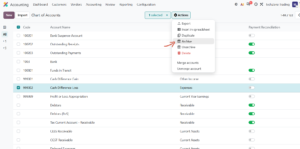
Accounts with posted transactions generally cannot simply be deleted. If an account is no longer needed, archive it: select it in the Chart of Accounts list, then choose Actions > Archive (Figure 8), in line with accounting policy. This makes it unavailable for new use while preserving historical records. Odoo 19 documentation describes a Deprecated checkbox for the same purpose, so use whichever option your version provides. The Actions menu also offers Export, Insert in spreadsheet, Duplicate, Unarchive, Delete, Merge accounts and Unmerge account.
Import or adapt an existing chart
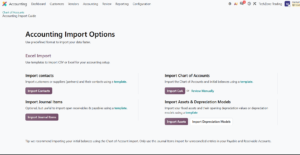
Businesses moving from another accounting system may need to adapt Odoo’s standard chart or import legacy accounts. First match legacy accounts to equivalent standard accounts. If an equivalent exists, update its name or code instead of creating a duplicate. Create or import a new account only when no suitable equivalent exists. The Accounting Import Options page (Figure 9) is reached from the Import options in Settings (Figure 2) or the Import button on the Chart of Accounts list (Figure 1).
- Document or export the current chart before making large changes.
- Map each legacy account to an existing Odoo account or mark it as genuinely new.
- Check account codes for duplicates.
- Map fields such as code, account name, and type to Odoo’s corresponding fields.
- Test the import and inspect the resulting chart.
- Review account mapping and opening balances before go-live.
The chart of accounts should be established before dependent accounting data is migrated. A full transition may also involve open invoices and bills, opening inventory, bank transactions, and the opening trial balance.
The page offers Excel or CSV imports with downloadable templates: Import contacts, Import Chart of Accounts (Import CoA, or Review Manually), Import Journal Items, and Import Assets & Depreciation Models. Its tip recommends importing initial balances with the Chart of Accounts import and using the Journal Items import only for unreconciled entries in Payable and Receivable accounts.
Account groups and reporting
Account groups organize related accounts and can improve the readability of the Trial Balance. Odoo can assign groups based on code prefixes. For example, code 131200 may fall under a group represented by prefix 131000, depending on the group structure. The version shown in the screenshots also has a Parent Account field and a side panel that groups accounts by code, so check how your version organizes the hierarchy.
To inspect the result, open Accounting > Reporting > Trial Balance and use available options to display hierarchy and subtotals. If a group must be configured manually, advanced configuration may require developer mode and the Account Groups menu.
Common mistakes and troubleshooting
Duplicate accounts: Search the chart first. Reuse or rename a suitable standard account where appropriate.
Wrong account type: Check the intended report placement and behavior, including closing and opening entries. Ask an accountant if unsure.
Changing localization too late: Validate the country and fiscal localization before posting journal entries.
Deleting standard accounts: Some are referenced by products, contacts, categories, or settings. Rename or recode a suitable account instead of deleting it.
Duplicate account codes: Check uniqueness before manual creation or import.
Changing types on accounts already in use: Assess the effect on reports and dependent workflows; test first.
Ignoring tags and groups: Some report lines rely on tags, while groups improve hierarchy and subtotals. Review these when applicable.
Not testing imports: Run a small test import and compare the chart and Trial Balance before migrating all records.
Best practices
- Start with the correct fiscal localization.
- Keep the chart as simple as practical while meeting statutory and management reporting needs.
- Use a consistent code structure and descriptive names.
- Assign types based on accounting purpose, not just the account label.
- Avoid duplicates when a suitable standard account exists.
- Review taxes, tags, reconciliation, currency, and asset automation when relevant.
- Test changes and imports in a non-production database.
- Restrict configuration changes to authorized accounting users.
- Document major changes and obtain accountant approval.
- Validate the Trial Balance and financial reports after setup or migration.
Frequently asked questions
Where is the Chart of Accounts in Odoo?
In the standard interface, open Accounting > Configuration > Chart of Accounts. Labels can vary by configuration and localization.
What fields are required to create an account?
Odoo documentation lists Code, Account Name, and Type as the minimum required fields. Additional fields may be relevant for the selected account.
Why is account type important?
It informs account behavior, report placement, fiscal-year closing rules, and opening entries.
Can I delete an account already used?
An account with recorded transactions generally cannot simply be deleted. If no longer needed, archive it (or deprecate it, depending on your version) according to accounting policy.
Can fiscal localization be changed after posting?
Odoo documentation warns that localization cannot be modified once a journal entry has been posted. Validate it before posting.
Do I need to create every account manually?
No. Odoo installs a standard chart based on the selected localization. Review and adapt it; create or import accounts only where needed.
Are account types identical in every country?
Available types and reporting behavior can vary by localization and version. Check your own database.
How do account groups help?
They organize related accounts and can make reports such as the Trial Balance easier to read.
Conclusion
A well-configured chart of accounts gives Odoo a clear structure for recording transactions and producing useful financial reports. Start with the correct fiscal localization, review standard accounts, choose types carefully, and create new accounts only when they serve a clear purpose. Configure taxes, tags, groups, currency, reconciliation, and asset automation according to each account’s role.
Before going live, test the chart in a safe environment, review the Trial Balance and financial reports, and have the final structure checked by the responsible accountant. This helps reduce duplicates, preserve accounting history, and make future reporting easier.
Sources and further reading
Odoo 19 – Chart of Accounts: https://www.odoo.com/documentation/19.0/applications/finance/accounting/get_started/chart_of_accounts.html
Odoo 19 – Accounting setup: https://www.odoo.com/documentation/19.0/applications/finance/accounting/getting_started/initial_configuration/setup.html
Odoo 20 – Chart of Accounts: https://www.odoo.com/documentation/20.0/applications/finance/accounting/get_started/chart_of_accounts.html
Odoo 20 – Accounting and Invoicing: https://www.odoo.com/documentation/20.0/applications/finance/accounting.html