
Knowing how much money customers still owe your business and how much your business owes suppliers is essential for day-to-day financial control. Invoices can remain unpaid for weeks or months, and without a clear overview, finance teams may miss overdue balances, follow up late, or plan supplier payments without understanding their obligations.
Odoo’s Aged Receivable and Aged Payable reports turn open accounting balances into a practical follow-up list. Aged Receivable focuses on amounts customers still need to pay. Aged Payable focuses on outstanding amounts owed to suppliers, including relevant bills, credit notes, and overpayments. Both reports group open balances by age.
What are aged receivable and aged payable reports?
Aged Receivable
Accounts receivable represents money customers owe the business for goods or services already invoiced. The Aged Receivable report lists sales invoices or other open receivable items that have not been fully settled as of the report date. It helps the finance team understand which customers have outstanding balances and how old those balances are.
- Identify overdue customer invoices and prioritize follow-up.
- Review outstanding balances by customer and invoice.
- Estimate when expected receipts may become available.
- Support credit-control discussions and month-end reviews.
Aged Payable
Accounts payable represents money the business owes suppliers. The Aged Payable report helps finance teams review open vendor bills and related payable items, including credit notes and overpayments where applicable. It shows how long amounts have remained outstanding and supports payment planning.
- Find supplier bills that are due or overdue.
- Plan payment runs and manage short-term cash requirements.
- Spot old balances that may need a supplier statement check.
- Review credits or overpayments that may need to be applied or investigated.
Before you run the reports
For meaningful results, check the following before opening a report:
- Customer invoices and vendor bills have been created and posted when appropriate.
- Payments and credit notes have been recorded and reconciled against the correct open items.
- Invoice dates, due dates, partners, and receivable/payable accounts are correct.
- You are working in the intended company if the database contains multiple companies.
- Your user account has the required Accounting access rights.
The report is only as reliable as the accounting entries behind it. A payment entered but not matched to the relevant invoice can leave an item appearing open, depending on how it was recorded. Investigate the underlying journal items before changing accounting data simply to make a report balance.
How to open the Aged Receivable report
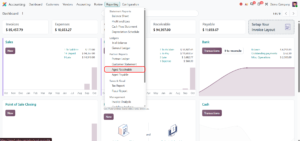
In standard Odoo Accounting, open the Accounting app, click Reporting, and under Partner Reports select Aged Receivable (Figure 1). The Partner Reports group also contains Partner Ledger, Customer Statement and Aged Payable.
- Open the Accounting app.
- Choose Reporting.
- Under Partner Reports, select Aged Receivable (Figure 1).
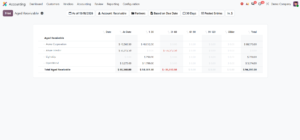
- Set the report date and any available filters (Figure 2).
- Review customer totals, then expand a customer to inspect individual open items.
How to open the Aged Payable report
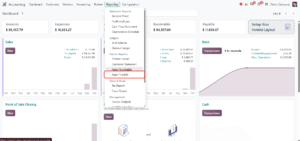
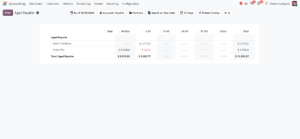
To review supplier balances, open Accounting, click Reporting, and under Partner Reports select Aged Payable (Figure 3). Set the report date and review supplier totals (Figure 4). The screenshot shows two suppliers, Gemini Furniture and Ready Mat, and a Total Aged Payable of $11,693.67, which matches the Payable card on the dashboard. Expand a supplier row to inspect the bills or other open items that contribute to the balance.
- Open the Accounting app.
- Choose Reporting and, under Partner Reports, select Aged Payable (Figure 3).
- Review supplier-level totals.
- Expand a supplier to investigate individual outstanding items.
Understanding the aging columns
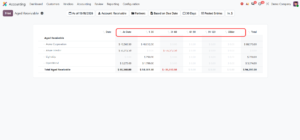
An aging report divides open balances into time buckets. In the screenshots the columns are At Date (balances not yet overdue on the report date), 1-30, 31-60, 61-90, 91-120, Older, and a Total column (Figure 5).
For example, if an invoice’s due date is 20 days before the report date, its open amount may appear in the 1–30 days overdue bucket when aging is based on due date. If it is 75 days overdue, it may appear in the 61–90 days bucket. The report date matters: the same invoice can appear in a different bucket when you run the report for another date.
Negative amounts, shown in red, are credits such as credit notes. In Figure 5, Azure Interior has $36,512.50 in At Date and -$36,512.50 in 31-60, so the two offset each other and its net total is $0.00.
Worked example: reading Aged Receivable
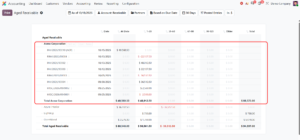
Using the demo data, run Aged Receivable as of 10/18/2026, expand Acme Corporation (Figure 6) and open its items (Figure 7). Its open items are:
| Item | Due date | Amount | Column on 10/18/2026 |
| INV/2026/00004 | 09/30/2026 | $36,512.50 | 1-30 (18 days overdue) |
| RINV/2026/00003 (credit note) | 10/05/2026 | -$36,512.50 | 1-30 (13 days overdue) |
| INV/2026/00003 | 10/12/2026 | $22,137.50 | 1-30 (6 days overdue) |
| INV/2026/00002 | 10/13/2026 | $48,012.50 | 1-30 (5 days overdue) |
| RINV/2026/00004 (credit note) | 10/13/2026 | -$22,137.50 | 1-30 (5 days overdue) |
| INV/2026/00010 (AGR) | 11/14/2026 | $40,560.50 | At Date (not yet due) |
| MISC/2026/09/0001 | none shown | -$2,500.00 | 1-30 |
| MISC/2026/09/0002 | none shown | $2,500.00 | 1-30 |
Acme Corporation’s total open balance is $88,573.00: $40,560.50 not yet due (At Date) and $48,012.50 in 1-30. The credit notes match INV/2026/00004 and INV/2026/00003 in amount, and the two MISC entries cancel each other, so the net overdue amount is INV/2026/00002 for $48,012.50, five days overdue. Because these offsetting items still appear as separate open items, they look unreconciled; matching them would clear them from the report. The finance team would follow up on the overdue invoice and check that the credit notes are applied as intended.
These are demo-database figures. Actual bucket placement depends on the report date, due dates, partial payments, reconciliation status, and the aging options selected (such as Based on Due Date and 30 Days).
Worked example: reading Aged Payable
Run Aged Payable as of 10/18/2026 (Figure 4). Two suppliers have open balances:
| Supplier | Amount by column | Total | Suggested action |
| Gemini Furniture | $3,717.27 in 1-30 | $3,717.27 | Confirm overdue status and schedule payment |
| Ready Mat | $8,010.90 At Date; -$34.50 in 1-30 | $7,976.40 | Include the not-yet-due amount in the payment forecast and review the -$34.50 credit |
| Total Aged Payable | $8,010.90 At Date; $3,682.77 in 1-30 | $11,693.67 | Use for payment-run planning |
The report helps the finance team distinguish amounts that are not yet due (At Date) from bills already overdue (1-30). The -$34.50 for Ready Mat is a credit, for example a credit note or overpayment, that reduces the supplier’s net balance and may need to be applied. The oldest item should not automatically be paid first in every situation: contractual terms, supplier criticality, discounts, cash availability, and disputes may also affect the decision.
Drill down, investigate, and export
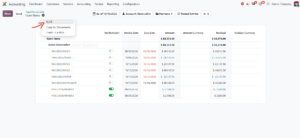
Summary totals are a starting point. When a balance looks unusual, click the customer or supplier row to expand it (Figure 6). The expanded row lists the individual invoices (INV), credit notes (RINV) and journal entries (MISC) with their dates and amounts, and shows Partner and Open Items buttons beside the name. Open Items opens a detail view with Invoice Date, Due Date, Amount and Residual columns and a No Reminder toggle for each item (Figure 7). Available actions depend on the report and access rights.
- Click the partner row to expand it and see the underlying open items (Figure 6).
- Use Open Items to compare each item’s invoice date, due date, amount, and residual, and open the invoice or bill to verify its status.
- Review payment records and reconciliation if an item should already be settled.
- Click Print for a printable version of the report, or use the gear icon next to the report title and select XLSX (Figure 7). The same menu offers Copy to Documents and Insert in article.
- If the report date is in the past, confirm that the historical position is what you intended to review.
Odoo 19 vs Odoo 20: what should users know?
The official Odoo 19 documentation lists Aged Receivable and Aged Payable among standard accounting reports. The current Odoo documentation also lists both reports and describes the same core purposes. This supports treating them as established reporting features in both versions, but it does not prove that every screen, label, filter, or layout is identical.
| Area | What to expect | What to verify |
| Core purpose | Receivables show customer amounts awaiting payment; payables show amounts owed to suppliers. | Confirm the correct report is selected. |
| Navigation | Both are available from Accounting reporting in standard documentation. | Menu grouping and labels may vary by edition or configuration. |
| Aging columns | Open balances are grouped by age. | Check exact bucket labels and date basis in your instance. |
| Drill-down and export | Accounting reports support detail review and export options. | Check which controls are visible in your version. |
| Customization | Localization, installed modules, and report customization can change the interface. | Separate standard features from custom additions. |
Common problems and troubleshooting
A paid invoice still appears outstanding: Open the invoice and review payment and reconciliation status. Confirm the payment was posted and matched to the correct receivable entry.
The report total differs from an invoice list: Compare report date, company, filters, posted/draft options, credit notes, partial payments, and reconciliation status. Make sure both views cover the same accounting scope.
An invoice appears in an unexpected aging bucket: Check the report date, invoice due date, and available aging-date options. Confirm which date basis is selected.
A customer or supplier is missing: Check whether open balances exist at the selected date, whether entries are posted, and whether company or journal filters exclude them.
The report menu is not visible: Check access rights and installed accounting features. Ask an Odoo administrator to confirm the required permissions.
Old balances remain after a payment: Review payment status, bank reconciliation where relevant, and matching of payment entries to the invoice or bill. Do not manually alter journal entries without understanding the accounting impact.
Best practices for finance teams
- Review Aged Receivable weekly and assign follow-up responsibility for overdue customers.
- Review Aged Payable before each payment run and forecast upcoming cash requirements.
- Investigate old or disputed balances instead of relying only on totals.
- Record payments and credit notes promptly and reconcile them to the correct items.
- Agree on an escalation process for invoices overdue by 30, 60, or 90 days.
- Use consistent report dates when comparing periods.
- Anonymize sensitive partner information before sharing screenshots or exports externally.
Frequently asked questions
What is the difference between Aged Receivable and Aged Payable in Odoo?
Aged Receivable tracks open amounts customers owe your business. Aged Payable tracks open amounts your business owes suppliers.
Can I see which customer invoices are overdue?
Yes. Run Aged Receivable, choose the report date, and expand customer rows to review open items and aging buckets.
Can Aged Payable include credit notes or overpayments?
Odoo documentation describes Aged Payable as showing individual bills, credit notes, and overpayments owed by the business and how long they have remained unpaid. The presentation depends on entries and report options.
Can I export an aged report?
Odoo reporting documentation describes PDF and XLSX export options. Use the export controls available in your database.
Why does the report change when I select another date?
The report shows open balances as of a selected date. Changing that date can change which items are open and how old they are.
Are Odoo 19 and Odoo 20 reports exactly the same?
The core purpose is the same in the official documentation, but menu placement, labels, filters, and layout should be checked in the exact version and configuration.
Does an aged report replace bank reconciliation?
No. An aged report summarizes outstanding accounting items. Bank reconciliation matches bank transactions to accounting records; both support reliable financial information.
Conclusion
Aged Receivable and Aged Payable reports provide a practical view of open customer and supplier balances in Odoo. Used consistently, they help finance teams identify overdue invoices, investigate old items, plan supplier payments, and make better-informed cash-flow decisions. A useful routine is simple: run the report for a clear date, review the aging buckets, drill down into unusual balances, and follow up on the actions identified.
The screenshots in this guide were captured in a demo database with US dollar demo data, so your screens, labels, and filters may look different. Verify menu labels, filters, aging columns, and export options in your own Odoo version, and anonymize real records before sharing screenshots.
Reference
Odoo 19 Documentation — Reporting: https://www.odoo.com/documentation/19.0/applications/finance/accounting/reporting.html
Odoo current documentation — Reporting: https://www.odoo.com/documentation/master/applications/finance/accounting/reporting.html