

Approval processes are essential for controlling purchases, expenses, payments, asset requests, and other internal business decisions. However, when approvals depend on emails, spreadsheets, or verbal follow-ups, requests can easily be delayed or overlooked.
The Approvals module in Odoo 19 provides a centralized system where businesses can create approval types, define approvers, submit requests, and track every decision from one place.
In this guide, we will configure an approval workflow, submit a request, review it as an approver, and demonstrate how an approved purchase-related request can progress to an RFQ.
Why Use Approval Workflows in Odoo 19?
A structured approval process helps businesses:
- Reduce manual follow-ups.
- Define clear authorization responsibilities.
- Maintain visibility into pending requests.
- Apply consistent approval policies.
- Keep approval history within Odoo.
- Connect approved requests with related business processes such as purchasing.
For organizations with multiple departments or management levels, these controls can help ensure that important decisions are reviewed by the right people before further action is taken.
1. Configure an Approval Category
Before employees can submit requests, the required Approval Categories or Approval Types must be configured.
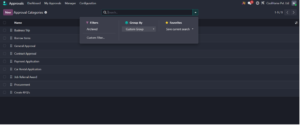
Navigate to the Approvals application and open the Approval Categories configuration.
Odoo displays the existing approval categories, and users with the appropriate permissions can select New to create another one.
The Filters, Group By, and Favorites options can also be used to organize approval categories when a database contains several workflows.
2. Create an Approval Type
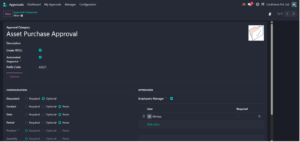
When creating an approval type, enter a descriptive Approval Type Name that employees can easily understand.
For example:
Asset Purchase Approval
A clear description can also explain when employees should use the workflow and what information they are expected to provide.
Important Configuration Options
Automated Sequence
Enabling this option lets Odoo generate a unique reference for approval requests using the configured code.
For example:
ASSET-0001
This is particularly useful when requests need to be tracked or referenced later.
Employee’s Manager
Businesses can determine whether the employee’s manager should participate in the approval process.
Depending on the configuration, the manager can be:
- Not included in the workflow.
- Added as an approver.
- Added as a required approver.
Making the manager a required approver can be useful for requests involving departmental budgets or employee-related purchases.
Approvers Sequence
Enable this option when approvals must occur in a defined order.
For example:
Employee → Department Manager → Finance Manager
Sequential approval is useful when one level of authorization must be completed before the request reaches the next decision-maker.
Fields
Only enable information that is relevant to the approval.
Depending on the use case, this could include:
- منتجات
- Quantity
- Amount
- Date
- Contact
- Location
- Reference
- Description
Best practice: Avoid adding unnecessary fields. A shorter, clearly structured request form is easier for employees to complete and easier for managers to review.
After completing the configuration, save the approval category.
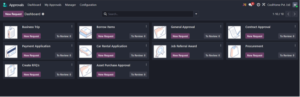
3. Submit an Approval Request
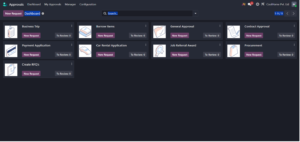
Employees can now open the Approvals dashboard and select the appropriate approval type.
For an asset purchase request, the employee could provide:
- Product or equipment required.
- Requested quantity.
- Business justification.
- Relevant date.
- Supporting description or documentation.
After entering the required information, click Submit.
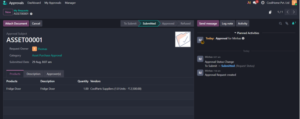
The request moves from To Submit to Submitted.
Odoo’s Chatter helps maintain a history of the request, while planned activities can alert the responsible approver that action is required.
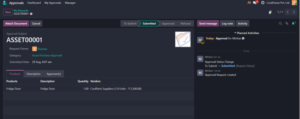
4. Review the Request as an Approver
When the assigned approver opens the Approvals application, requests requiring attention appear under To Review.
This provides approvers with a centralized view of requests awaiting their decision instead of requiring them to search through emails or messages.
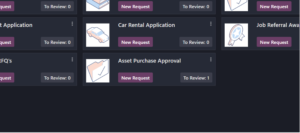
The approver can open the request and verify details such as:
- Request owner.
- منتجات
- Quantity
- Business justification.
- Supporting information.
- Other approvers involved.
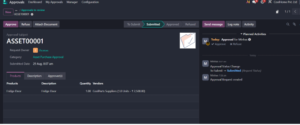
After reviewing the information, the approver can Approve or Refuse the request according to the organization’s approval policy.
The decision is recorded against the request, improving traceability.
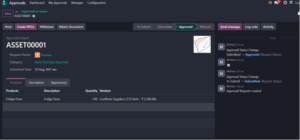
5. Create an RFQ From an Approved Request
One major advantage of using an integrated ERP workflow is that approval does not have to be the end of the process.
For purchase-related approvals, an authorized user can create a Request for Quotation (RFQ) from the approved request when the workflow and access rights are properly configured.
Click Create RFQs after the necessary approvals are completed.
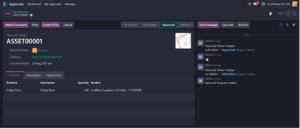
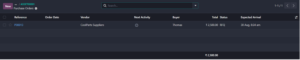
Odoo then creates the related purchasing document, which can continue through the normal Purchase workflow.
The associated RFQ or purchase document can also be accessed using the Purchase Orders smart button, helping users maintain traceability between the original request and subsequent procurement activity.
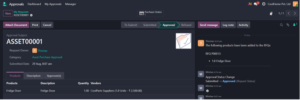
Important: For purchase-related workflows, ensure that products, vendors, user permissions, and the Purchase application are configured correctly before testing RFQ generation.
Conclusion
The Odoo 19 Approvals module provides businesses with a structured way to manage internal authorization processes without relying on scattered emails, spreadsheets, or paper forms.
By configuring clear approval categories, assigning the appropriate approvers, using sequential approvals when necessary, and connecting approved requests with processes such as purchasing, organizations can create approval workflows that are both controlled and efficient.
The key to maximizing productivity is not simply adding more approval levels. It is designing a workflow where the right information reaches the right approver at the right stage of the process.




2 Comments