

Managing customer payments efficiently is an important part of running an online store. Customers need convenient payment options at checkout, while businesses need a reliable way to monitor payment status, transaction history, and customer payment information.
With Odoo 19, payment management is integrated with the Website and eCommerce applications. Businesses can configure payment providers, control available payment methods, process test transactions, and review payment records directly from the Odoo backend.
In this tutorial, we will configure the payment system, review payment providers and methods, test a payment through the eCommerce website, and then examine the resulting payment token and transaction from the backend.
Why Manage Payments Directly in Odoo?
A centralized payment workflow can help businesses:
- Provide customers with convenient payment options.
- Connect online payments with sales orders.
- Monitor successful and failed transactions.
- Maintain payment records inside Odoo.
- Allow returning customers to reuse saved payment details.
- Track the relationship between payments and sales documents.
- Test the checkout process before moving to a live payment environment.
Instead of treating payment processing as a completely separate activity, Odoo connects the customer-facing checkout with the corresponding backend transaction records.
- Open the Payment Configuration
Payment-related configuration can be accessed from the Website or Accounting application.
Navigate to:
Website/Accounting → Configuration
Depending on the installed applications and configuration, the eCommerce section provides access to payment-related menus such as:
- Payment Providers
- Payment Methods
- Payment Tokens
- Payment Transactions
These menus provide access to the different stages of payment management, from configuring how customers pay to reviewing completed transactions.
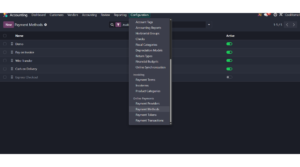
The screenshot should clearly show the payment configuration entries so readers can understand where the payment settings are located.
- Review the Payment Providers
A Payment Provider connects Odoo with a payment service or defines an alternative way for customers to complete their payment.
Navigate to:
Website → Configuration → Payment Providers
Odoo displays the available providers in a Kanban-style interface.
Depending on the database and installed modules, providers can include options such as:
- Stripe
- PayPal
- Adyen
- Razorpay
- Mollie
- Authorize.net
- Amazon Payment Services
- Cash on Delivery
- Wire Transfer
- Other regional providers
The exact providers available can depend on the applications installed and the database configuration.
Some providers can be activated directly, while others require additional installation or credentials from the external payment service.
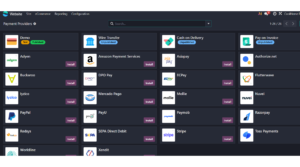
Make sure the screenshot includes the provider cards and the Activate or configuration options where visible.
- Configure a Payment Provider
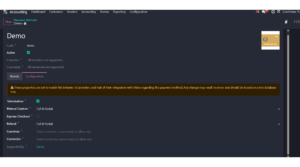
For demonstration purposes, we can use Odoo’s Demo payment provider so that the complete checkout process can be tested without connecting a real payment account.
Open:
Website → Configuration → Payment Providers
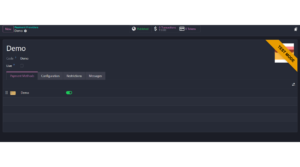
Select the Demo provider.
Review the provider configuration.
The provider form allows you to control important information such as:
- Provider name
- Availability
- Payment methods
- Supported countries
- Supported currencies
- Test or production environment
- Provider-specific configuration
For a real business deployment, the required credentials would need to be entered according to the selected payment service.
Payment providers determine the services through which payments can be processed, while Payment Methods represent the actual payment options presented to customers.
Navigate to:
Website → Configuration → Payment Methods
The list displays the payment methods available from the configured providers.
Depending on the provider, customers may be offered options such as:
- Card payments
- Visa
- Mastercard
- Maestro
- Apple Pay
- Google Pay
The available methods depend on the payment provider and its configuration.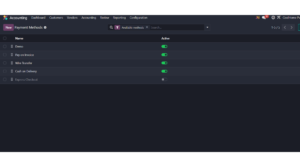
If your database initially displays no payment methods, that is also useful to demonstrate because it shows that payment methods become available based on provider configuration.
- Configure the eCommerce Payment Settings
Another convenient way to access payment configuration is through the eCommerce settings.
Navigate to:
Website → Configuration → Settings
Locate the eCommerce section.
The payment configuration area provides quick access to payment-provider setup.
Depending on the database, you may see options for activating a provider or finding additional payment providers.
- Test the Customer Checkout
Now that the payment provider is available, let’s test the customer-facing checkout.
Open the eCommerce website and select a product.
Click:
Add to Cart
Then proceed to checkout.
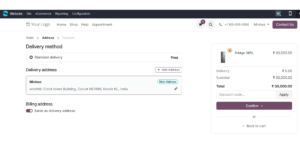
The customer is first asked to provide or confirm the required address information.
Depending on the store configuration, the checkout can include:
- Delivery address
- Billing address
- Delivery method
- Order details
After confirming the required information, continue to the payment step.
- Select a Payment Method
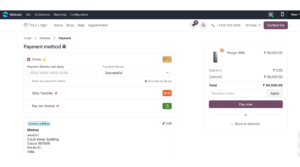
At the payment stage, Odoo displays the payment options available for the order.
With the Demo provider enabled, a test payment option can be used to simulate the transaction.
The customer can also see an option similar to:
Save my payment details
When enabled, Odoo can create a payment token that can be used for future transactions, depending on the provider and payment method.
- Complete the Test Payment
For the demonstration, select the successful payment scenario provided by the Demo provider.
Then click:
Pay now
Odoo processes the simulated payment and displays the resulting payment status.
A successful payment should show the transaction as completed and provide information associated with the order.
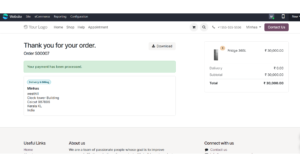
This demonstrates the customer-facing portion of the payment workflow.
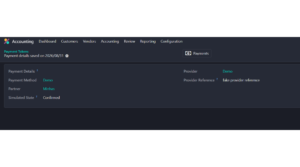
- Review the Payment Token
If Save my payment details was enabled during checkout, Odoo can create a payment token for the customer.
Payment tokens can be reviewed from:
Website → Configuration → Payment Tokens
Open the token created during the test transaction.
The record can contain information such as:
- Payment method
- Customer
- Payment details reference
- Provider
- Provider reference
- شركة
- Token status
A Payments smart button may also provide access to transactions associated with the token.
Payment tokens can be particularly useful for returning customers because they can support future payments without requiring the customer to enter the same payment information again, subject to the payment provider’s capabilities.
- Examine the Payment Transaction
Every processed payment generates a corresponding Payment Transaction record.
Navigate to:
Website → Configuration → Payment Transactions
Open the transaction generated by the test payment.
The transaction record provides detailed information about the payment, including:
- Reference
- Amount
- Payment method
- Payment provider
- Customer
- Provider reference
- Payment token, when applicable
- Transaction date
- Last state change
- شركة
Odoo also records the transaction’s current status.
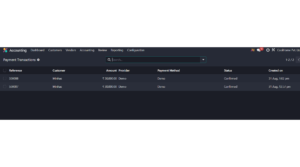
- Understand Payment Transaction Status
Payment transactions can move through different stages depending on what happens during processing.
The transaction status bar can include states such as:
Draft → Pending → Authorized → Confirmed
Other outcomes can include:
Cancelled or Error
For our demonstration, the successful test transaction should reach the Confirmed state.
The transaction can also contain accounting-related information when the payment has been processed through the corresponding accounting workflow.
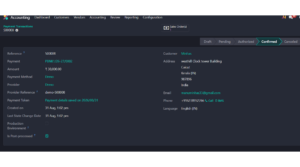
The Sales Order connection is particularly useful because it allows users to move from the payment record back to the business document associated with the transaction.
- Trace the Payment Back to the Sales Order
The payment process does not end with the transaction record.
From the payment transaction, use the Sales Order smart button to open the related order.
This provides a complete connection between:
Customer → Sales Order → Payment → Transaction
This relationship makes it easier for sales and accounting users to investigate payment activity and confirm whether an order has been successfully paid.
Payment Workflow in Odoo 19
The complete process can now be summarized as:
Configure Payment Provider
↓
Payment Method Available
↓
Customer Adds Product to Cart
↓
Checkout
↓
Select Payment Method
↓
Pay Now
↓
Payment Transaction Created
↓
Payment Confirmed
↓
Sales Order Updated
↓
Payment Token Stored (when applicable)
This creates a connected payment workflow between the customer’s website experience and the Odoo backend.
Conclusion
Odoo 19 provides a centralized approach to managing eCommerce payments. Instead of handling checkout payments and transaction records separately, businesses can configure providers, control payment methods, process customer payments, and review transaction information from within the Odoo environment.
The workflow also provides useful traceability. A customer’s payment can be followed from the website checkout to the payment transaction and then back to the associated Sales Order.
For businesses with returning customers, payment tokens can further simplify future transactions when supported by the selected provider.
The most important part of setting up online payments is choosing the appropriate provider and configuring it correctly for the business’s country, currency, payment methods, and operating environment. Once that foundation is in place, Odoo can manage the rest of the payment workflow in a structured and traceable way.
1 Comment