
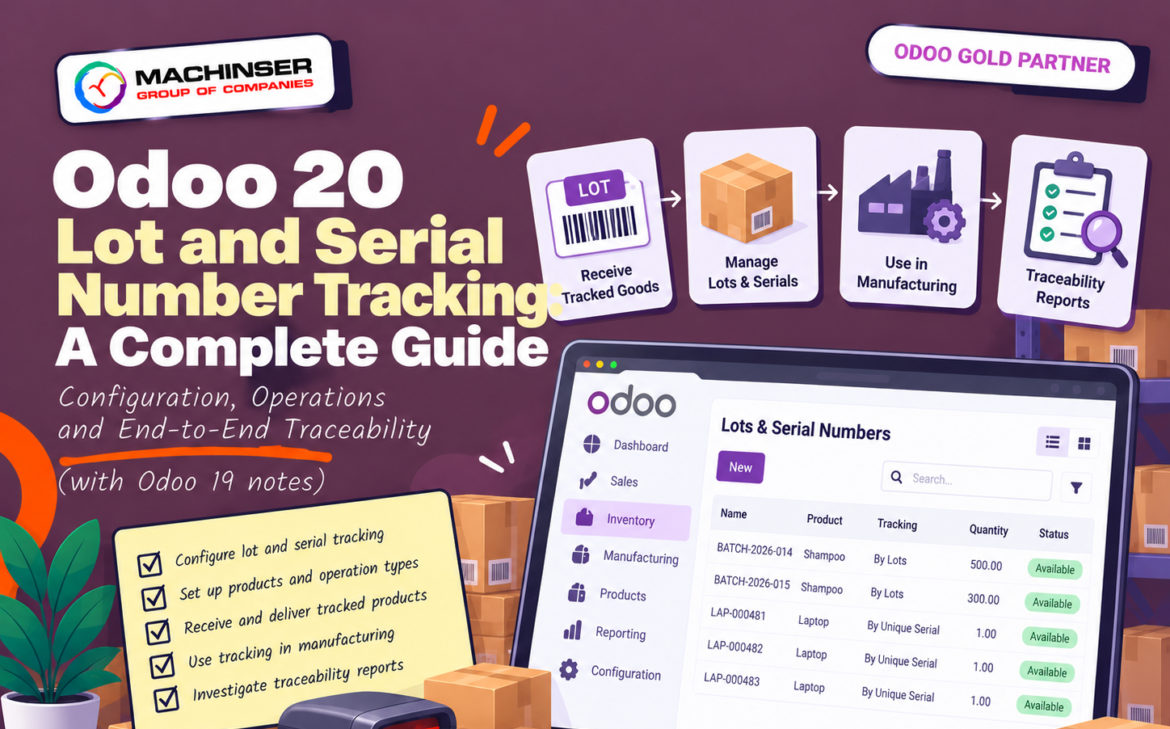
Knowing how many units are in stock is not always enough. A business may also need to know which batch a product came from, which individual device was shipped to a customer, or where a particular unit moved after it entered the warehouse. This is where lot and serial number tracking in Odoo becomes useful.
Odoo Inventory can track products by quantity, by lot, or by unique serial number. Lot tracking identifies a group of products that share a batch identity. Serial tracking identifies an individual unit. With tracking configured correctly, businesses can improve stock accuracy, investigate returns, support product recalls, and follow products through receipts, internal movements, manufacturing, and deliveries.
This guide explains how to enable tracking, configure products and operation types, assign lot or serial numbers during receiving, use tracking in manufacturing, ship tracked goods, and read traceability information in Odoo 20. Where Odoo 19 differs, the guide says so. The screenshots come from an Odoo 20 demo database (TechZone Trading) with shampoo tracked by lot and laptops tracked by serial number.
What are lots and serial numbers?
A lot number is a shared identifier for a batch of items. For example, 500 bottles produced during one production run might all carry lot BATCH-2026-014. A serial number is a unique identifier for one individual item. For example, each laptop might have its own serial number, such as LAP-000481.
| Tracking method | What it identifies | Typical examples | Best fit |
| By quantity | Total quantity of a product | Packaging materials, generic screws | When individual batch or unit history is not required |
| By lots | A batch or group of units | Food batches, cosmetics, chemicals, textile rolls, manufactured batches | When multiple units share a production or supplier batch |
| By unique serial number | One individual unit | Laptops, phones, appliances, machinery, warranty-controlled equipment | When each item needs its own service or movement history |
Why use Lots and Serial Numbers tracking in Odoo?
- Traceability: investigate where tracked stock came from, where it was stored, and where it was shipped.
- Quality control and recalls: identify affected batches and narrow the scope of an investigation.
- After-sales service: associate an individual unit with delivery history, repair cases, and warranty workflows where those processes are configured.
- Warehouse accountability: reduce ambiguity when products are received, transferred, picked, or shipped.
- Manufacturing visibility: link finished goods to a production lot or individual serial and review tracked components and stock movements.
- Operational reporting: search, group, and review lots or serials from Odoo’s traceability screens.
Tracking is only as reliable as the process that records it. If staff skip scanning, reuse labels incorrectly, or make stock adjustments without assigning identifiers, the system’s history may be incomplete.
Before you begin
- Install or open the Inventory application and confirm that your user has permission to configure settings and process stock operations.
- Decide which products need batch-level tracking and which need individual-unit tracking.
- Agree on a consistent numbering policy. For example, supplier batch IDs may be retained as lot numbers, while internal serials may follow a controlled prefix and sequence.
- Prepare a test product and use a test database or a controlled test workflow before changing live inventory.
- If tracked products already have stock on hand, plan how existing stock will receive valid lot or serial assignments. Enabling tracking does not automatically reconstruct historical identifiers.
- If manufacturing is part of the workflow, ensure the Manufacturing application and relevant bills of materials and operation routes are configured.
- Before starting, review how How Multi-Step Warehouse Operations Work in Odoo 19 to understand your warehouse setup prerequisites and picking routes.
Step 1: Enable lots and serial numbers
- Open the Inventory application.
- Go to Configuration – Settings.
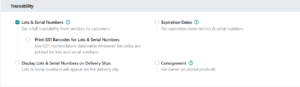
- Scroll to the Traceability section (Figure 1).
- Select the checkbox next to Lots & Serial Numbers.
- Click Save.
This activates the tracking options used by product forms and stock operations. Product-level tracking must still be configured for each product that needs it. Figure 1 also shows related options in the same section, all off in this example: Print GS1 Barcodes for Lots & Serial Numbers, Expiration Dates, Display Lots & Serial Numbers on Delivery Slips, and Consignment. Turn on Expiration Dates only if lots and serials need expiry dates, and Display Lots & Serial Numbers on Delivery Slips if customers need the numbers on the slip (see Step 7).
Step 2: Configure a product for tracking
For this practical example, imagine a distributor that receives batches of herbal shampoo and sells individual laptops.
Example A: Track shampoo by lot
- Go to Inventory – Products – Products and open the shampoo product, or create it if needed.
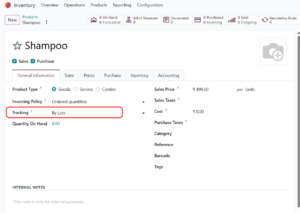
- Confirm that Product Type is Goods (Figure 2).
- Open the General Information tab.
- In the Tracking field, select By Lots.
- Save the product.
- Check Quantity On Hand. It shows 0.00 until the first receipt is validated.
Example B: Track laptops by unique serial number
- Open the laptop product form (LAP-001 in the screenshots).
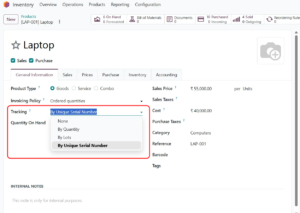
- In the Tracking field, select By Unique Serial Number (Figure 3).
- Save the product.
Choose one tracking method based on the actual business requirement. A product already carrying stock may trigger a warning when tracking is enabled. Plan an inventory adjustment or migration process to assign identifiers to existing stock rather than ignoring the warning. In Odoo 19, the General Information tab has a Track Inventory checkbox instead: tick it, then pick By Lots or By Unique Serial Number from the drop-down beside it.
Step 3: Configure operation types for serial numbers
Odoo also uses operation-type settings to control whether workers can create new lot or serial identifiers or pick existing ones during receipts, deliveries, and other operations.
- Go to Inventory – Configuration – Operations Types.
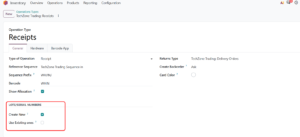
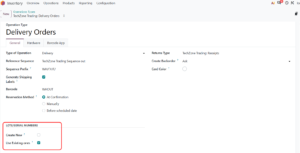
- Open the relevant operation type, such as Receipts, Delivery Orders, or Manufacturing (Figures 4 and 5 show Receipts and Delivery Orders).
- On the General tab, find the Lots/Serial Numbers section.
- Set Create New and Use Existing ones to match the process. Create New lets workers enter or generate identifiers; Use Existing ones lets them pick numbers already in stock.
- Save the operation type.
A common control is to allow new serials on receipts but require existing in-stock serials on delivery operations. This helps prevent accidental assignment of a serial number that was never received or produced. Match these settings to the real workflow and test them before rollout. The screenshots follow this pattern: Receipts has Create New ticked and Use Existing ones unticked (Figure 4), while Delivery Orders has Create New unticked and Use Existing ones ticked (Figure 5).
.
Step 4: Receive products and assign a lot number
Scenario: the distributor receives 50 bottles of shampoo from the supplier B&B pvt ltd. The goal is to record that the received quantity belongs to one lot. In the screenshots Odoo generated lot 0000001; if the supplier prints its own batch number on the goods, enter that number instead.
- Create a purchase order for the shampoo (P00004 in the screenshots) if your process begins with purchasing, then confirm it.
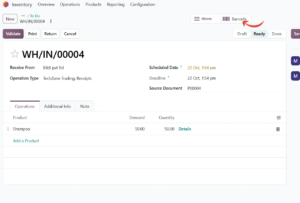
- Open the related receipt from the purchase order, or go to Inventory – Operations – Receipts. Figure 6 shows receipt WH/IN/00004 in the Ready state with a demand of 50.
- On the Operations tab, review the product and quantity.
- Open the lot entry area: click Details next to Shampoo for the Detailed Operations window, or use the Barcode smart button, as the screenshots do (Figure 7).
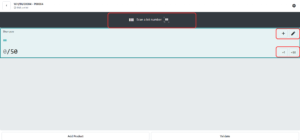
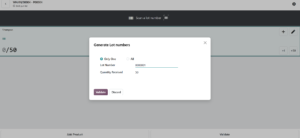
- On the Barcode screen, click the + button (or scan a lot number). In the Generate Lot numbers window, leave Only One selected, enter or accept the Lot Number (0000001) and the Quantity Received (50), and click Validate (Figure 8).
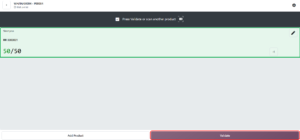
- Confirm that the Shampoo line now shows lot 0000001 with 50/50 received (Figure 9).
- Click Validate only after the physical goods and recorded details have been checked.
Use the supplier’s batch identifier where it is the official traceability reference. If your warehouse needs a separate internal reference, store it in the relevant reference field rather than silently replacing the supplier’s number.
Step 5: Receive products with serial numbers
Scenario: the distributor receives five laptops from Sample Tech Distributors Pvt Ltd (receipt WH/IN/00005), each with its own serial number. Each laptop must have a unique identifier.
- Open the incoming receipt for the laptop product.
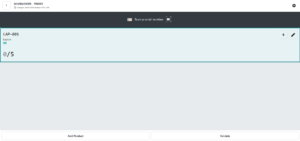
- Open the Barcode screen (or the Details link). For a serial-tracked product Odoo prompts you to scan a serial number and shows Laptop 0/5 (Figure 10).
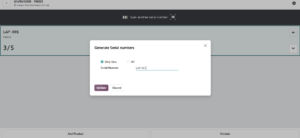
- Enter or scan one unique serial number for each physical unit. The screenshots use LAP-001 to LAP-005; Figure 11 shows LAP-003 being added, with 3 of 5 recorded.
- Check that the number of serials matches the number of units received (5/5).
- Validate the receipt after checking the physical labels and the recorded values.
For larger shipments, the Generate Serial numbers window also has an All option, and the Detailed Operations window offers Generate Serials/Lots (First Serial Number and Number of SN) and Import Serials/Lots. Use them only when the generated sequence matches your approved numbering policy. If the supplier already labels the units, scanning the actual identifiers is usually safer than inventing new ones.
Step 6: Create or manage lot and serial records
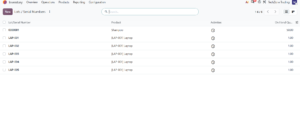
- Go to Inventory – Products – Lots/Serial Numbers (Figure 12).
- Use the search bar to find a product, lot, or serial number.
- Open an existing record to review its details, or click New to create a record if appropriate.
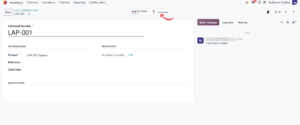
- Review the Lot/Serial Number, Product, Reference, Customers, On Hand Quantity, and Description fields (Figure 13).
- Use the Purchases and Traceability smart buttons to inspect related orders and movements (Figures 13 and 14).
Creating a lot/serial record by itself does not necessarily mean stock has been received or assigned to that identifier. Stock quantities and movements are recorded through the relevant receipt, manufacturing order, inventory adjustment, or other stock operation. In Odoo 19 documentation this list is called the Lot/Serial Numbers dashboard, and the Reference field is called Internal Reference.
Step 7: Move and deliver tracked products
Internal transfers preserve traceability when the correct lot or serial is selected for the movement. Delivery operations then record which tracked items left the warehouse and, where configured, which customer received them.
- For an internal move, create or open the relevant internal transfer.
- Select the product and enter the quantity to move.
- Assign the correct lot or serial number in the operations/detailed operations view.
- Validate the transfer after checking the source and destination locations.
- For a customer shipment, open the delivery order generated from the sales order (WH/OUT/00004 from S00002 in the screenshots), or go to Inventory – Operations – Deliveries.
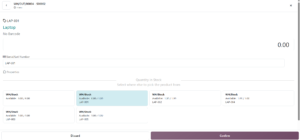
- Assign the lot or serial number that is actually being picked. For serial-tracked goods, verify one serial per individual unit. In Figure 15 the Laptop line shows Serial/Lot Number LAP-001, and the Quantity in Stock cards list the serials in WH/Stock.
- Validate the delivery after picking and checking the physical goods.
- If the delivery slip should display the identifiers, tick Display Lots & Serial Numbers on Delivery Slips in Inventory – Configuration – Settings (Figure 1), then print the delivery slip after validating the delivery.
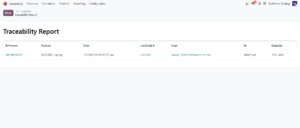
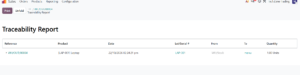
For serial-tracked products, avoid selecting a serial that is not physically present in the picking location. For lot-tracked products, select the lot that matches the units picked and any applicable expiry, quality, or customer requirements. After validation the Traceability Report records the shipment: Figure 16 shows LAP-001 leaving WH/Stock for the customer (manu).
Step 8: Use lot and serial tracking in manufacturing
Manufacturing workflows can assign a lot or serial number to finished products. This helps connect finished goods with the production order and related stock movements. The exact steps depend on the product’s tracking method and the manufacturing configuration.
- Confirm the finished product is configured By Lots or By Unique Serial Number (the Laptop uses By Unique Serial Number).
- Open Manufacturing – Operations – Manufacturing Orders and click New.
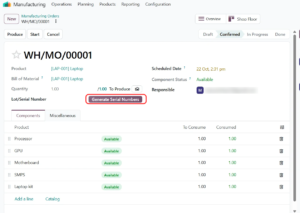
- Select the finished product and quantity, then click Confirm. Figure 17 shows WH/MO/00001 for one Laptop, with its five components available.
- For a lot-tracked finished product, use the Lot/Serial Number field that appears after confirmation: click the plus icon beside it to generate the next lot, or select or type one.
- For a serial-tracked product, click Generate Serial Numbers (highlighted in Figure 17), or enter the serial number in the Lot/Serial Number field.
- Record component consumption and production. In Figure 17 the Processor, GPU, Motherboard, SMPS, and Laptop kit lines each show 1.00 to consume.
- Click Produce to complete production only after the required tracked identifiers and quantities have been checked.
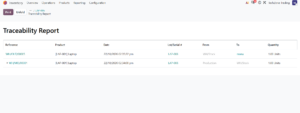
- Open the finished product’s lot/serial record and click Traceability (Figure 18): serial LAP-006 was produced by WH/MO/00001 and later delivered on WH/OUT/00005.
For example, if 40 finished units are produced in one batch, the finished product may use one lot number. If each finished machine needs an individual service history, each machine should have its own serial number. Follow the official manufacturing workflow for your version and do not assume that every manufacturing configuration exposes identical fields. When a serial-tracked manufacturing order has several units, Odoo splits it into one order per unit once serial numbers are assigned (for example WH/MO/00109-001 and WH/MO/00109-002 in Odoo’s documentation).
Step 9: Review traceability reports
The Lots/Serial Numbers dashboard and related reporting views help users review tracked stock and its movement history. The available smart buttons and reports depend on the record, installed applications, access rights, and Odoo version. In the screenshots the Traceability Report lists Reference, Product, Date, Lot/Serial #, From, To, and Quantity, with Print and Unfold buttons at the top.
- Go to Inventory – Products – Lots/Serial Numbers.
- Search for the lot or serial number, or clear existing filters to broaden the list.
- Use Group By – Product, or a Custom Group on Lot/Serial Number, to group the list.
- Open the specific lot or serial record.
- Click Traceability to inspect related stock moves (Figures 14 and 18). Use Location, where your version shows it, to review the current stock location.
- If needed, open Inventory reporting views such as Moves History to investigate a movement.
A useful traceability investigation answers four questions: What product is involved? Which lot or serial is affected? Where did it move? Which receipt, manufacturing operation, internal transfer, or delivery recorded the movement?
Troubleshooting common issues
| Problem | Likely reason | What to check / fix |
| Tracking option is missing on the product | Lots & Serial Numbers is not enabled, or the product form differs by version/configuration. | Enable the feature in Inventory settings, save, reopen the product, and verify the product type and permissions. In Odoo 19, tick Track Inventory first. |
| Odoo warns about stock already on hand | Existing quantities do not yet have lot/serial assignments. | Plan a controlled inventory adjustment or migration to assign identifiers to current stock; reconcile quantities before validating. |
| Cannot create a new serial on a receipt | The receipt operation type may not allow creating new lot/serial numbers. | Review Inventory – Configuration – Operations Types and the Lots/Serial Numbers options. |
| Delivery will not validate or asks for a serial | A required identifier is missing or the quantity and serial count do not match. | Open detailed operations, assign the correct in-stock serials, and confirm one unique serial per unit. |
| Serial appears on the wrong product | A number was selected or created against an incorrect product. | Review the lot/serial record and operation lines. Correct the stock transaction using the approved reversal/correction process; do not casually edit history. |
| Lot/serial dashboard looks empty | Filters, company context, access rights, or missing assignments may hide the record. | Clear search filters, check the active company, verify permissions, and confirm the identifier was assigned through a stock operation. |
| A lot/serial record exists but quantity is zero | Creating the identifier does not itself create stock. | Review receipts, manufacturing orders, and inventory adjustments to confirm the stock movement was validated. |
| Traceability history is incomplete | Some transactions may not have used the identifier or were performed before tracking was enabled. | Review the relevant stock moves and migration/adjustment process. Historical traceability cannot be assumed if it was never recorded. |
| Delivery slip does not show identifiers | The display setting may be disabled, or the report layout may be customized. | Check Display Lots & Serial Numbers on Delivery Slips in Inventory settings and test a validated delivery. |
| Generated serial sequence is incorrect | The first serial or numbering pattern was entered incorrectly. | Stop before validation, inspect the generated values, and regenerate or correct them according to your serial-number policy. |
Best practices for reliable traceability
- Define a written numbering policy before creating large numbers of lots or serials.
- Use supplier lot numbers where they are the traceability reference; keep internal references distinct when needed.
- Use barcode scanning where practical, and test scanners, label formats, and the Barcode app workflow before a warehouse rollout.
- Restrict the ability to create new serials on outbound operations when your control process requires selection from existing stock.
- Train users to assign identifiers at the physical point of receipt, production, transfer, picking, or delivery.
- Reconcile quantity and identifier count before validating a tracked operation.
- Use test data to validate the entire receipt-to-delivery flow before enabling tracking for live products with existing stock.
- For products with expiry dates, configure the relevant expiration-date features separately; lot tracking alone does not guarantee that expiry dates are maintained.
- Review traceability reports periodically and investigate unexpected locations, duplicate labels, or quantities.
- When correcting mistakes, use the appropriate stock correction or reversal workflow and retain an audit trail.
Security and governance note: access rights and operational controls should reflect the user’s responsibilities. Avoid sharing screenshots that reveal customer names, addresses, supplier pricing, or internal business data.
Frequently asked questions
What is the difference between a lot number and a serial number in Odoo?
A lot number identifies a batch shared by multiple units. A serial number identifies one individual unit and should be unique for that item.
Can one product use lot tracking while another uses serial tracking?
Yes. Tracking is configured on individual product records, so different products can use different tracking methods according to business needs.
Can I enable tracking after products already have stock?
Odoo may warn that existing stock needs identifiers. Plan an inventory adjustment or controlled migration to assign lots or serials to the existing quantities.
Can Odoo generate serial numbers automatically?
Odoo provides serial/lot generation options in supported workflows. Confirm the sequence and operation-type settings, and ensure the generated values follow your organization’s numbering policy.
Can I use supplier-provided lot numbers?
Yes, where appropriate. Enter or select the supplier’s actual lot identifier during receipt so the record matches the physical goods and supplier documentation.
Can I track a lot or serial through manufacturing?
Yes. Odoo’s manufacturing workflows support tracked finished products. Configure the product’s tracking method and assign the required identifier during the manufacturing process.
Can I see which customer received a serial-numbered product?
Use the serial record’s traceability information and related stock moves to review the recorded delivery history. The exact display depends on the configured workflow and available reports.
Does creating a lot or serial record increase stock quantity?
No. Creating the record alone does not create stock. Quantity is updated by validated stock operations, manufacturing, or inventory adjustments.
Can I print lot and serial numbers on delivery slips?
Yes. Tick Display Lots & Serial Numbers on Delivery Slips in the Traceability settings (Figure 1), then validate and print a test delivery.
Are the steps the same in Odoo 19 and Odoo 20?
The core concepts are the same. The main visible difference is the product Tracking field: Odoo 20 shows one Tracking field, while Odoo 19 has a Track Inventory checkbox with a drop-down beside it. Use the documentation for your version and validate the steps in your own database.
Does lot tracking automatically manage expiry dates?
No. Lot tracking can support expiry-related workflows, but expiration dates and related alerts must be configured according to the product and process requirements.
What should I do if a serial number was assigned incorrectly?
Stop further processing if possible, verify the physical item, and use the appropriate correction or reversal workflow. Preserve an audit trail rather than making undocumented changes.
Conclusion
Lot and serial number tracking gives Odoo users more than a stock count: it adds an identifier to the movement history of a batch or individual unit. Lots are useful when a group of products shares a common batch identity, while serial numbers are useful when each item needs its own history. When the feature, product settings, operation types, and warehouse processes are configured consistently, teams can receive, move, manufacture, and deliver tracked goods with clearer traceability.
Start with one test product, run a complete receipt-to-delivery workflow, and verify the traceability report before rolling the process out across the warehouse. For manufacturing or regulated products, confirm that the process also meets your organization’s quality, recall, and record-retention requirements.
Official Odoo documentation
- Odoo 20 – Product tracking overview https://www.odoo.com/documentation/20.0/applications/inventory_and_mrp/inventory/product_management/product_tracking.html
- Odoo 20 – Lot numbers https://www.odoo.com/documentation/20.0/applications/inventory_and_mrp/inventory/product_management/product_tracking/lots.html
- Odoo 20 – Serial numbers https://www.odoo.com/documentation/20.0/applications/inventory_and_mrp/inventory/product_management/product_tracking/serial_numbers.html
- Odoo 20 – Barcodes for lot and serial numbers https://www.odoo.com/documentation/20.0/applications/inventory_and_mrp/barcode/setup/serial_numbers_lots.html
- Odoo 20 – Manufacture with lots and serial numbers https://www.odoo.com/documentation/20.0/applications/inventory_and_mrp/manufacturing/workflows/manufacture_lots_serials.html
- Odoo 20 – Valuation by lots/serial numbers – https://www.odoo.com/documentation/20.0/applications/inventory_and_mrp/inventory/inventory_valuation/valuation_by_lots.html
- Odoo 19 – Product tracking overview – https://www.odoo.com/documentation/19.0/applications/inventory_and_mrp/inventory/product_management/product_tracking.html
- Odoo 19 – Lot numbers – https://www.odoo.com/documentation/19.0/applications/inventory_and_mrp/inventory/product_management/product_tracking/lots.html
- Odoo 19 – Serial numbers – https://www.odoo.com/documentation/19.0/applications/inventory_and_mrp/inventory/product_management/product_tracking/serial_numbers.html
- Odoo 19 – Manufacture with lots and serial numbers – https://www.odoo.com/documentation/19.0/applications/inventory_and_mrp/manufacturing/workflows/manufacture_lots_serials.html
- Odoo 19 – Valuation by lots/serial numbers – https://www.odoo.com/documentation/19.0/applications/inventory_and_mrp/inventory/inventory_valuation/valuation_by_lots.html