
A customer places an order and expects it to arrive on time. The warehouse has stock, but other orders are queuing for the same products. Which order gets them, and at what moment should the warehouse set them aside? This is where stock reservation methods in Odoo Inventory become useful. They decide when Odoo allocates available stock to an outgoing transfer such as a customer delivery. Choosing well helps the team plan picking, keep availability figures honest and prepare deliveries without tying up stock sooner than necessary.
There are three methods: At Confirmation, Manually and Before Scheduled Date. This guide shows where to set them, how each one behaves in a real database, and which kind of warehouse suits which method.
What Does Stock Reservation Mean in Odoo?
Reserving stock means earmarking a quantity of a product for one specific operation. The goods stay on the shelf, but Odoo treats that quantity as spoken for. Suppose a warehouse holds 30 units and a confirmed order needs 10: once the 10 units are reserved for that delivery, they are no longer counted as freely available to other deliveries.
A reservation is not a shipment. The goods only leave the books when the transfer is validated.
Where to Set the Reservation Method
The method is a property of the operation type, not of the individual order. For standard customer deliveries, that is the Delivery Orders operation type. Figure 1 shows the Operations Types list with Delivery Orders highlighted.
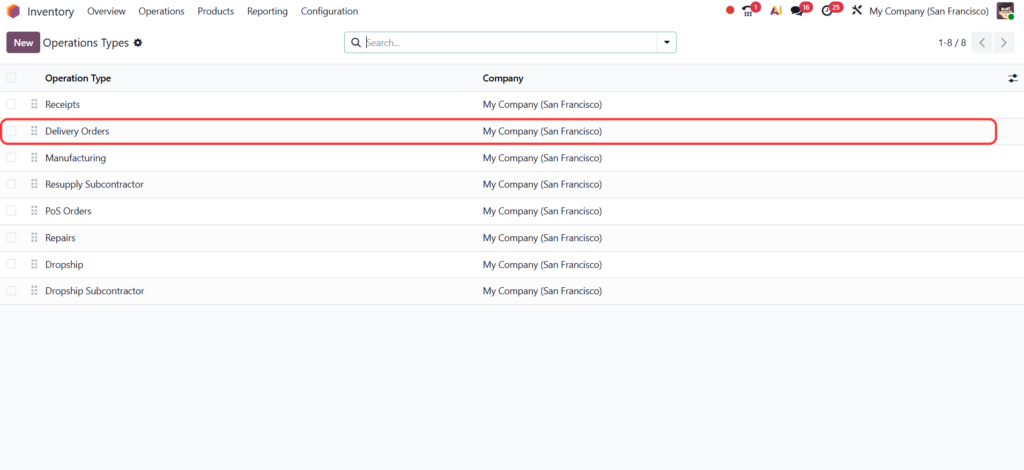
- Open Inventory ‣ Configuration ‣ Operations Types.
- Open the operation type your deliveries use, usually Delivery Orders for the right warehouse and company.
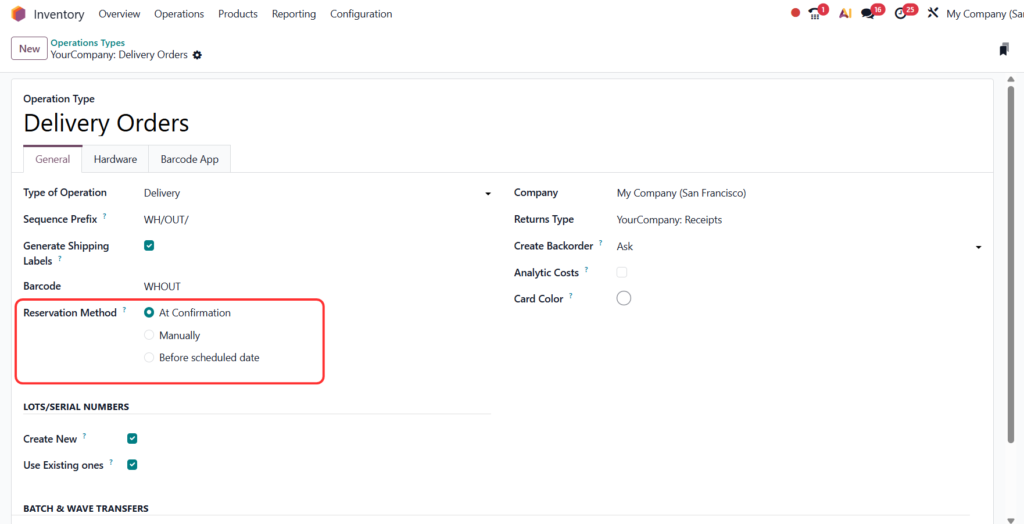
- In the General tab, find the Reservation Method field and pick one of the three options.
- If you pick Before scheduled date, fill in the two timing fields that appear below it.
- Save
Three Ways to Reserve Stock in Odoo 19
1. At Confirmation: Reserve as Soon as the Order Is Confirmed
With this method, Odoo tries to reserve the products the moment the sales order is confirmed, as long as enough stock is available. Figure 2 shows the Delivery Orders operation type with At Confirmation selected in the Reservation Method field, which is how the example below is set up.
The workflow:
- Create a quotation in the Sales app with the customer, products and quantities.
- Confirm it. The quotation becomes a sales order, and Odoo creates the delivery order.
- Open the Delivery smart button at the top of the order.
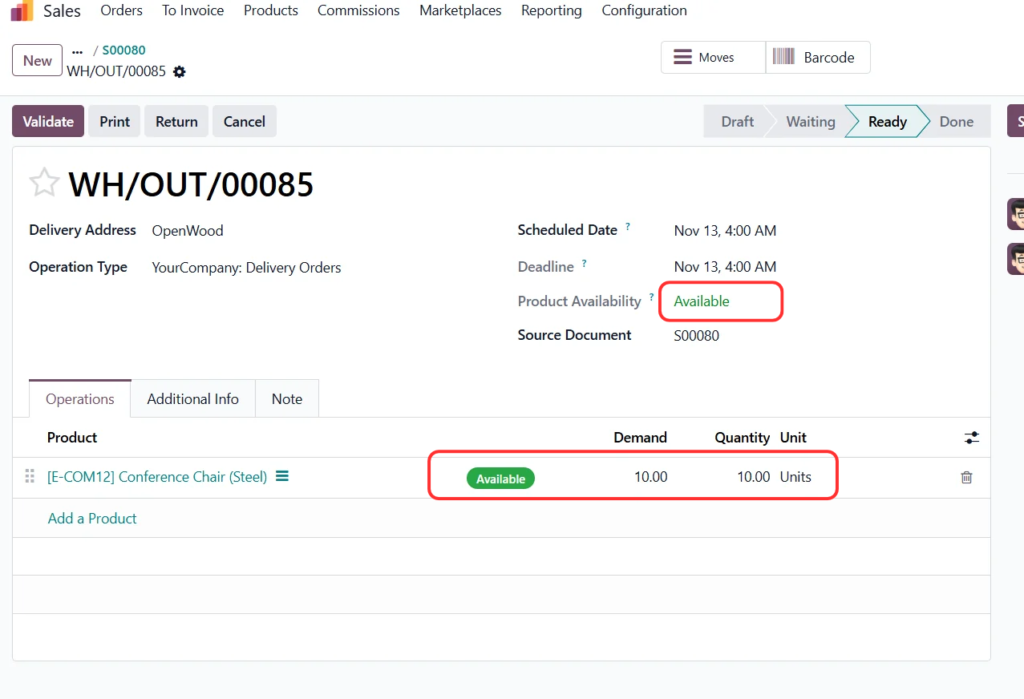
- Check the reserved quantity, then validate the transfer when the goods are ready to leave.
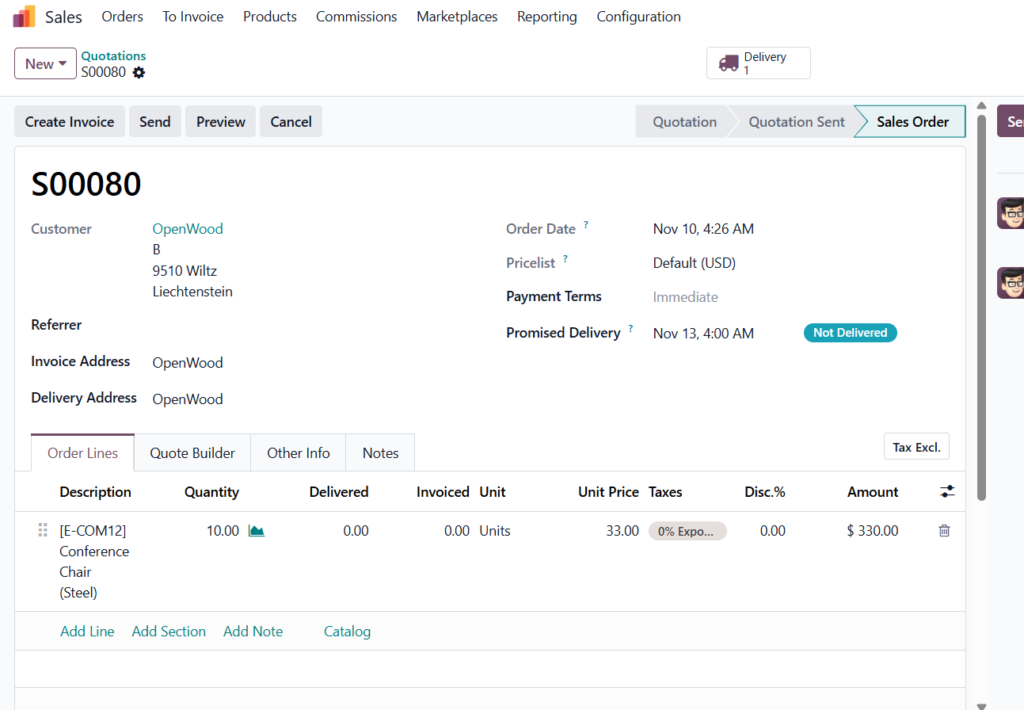
Figure 4 is the delivery that this order created, WH/OUT/00085. Its source document is S00080 and its scheduled date, Nov 13 at 4:00 AM, matches the promised delivery date.
If stock is short, the transfer may only be partly reserved, and the warehouse must decide whether to replenish or ship what is available. With this method the first order confirmed claims the stock. If a different order should win, Odoo’s documentation suggests un-reserving the other order from the Forecasted report. Note that starring a delivery does not change priority under At Confirmation; it only affects how deliveries are sorted in Inventory.
Best for retailers and distributors that fulfil orders as they arrive and keep fast-moving stock.
2. Manually: Let the Warehouse Decide When to Reserve
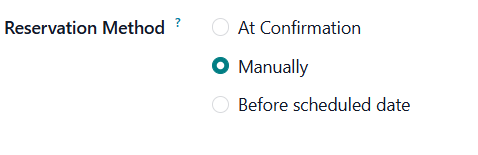
With Manually, confirming the sales order creates the delivery, but Odoo reserves nothing. A warehouse user checks the transfer and clicks Reserve when the team is ready to prepare it. This suits, for example, a wholesaler that gathers orders into daily picking batches and wants a supervisor to review them first. Figure 5 shows the setting.
The workflow:
- Create and confirm a sales order.
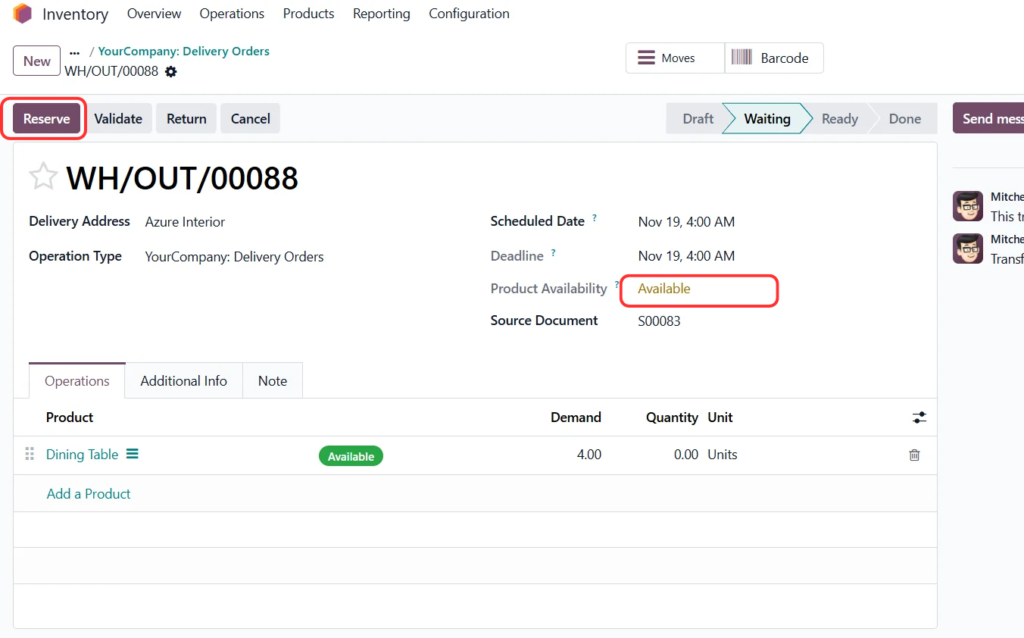
- Open its Delivery smart button. The transfer waits, with nothing reserved.
- Review Product Availability and the Demand.
- Click Reserve.
- In the Operations tab, confirm that Quantity now shows the reserved amount and the transfer is Ready.
- Validate the transfer when the goods are physically dispatched.
Odoo can never reserve more than is available, so with insufficient stock only part of the demand is reserved.
Best for: warehouses that prepare orders in batches or want staff to control when stock is allocated.
3. Before Scheduled Date: Reserve Closer to Delivery
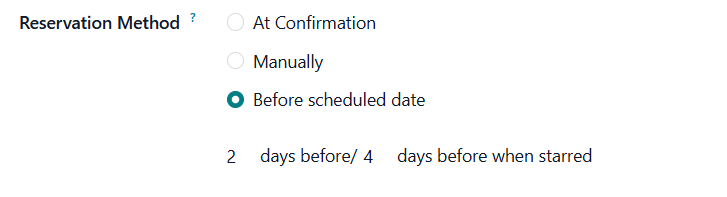
This method reserves stock automatically once the transfer’s scheduled date comes within a set number of days. It suits businesses that plan deliveries ahead but do not want every confirmed order to hold stock immediately. For example, with a two-day setting and a delivery scheduled for Friday, Odoo tries to reserve on Wednesday instead of at confirmation.
Choose Before scheduled date in the Reservation Method field and two fields appear underneath. Figure 7 shows them set to 2 days before and 4 days before when starred:
- Days before: how many days ahead of the scheduled date Odoo should reserve regular transfers.
- Days before when starred: the same for starred (favourited) transfers. A longer value makes priority deliveries reserve earlier.
Check the delivery’s Scheduled Date and make sure the window leaves the warehouse enough time to pick and prepare. The reservation is triggered by Odoo’s scheduled processing and not by a user, so it may not happen at the exact moment the window opens. A user can also click Reserve at any time to reserve earlier than planned.
Figures 8 and 9 show the same transfer, WH/OUT/00089 (source S00084, contact LightsUp), at two different points. In Figure 8 it is scheduled in 6 days and has the status Waiting: it is outside both the 2-day and 4-day windows, so nothing is reserved yet. In Figure 9 it is scheduled in 2 days and is Ready, which fits the 2-day setting. The star is empty in both, so the regular value applies, not the starred one.


Best for: businesses with planned dispatch dates that want stock reserved shortly before the warehouse prepares the delivery.
A Practical Example: One Warehouse, Three Orders
An office-supplies distributor holds 100 cartons of printer paper and receives three orders:
| Order | Quantity | Planned delivery |
| Order A | 30 cartons | Today |
| Order B | 40 cartons | In 3 days |
| Order C | 20 cartons | In 5 days |
Here is how each method plays out, assuming the Before Scheduled Date setting is 2 days:
- At Confirmation: all three orders reserve 90 cartons as soon as they are confirmed, leaving 10 free.
- Manually: nothing is reserved until staff click Reserve. The team might reserve Order A today and the others later.
- Before Scheduled Date: Order A is already inside its window, so it reserves right away. Order B reserves when it is 2 days from delivery (in 1 day), and Order C in 3 days. Until then, the 60 cartons for B and C stay available for any other order.
If orders are prepared as soon as they arrive, At Confirmation fits. If the team works in planned batches, Manually or Before Scheduled Date is usually the better choice.
Frequently Asked Questions
What happens if there is not enough stock?
Odoo reserves only what is available. The rest of the demand stays unreserved until stock arrives.
Can I reserve a transfer before its reservation window opens?
Yes. Open the transfer and click Reserve, subject to availability.
Can different warehouses use different methods?
Yes, as long as they use separate operation types. Set the Reservation Method on the Delivery Orders type of each warehouse.
What does starring a transfer do?
Under Before Scheduled Date, a starred transfer uses the separate Days before when starred value, so it can reserve earlier. Under At Confirmation, starring does not change reservation priority.
Do reservation methods apply to receipts?
No. They are not available when the type of operation is Receipt.
Tips for Getting the Most Out of Reservation Methods
- Pick the method that matches how the warehouse really works, not simply the most automated one.
- Confirm you are editing the right Delivery Orders operation type.
- Use realistic scheduled dates, because the reservation window is counted from them.
- Check available quantities before promising delivery dates.
- Make sure the team understands the difference between Demand and reserved Quantity.
- Test the chosen method with sample orders before using it live.
Conclusion
Reservation methods tell Odoo 19 when to allocate stock to deliveries. At Confirmation reserves immediately, Manually leaves the decision to the warehouse, and Before Scheduled Date reserves automatically within a set number of days of delivery. Pick the one that matches your order flow and schedule, and stock allocation becomes easier to manage and deliveries are prepared at the right time. To ensure that reserved stock can be accurately tracked through receipts, manufacturing, and deliveries, read our complete guide on Odoo 20 Lots and Serial Numbers Tracking.