
Holding stock can tie up cash, warehouse space and staff time. This is especially challenging for businesses that sell expensive products, specialist equipment, made-to-order items or products with unpredictable demand. Buying too early can leave a business with slow-moving inventory; buying too late can delay customer deliveries.
Odoo 19 offers a way to connect purchasing with actual customer demand through the Make-to-Order (MTO) route. Instead of replenishing a product simply because its stock has fallen below a minimum level, MTO launches a replenishment process when a qualifying demand is created.
For a purchase-based workflow, a confirmed Sales Order can trigger Odoo to create a Request for Quotation (RFQ) for a configured vendor. The purchasing team can review the RFQ, confirm the purchase and coordinate the receipt. The warehouse can then process the delivery to the customer.
In this guide, you will learn what Odoo 19 MTO does, how to enable it, how to configure a product and vendor, and how to follow the process from a customer quotation to purchasing and delivery.
What Is Make-to-Order (MTO) in Odoo 19?
Make-to-Order is an inventory replenishment strategy in which a product is procured or manufactured in response to a specific requirement. The replenishment is linked to the demand that triggered it.
For example, an electronics retailer may not want to keep every television model in stock. When a customer orders a particular model, the retailer can arrange to purchase that item from its supplier rather than holding several units in the warehouse.
In Odoo, the MTO route can be combined with an appropriate supply route:
- Purchase: Odoo can generate an RFQ when the product is configured to be purchased and the required vendor information is available.
- Manufacture: Odoo can trigger a manufacturing replenishment when the product is configured with the relevant manufacturing route and setup.
The exact result depends on the product routes, warehouse configuration, vendor or bill of materials, and applicable procurement rules.
Why Businesses Use the Odoo MTO Route
Reduce unnecessary stock: Avoid purchasing certain products just to keep them sitting in the warehouse.
Respond to confirmed demand: Connect replenishment with a real requirement instead of relying only on estimated demand.
Improve order traceability: Follow the documents created to fulfil a customer requirement.
Support specialised products: Use a demand-driven process for expensive, customised or slow-moving products.
Before You Start: What Needs to Be Configured?
Before testing the workflow, check that the product is eligible for the intended supply method. For the purchase example in this article, make sure:
- The Inventory application is installed and the MTO option is enabled.
- The product is configured as a storable goods product where stock tracking is required.
- The product can be purchased.
- A suitable vendor is listed on the product’s Purchase tab.
- The vendor price, purchase unit of measure and lead time are reviewed.
- The product has the MTO route and the appropriate purchase replenishment route.
Step 1: Enable Make-to-Order in Odoo 19 Inventory Settings
First, enable the MTO feature in the Inventory application.
- Open Inventory.
- Go to Configuration → Settings.
- Find the Logistics section.
- Enable Replenish on Order (MTO).
- Click Save.
This makes the MTO route available for product and route configuration. The option may be shown alongside other logistics features.

Step 2: Understand the Multi-Step Routes Setting
You may also see a Multi-Step Routes option in Inventory settings. This setting is used when a warehouse needs additional route configurations or multiple internal movement steps.
MTO and Multi-Step Routes are not the same thing. MTO controls demand-based replenishment. Multi-Step Routes controls how products move through warehouse operations. Enable Multi-Step Routes when your warehouse process requires it; it is not automatically required for every MTO purchase workflow.

Step 3: Configure the Product with the MTO Route
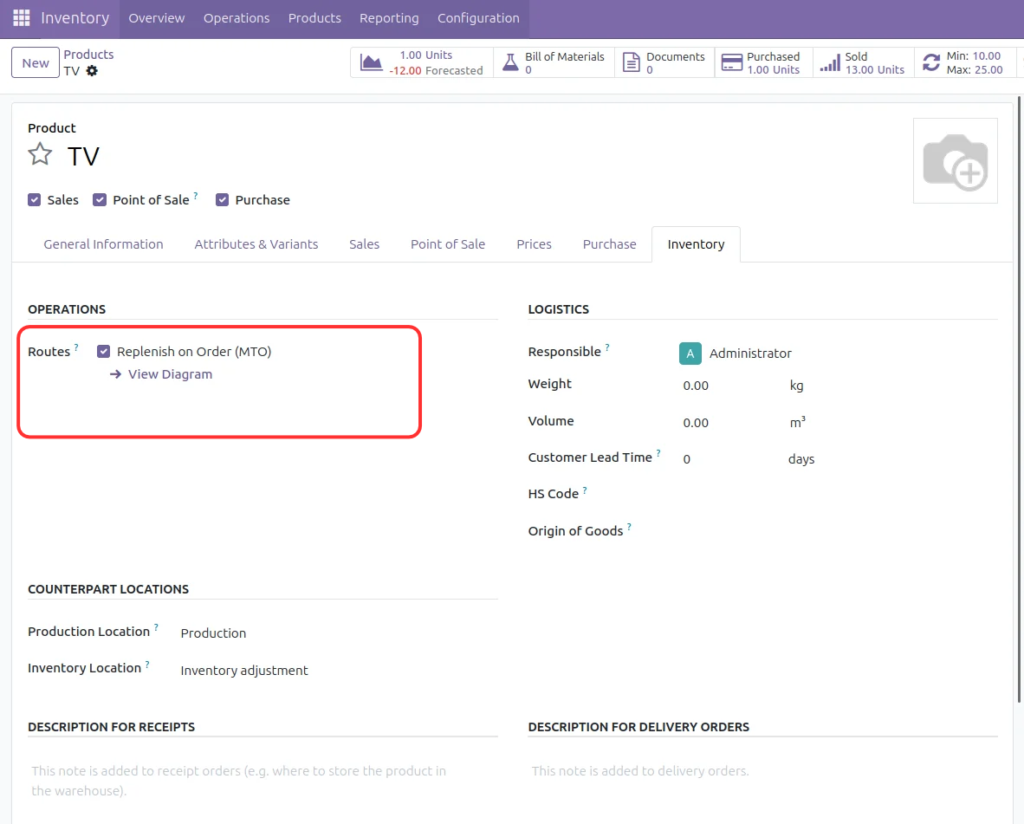
Next, assign the MTO route to the product you want to replenish based on customer demand. This example uses a product named TV.
- Open Inventory → Products → Products.
- Open the TV product.
- Select the Inventory tab.
- Locate the Routes section.
- Enable Replenish on Order (MTO).
- Save the product.
For the purchase workflow shown here, also ensure the product is enabled for Purchase. The MTO route determines when replenishment is triggered; the purchase route and vendor configuration determine how the product is sourced.
Step 4: Add the Vendor and Purchase Details
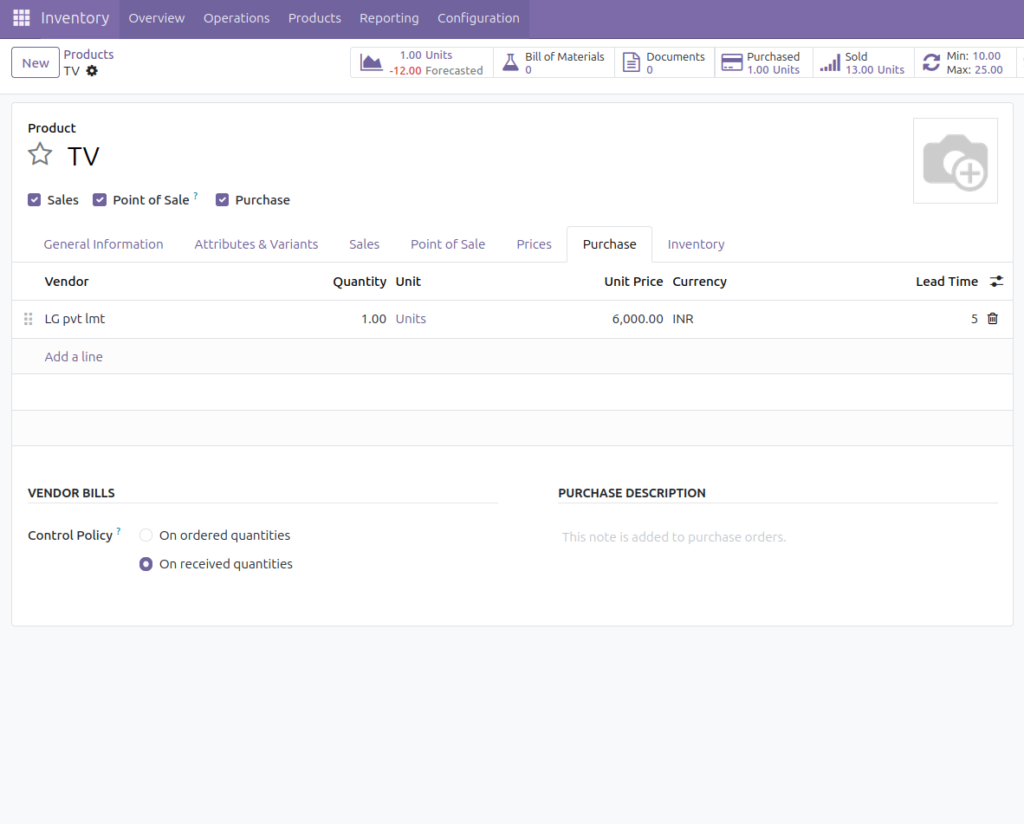
Odoo needs supplier information to prepare a purchase RFQ. Open the product form and go to the Purchase tab. Add the vendor and complete the relevant purchasing details.
- Vendor name
- Minimum purchase quantity, if applicable
- Purchase unit of measure
- Vendor price and currency
- Supplier lead time
In this example, the TV product is linked to LG Pvt Ltd. The vendor price and lead time help the purchasing team review the proposed purchase and expected arrival.
Step 5: Create a Customer Quotation
Once the product and supplier details are ready, the sales team can create a quotation for the customer.
- Open the Sales application.
- Go to Orders → Quotations and click New.
- Select the customer.
- Add the MTO-configured product.
- Enter the required quantity.
- Review the quotation and send it to the customer if required.
- Confirm the quotation to create the Sales Order.
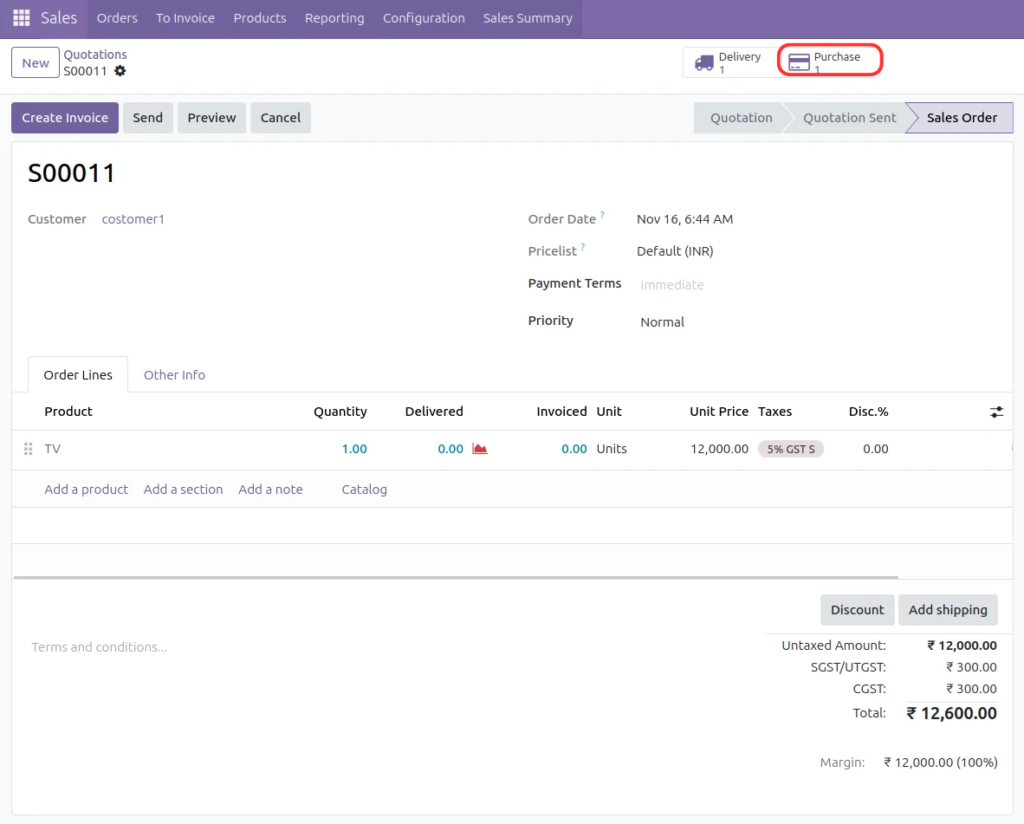
The confirmed Sales Order provides the demand that can trigger the MTO replenishment process. Make sure the product line, quantity and route configuration are correct before confirming.
Step 6: Create a new sale order
For a product configured for purchase-based MTO, Odoo can create a Request for Quotation automatically linked to the corresponding sale order. The RFQ is prepared using the product and vendor configuration.
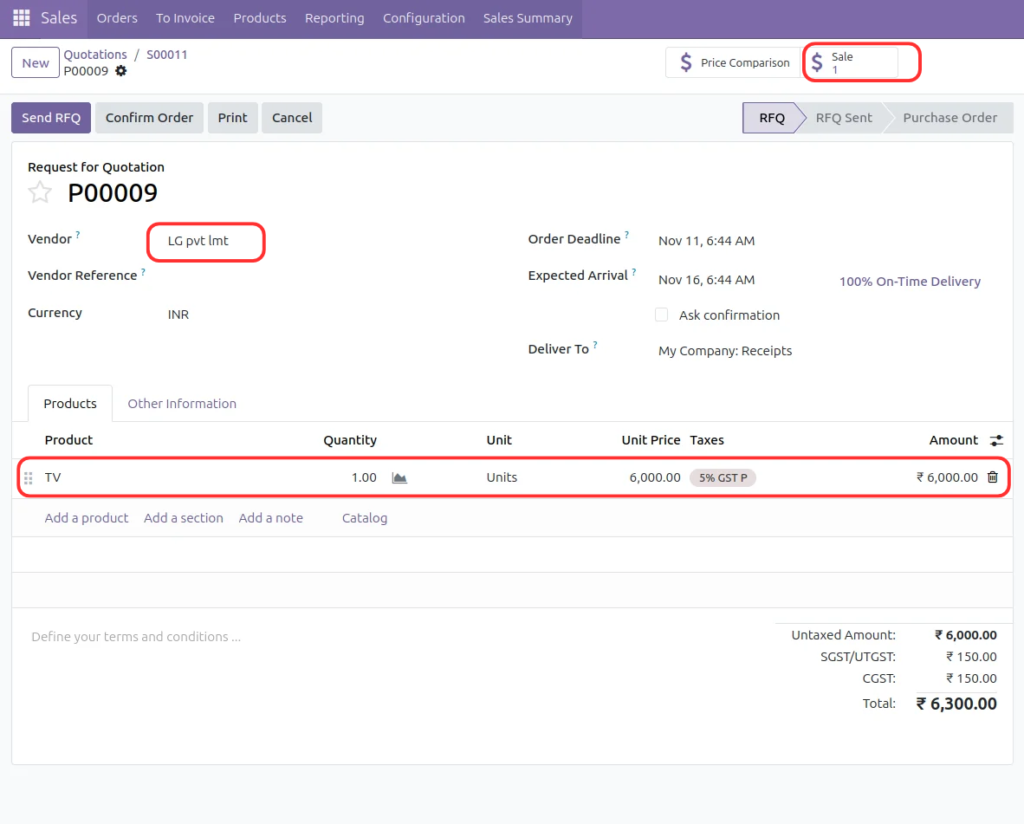
Review the generated document before confirming it. Pay attention to:
- Vendor
- Product and quantity
- Purchase unit of measure
- Unit price and taxes
- Expected arrival date
- Destination operation or receipt
An RFQ is a request for quotation, not a confirmed Purchase Order. The purchasing team should check the details and click Confirm Order when the supplier arrangement is approved.
Step 7: Receive the Product and Deliver It to the Customer
7.1 Confirm the Purchase Order
Open the RFQ, check the supplier and order details, and confirm it when approved. Odoo then moves the document into the Purchase Order stage.
7.2 Validate the Receipt
Open the Purchase Order.
Open the linked receipt.
Check the product and received quantity.
Validate the receipt after the goods arrive and the details are correct.
The receipt records the incoming products in the warehouse according to the configured operation.
7.3 Process the Customer Delivery
Return to the Sales Order and open its Delivery smart button. Review the delivery operation, process the picking and validate it when the products are ready to leave the warehouse.
This completes the main purchase-based MTO flow: customer demand, replenishment, purchase, receipt and delivery.
Odoo MTO vs. Reordering Rules: Which Should You Use?
MTO and Reordering Rules both support replenishment, but they solve different inventory problems.
| Comparison | Make-to-Order (MTO) | Reordering Rules |
| What triggers replenishment? | A specific demand, such as a Sales Order | Forecasted stock reaches the configured threshold |
| Main objective | Source or make products for a particular requirement | Maintain planned stock levels |
| Common use | Custom, expensive or irregular-demand products | Frequently sold products that need stock availability |
| Demand relationship | Replenishment is linked to the triggering demand | Replenishment is based on stock planning levels |
Choose MTO when you want replenishment to respond to a specific order. Choose Reordering Rules when you want Odoo to maintain stock between defined minimum and maximum levels. A business may use both strategies for different products.
Common MTO Setup Mistakes to Avoid
- Enabling MTO in settings but forgetting to assign the route to the product.
- Configuring MTO without enabling the product for the intended supply method.
- Leaving the vendor list empty for a purchase-based workflow.
- Entering an incorrect vendor price, purchase unit or lead time.
- Assuming that an RFQ is already a confirmed Purchase Order.
- Confusing MTO with Multi-Step Routes or Reordering Rules.
- Not testing the complete process, including receipt and delivery, before using it in daily operations.
Frequently Asked Questions About Odoo 19 Make-to-Order
What does MTO mean in Odoo?
MTO stands for Make-to-Order. It is a replenishment route that triggers procurement or manufacturing in response to a specific demand.
Does Odoo automatically confirm the purchase order?
The purchase-based workflow can generate an RFQ. The purchasing team should review and confirm the RFQ to create the Purchase Order.
Do I need to add a vendor to an MTO product?
For purchase-based replenishment, configure an appropriate vendor on the product and maintain the relevant purchase details.
Is Multi-Step Routes required for MTO?
No, not for every setup. Multi-Step Routes is a separate warehouse configuration feature and should be enabled when the warehouse process needs it.
Can Odoo MTO trigger manufacturing instead of purchasing?
Yes. With the relevant manufacturing route and product configuration, demand can trigger a Manufacturing Order rather than a purchase RFQ.
Where can I find the purchase document linked to a Sales Order?
Open the Sales Order and use its Purchase smart button, when available, to access the related purchase document.
When should I use MTO instead of Reordering Rules?
Use MTO when replenishment should be linked to a specific demand. Use Reordering Rules when you want to maintain planned stock levels.
Conclusion
Odoo 19 Make-to-Order helps businesses connect customer orders with the purchasing or manufacturing activities needed to fulfil them. Instead of holding every product in stock, a business can configure selected products to trigger replenishment when demand is created.
For a purchase-based workflow, the key steps are enabling MTO, assigning the correct product routes, adding vendor details, confirming the Sales Order and reviewing the generated RFQ. The purchasing and warehouse teams can then complete the receipt and delivery operations.
When configured and tested correctly, Odoo MTO can support demand-driven purchasing, improve document traceability and help businesses manage selected products without unnecessary stock holding.
check out our lates blogs related to Odoo inventory
References
- Odoo 19 Documentation: https://www.odoo.com/documentation/19.0/
- Odoo 19 Inventory documentation: https://www.odoo.com/documentation/19.0/applications/inventory_and_mrp/inventory.html