
A product running out of stock can delay customer deliveries and affect sales. At the same time, ordering too much can increase storage costs and tie up working capital. Businesses therefore need a reliable way to decide when to replenish products and how much to order.
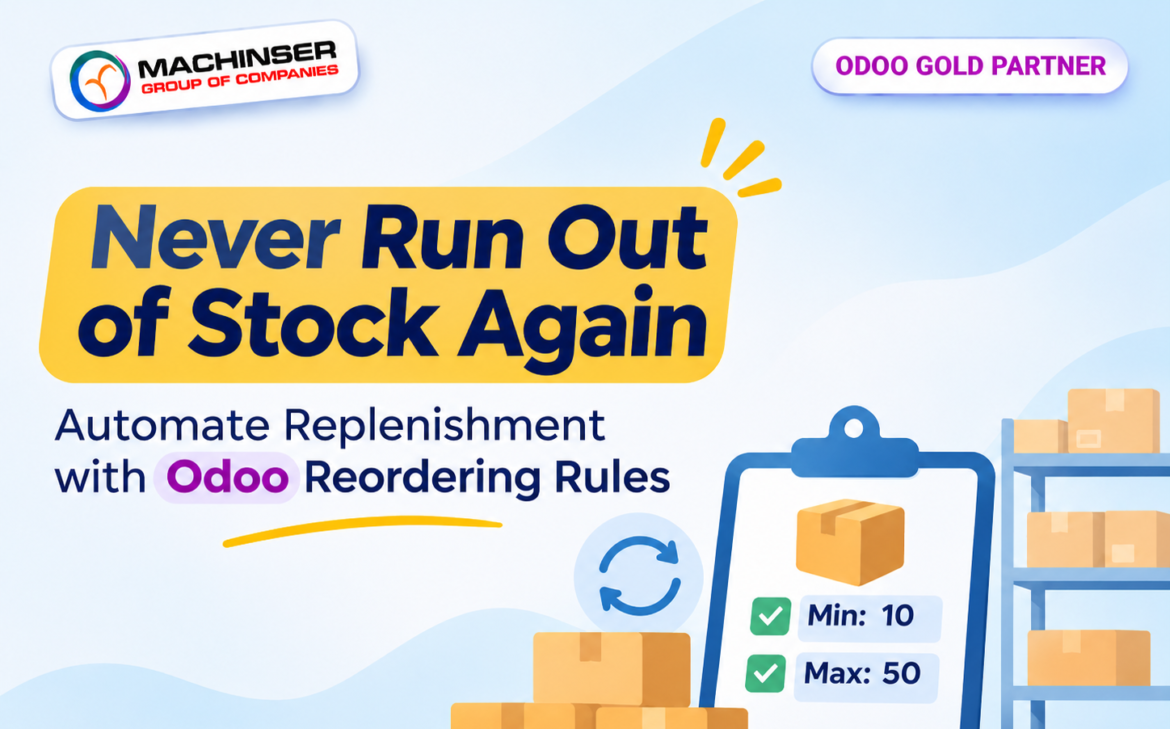
Odoo Inventory provides Reordering Rules to help manage this process. By defining minimum and maximum stock levels, you can let Odoo monitor forecasted quantities and recommend or initiate replenishment when stock falls below the level you specify.
In this guide, we’ll look at how reordering rules work, how to configure them, and the difference between manual and automatic replenishment. The examples use the product and purchase workflows shown in the screenshots.
What Are Odoo Reordering Rules?
A reordering rule is a set of stock thresholds for a product at a particular location. It tells Odoo when replenishment should be considered and the quantity it should aim to restore.
The rule mainly uses two values: Minimum and Maximum. When the forecasted quantity falls below the minimum, Odoo calculates a replenishment quantity to bring the stock position back toward the maximum. The proposed quantity can also be affected by incoming and outgoing stock moves, order multiples, and procurement settings.
A reordering rule can replenish a product through a configured route, such as purchasing it from a vendor. The route and product configuration determine what Odoo creates when replenishment is launched.
Prepare the Product Before Creating a Rule
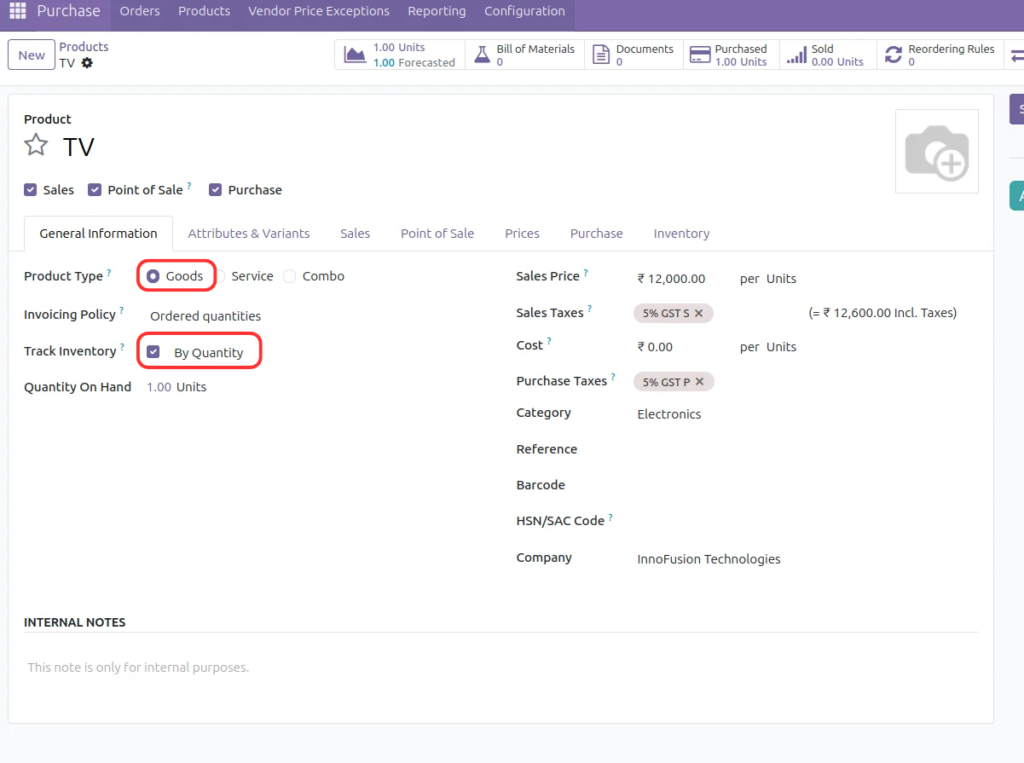
Before setting up a reordering rule, check that the product is configured as a storable good and that inventory tracking is enabled. The product must also have a suitable replenishment route.
For a product that will be purchased, add the vendor information on the Purchase tab. The vendor line can include the vendor’s purchase unit, price, currency, and delivery lead time. Odoo can use this information when preparing purchase replenishment.
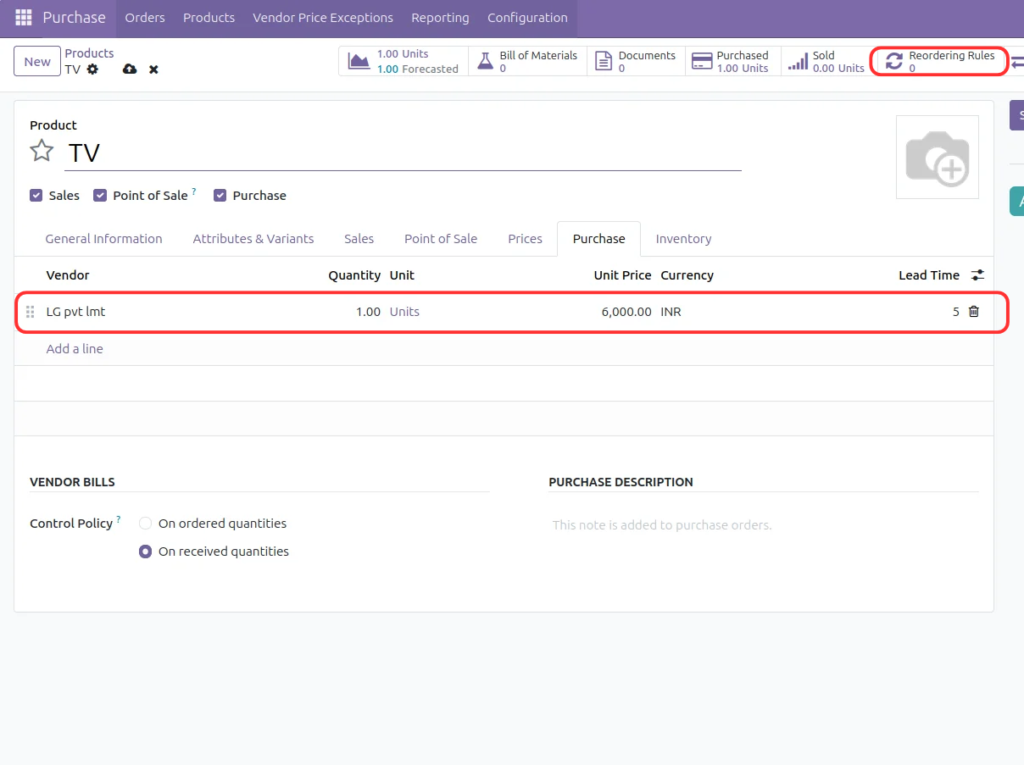
You can access reordering rules from the Inventory or Purchase-related product workflow, depending on the installed applications and menu configuration. From the product form, use the Reordering Rules smart button to view rules linked to that product.
How to Create a Reordering Rule
- Open the Inventory app and navigate to the Reordering Rules list. In some configurations, you can reach the rules from the product form using the Reordering Rules smart button.
- Click New to create a rule.
- Select the product and the stock location where the rule should apply.
- Enter the Minimum and Maximum quantities.
- Choose the appropriate route, such as Buy, when the product is replenished through purchasing.
- Select the Trigger: Auto or Manual, depending on how you want replenishment to be handled.
- Save the rule and review the product’s forecast and replenishment quantity.

Use the New button in the Reordering Rules list to create a new rule.
Understanding the Main Fields
Product: The item whose stock level Odoo monitors.
Location: The warehouse or internal stock location where the rule applies. Choose the location whose stock should be replenished.
On Hand: The quantity currently recorded in stock at the selected location.
Forecast: The expected stock position after considering planned incoming and outgoing movements.
Route: The replenishment method, such as Buy. The available routes depend on the product and warehouse configuration.
Trigger: Controls whether replenishment is handled automatically or left for a user to launch manually.
Min: The minimum forecasted quantity threshold.
Max: The target quantity Odoo uses when calculating how much to replenish.
To Order: The quantity Odoo calculates as necessary to replenish the product, based on the rule and forecast.
Manual vs. Automatic Replenishment
1. Manual trigger
With a Manual trigger, Odoo identifies that the product needs replenishment and displays the quantity in the Reordering Rules or Replenishment view. A user can review the suggestion and choose Order to launch the replenishment. This is useful when purchasing staff want to check demand, supplier availability, budgets, or existing orders before proceeding.

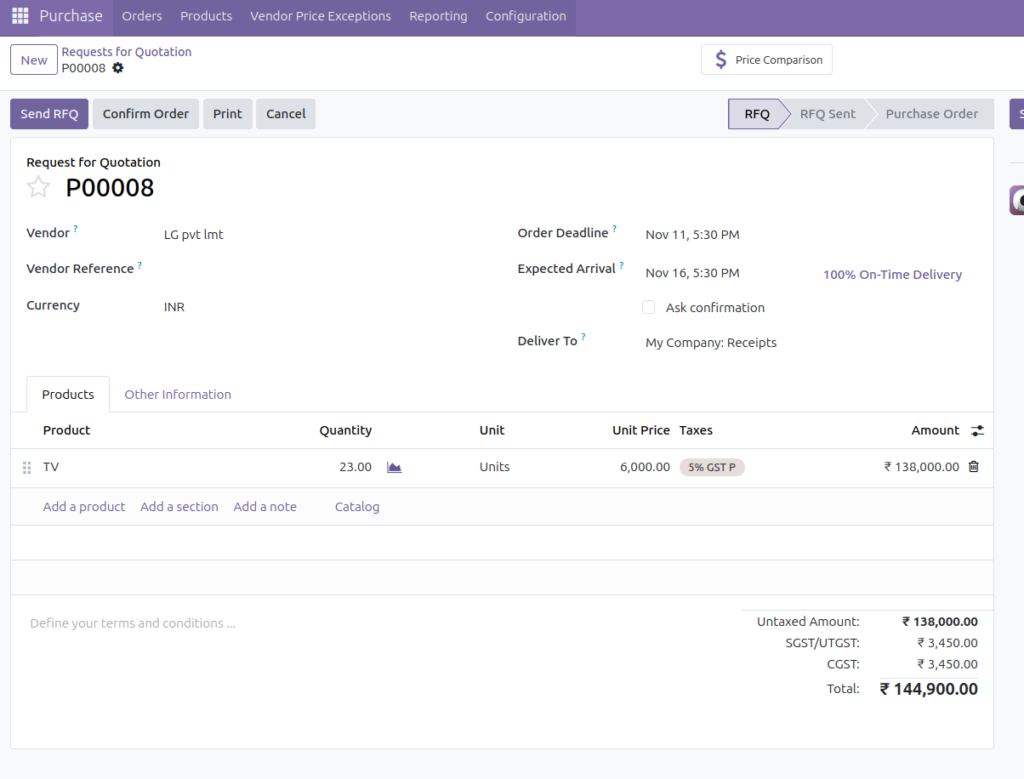
When the user selects Order, Odoo generates the replenishment document according to the configured route. In this example, the route is Buy, so Odoo creates a request for quotation for the vendor.

2. Automatic trigger
With an Auto trigger, Odoo automatically launches the configured replenishment flow when the rule’s conditions are met. This reduces the need for a user to click Order each time stock falls below the minimum.

Automatic replenishment is useful for regularly used products with predictable demand. However, it depends on accurate product routes, vendor details, lead times, and stock settings. Review the workflow carefully before enabling it for high-value or irregular-demand products.
How Odoo Calculates the Replenishment Quantity
The basic idea is to compare the forecasted quantity with the minimum threshold. If the forecast is below the minimum, Odoo calculates how much is needed to move the forecast toward the maximum.
For example, in the TV screenshot, the forecast is 2 units, the minimum is 10, and the maximum is 25. The replenishment quantity shown is 23 units, which would bring the forecasted quantity to 25 if no other stock movements or constraints change the calculation.
After the replenishment is launched, the forecast can update to include the expected incoming quantity. In the example shown, the forecast becomes 25 and the To Order value becomes 0. This indicates that the rule no longer needs additional replenishment based on the displayed forecast.
Why Vendor Lead Time Matters
A reordering rule is not only about quantity. Timing matters too. If a supplier needs five days to deliver a product, replenishment must be planned early enough to avoid running out before the new stock arrives.
Maintain realistic lead times on the product’s vendor information. Also consider the supplier’s reliability, weekends or holidays, and any internal receiving time. Odoo’s forecast and replenishment dates are only as useful as the data entered into the system.
Best Practices for Reordering Rules
- Set minimum and maximum quantities based on sales history, usage, and expected demand.
- Choose the correct warehouse or stock location for each rule.
- Keep vendor information, purchase prices, and lead times up to date.
- Use the Buy route for products that should be purchased and verify that the product has the required vendor details.
- Use Manual replenishment when staff should approve each order; use Auto for stable, routine products where automatic procurement is appropriate.
- Review incoming purchase orders and other planned stock movements before changing stock thresholds.
- Avoid setting maximum quantities unnecessarily high, as this can lead to excess stock.
Common Questions
Does a reordering rule always create a purchase order?
No. The result depends on the selected route and trigger. A Buy route can generate a request for quotation when replenishment is launched. Other routes can trigger a different replenishment flow, such as manufacturing.
What is the difference between Manual and Auto?
Manual displays a replenishment requirement for a user to review and launch. Auto launches the configured replenishment flow automatically when the rule is triggered.
Why is the To Order quantity different from the minimum quantity?
The quantity is calculated to replenish the forecasted stock toward the maximum, not simply to add the minimum quantity. Incoming and outgoing movements and other settings can also affect it.
Can I create rules for different products and locations?
Yes. Reordering rules can be configured for different products and stock locations, allowing each location to maintain its own target levels.
Should every product use automatic replenishment?
No. Auto is often suitable for stable, frequently used products. Products with irregular demand, high cost, or special purchasing requirements may be better managed with Manual replenishment.
Conclusion
Odoo Reordering Rules make it easier to maintain stock without checking every product manually. By setting realistic minimum and maximum quantities, selecting the correct location and route, and choosing between Manual and Auto triggers, businesses can build a replenishment process that fits the way they operate.
For the best results, keep product and vendor information accurate and review forecasted quantities regularly. Start with manual replenishment if purchase approval is important, then consider automation for products with stable and predictable demand.
References
- Odoo 19 Documentation – Replenishment: https://www.odoo.com/documentation/19.0/applications/inventory_and_mrp/inventory/warehouses_storage/replenishment.html
- Odoo 19 Documentation – Reordering Rules: https://www.odoo.com/documentation/19.0/applications/inventory_and_mrp/inventory/warehouses_storage/replenishment/reordering_rules.html