

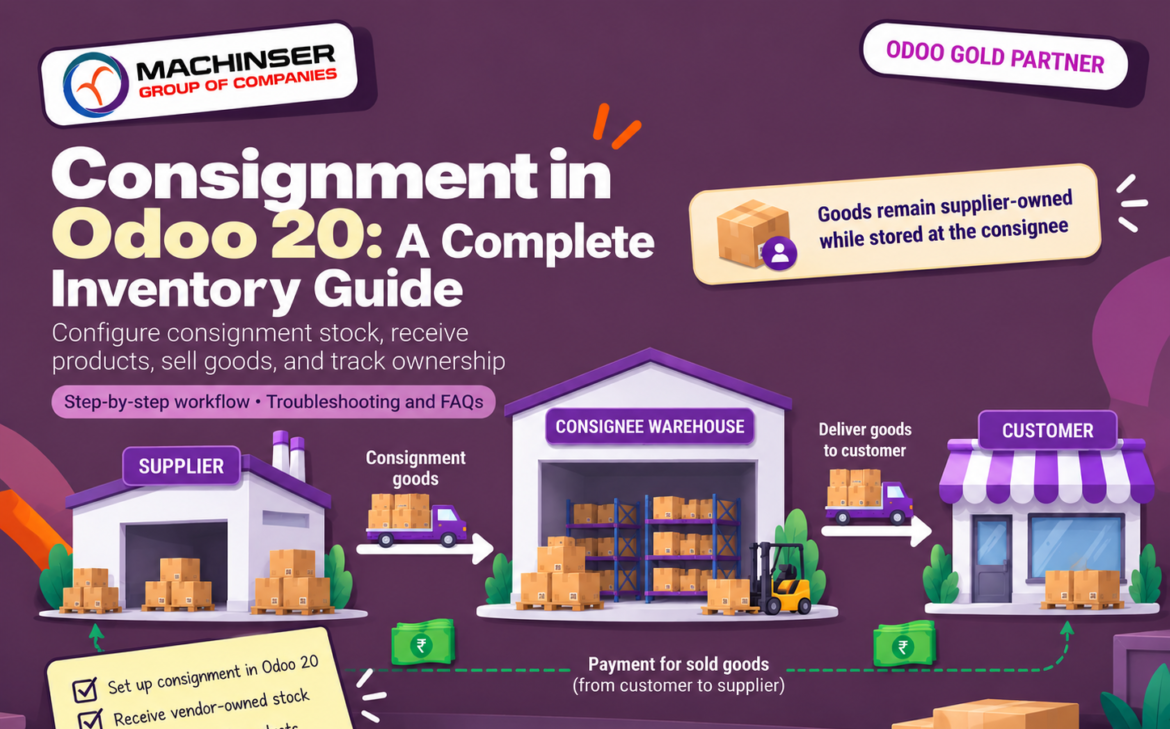
What if a supplier lets your business store and sell products without requiring you to purchase them upfront? This arrangement is known as consignment. The supplier retains ownership of the goods while your company stores, handles, and may sell them under an agreed commercial arrangement.Consignment in Odoo 20 records where products are physically located while preserving the distinction between stock owned by your company and stock owned by a vendor.
Before setting up vendor ownership rules, make sure your storage locations and picking routes are properly configured by reviewing How Multi-Step Warehouse Operations Work in Odoo 19.
What is consignment stock?
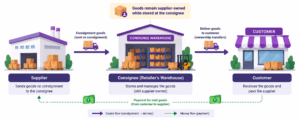
Consignment is a stock arrangement in which a supplier (the consignor) sends goods to another business (the consignee) to store or sell, while retaining ownership until the contractually defined event occurs. In Odoo, the stock Owner field distinguishes vendor-owned goods from goods owned by the warehouse operator.
| Role | Responsibility in the example |
| Supplier / consignor | Supplies the coffee makers and retains ownership of the consignment goods. |
| Retailer / consignee | Receives and stores goods, maintains stock records, and sells them to customers. |
| Customer | Purchases goods from the retailer through a normal sales order. |
Consignment vs a normal purchase
| Area | Normal purchase | Consignment |
| Ownership on receipt | Buyer generally owns goods, subject to contract terms. | Supplier remains owner of consignment goods. |
| Receiving workflow | Usually linked to a purchase order and receipt. | Odoo documents a manual receipt; no purchase order is involved in this receipt. |
| Warehouse visibility | Visible in relevant stock views. | Visible in operational stock views with vendor shown as owner. |
| Stock valuation | Owned stock may be included, depending on valuation setup. | Excluded from consignee’s Stock Valuation and Aging reports. |
| Selling | Sellable stock can be sold when available. | Can be sold like other available products; customer must differ from supplying vendor. |
When should a business use consignment?
- A supplier wants to place new products in a retailer’s warehouse without requiring an upfront purchase.
- A distributor wants to hold supplier-owned inventory closer to customers.
- A business wants to test product demand before buying stock outright.
- A retailer earns a commission or handling fee under a separate commercial agreement.
Odoo records inventory operations and ownership; it does not replace the legal agreement. The contract should define ownership transfer, settlement timing, damaged or missing goods, returns, fees, pricing, and responsibility for insurance or shrinkage.
Step 1: Enable consignment in Odoo 20
- Open Inventory.
- Go to Configuration – Settings.
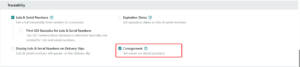
- Scroll to the Traceability section (Figure 2).
- Select the checkbox next to Consignment (“Set owner on stored products”).
- Click Save.
Enabling the feature makes consignment ownership available in stock operations. It does not automatically convert every receipt into consignment stock; assign the vendor as owner on the relevant receipt. In Figure 2, Consignment is the highlighted option; Lots & Serial Numbers is also enabled in this database but is not needed for consignment.
Step 2: Prepare the product and vendor
Check the supplier
- Open Contacts and search for the supplier; this example uses the fictional Northstar Home Supplies.
- Confirm the correct vendor record and save any required contact details.
Create or check the product
- Go to Inventory – Products – Products.
- Create or open Coffee maker (the product name used in the screenshots).
- Set Product Type to Goods so that Odoo tracks its stock.
- Tick Sales (called Can Be Sold in Odoo’s documentation) so the product can be sold to customers.
- Set the sales price (₹5,000 in this example), taxes, product category, and other fields according to your company setup, then save.
The product record describes the item; ownership is assigned on the stock operation. Creating a product or ticking Sales does not mark its stock as consignment.
Step 3: Receive consignment stock without a purchase order
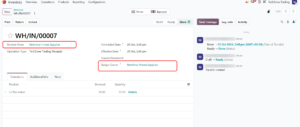
Scenario: Northstar Home Supplies sends 50 coffee makers to the retailer. The retailer is not buying them upfront, so no quotation or purchase order is involved: the receipt records physical stock received and vendor ownership, not a purchase.
- Open Inventory and select Receipts from the dashboard, or go to Inventory – Operations – Receipts.
- Click New to create a manual receipt.
- Set Receive From to Northstar Home Supplies.
- Set Assign Owner to the same vendor, Northstar Home Supplies. The two fields must match.
- Add Coffee maker to the product lines.
- Enter 50 in the Quantity column; Demand also shows 50.
- Check the product, quantity, Operation Type (Receipts), and owner.
- Click Validate only after checking the physical goods and quantity.
Step 4: Verify owner and on-hand quantity
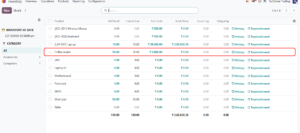
- Go to Inventory – Reporting – Stock (Figure 4).
- Search for Coffee maker.
- Review On Hand and Free to Use: both show 50.00 in Figure 4.
- Check Total Value: it is ₹0.00 although the Unit Cost is ₹2,000.00, because the retailer does not own consignment stock.
- To confirm the owner, open Inventory – Reporting – Moves History, search for the product, and check the Owner column (Figure 5). Odoo’s documentation also describes an Owner column in the location-level report (Inventory Report); it is not shown in this guide’s screenshots.
Warehouse teams must still count, move, pick, and reconcile consignment goods like any other stock. The Owner field is what separates vendor-owned from company-owned quantities.

Step 5: Sell consignment stock to a customer
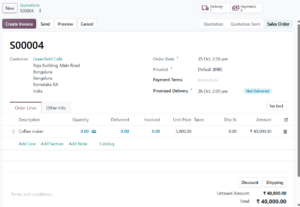
Scenario: the retailer sells 8 coffee makers to Greenfield Café at ₹5,000 each ( ₹40,000 in total).
- Open Sales and click New from Quotations.
- Select the customer.
- Add product and enter quantity.
- Complete pricing, taxes, and delivery details, then confirm the quotation.
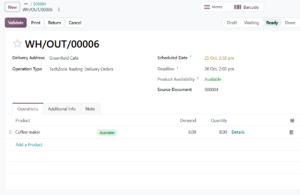
- Open the Delivery smart button from the sales order.
- Check the product, quantity, and delivery address.
- Click Validate only after the goods have physically been picked and checked.
Consignment stock is sold and delivered like any other available product. Figure 6 shows the confirmed sales order and Figure 7 the delivery before validation. How the retailer settles with the supplier follows the consignment agreement and the company’s accounting process (see Step 6).
Step 6: Understand inventory visibility and valuation
Consignment requires two different views of stock: physical availability and ownership/valuation. Odoo tracks physical movement, but the consignee does not treat vendor-owned stock as its own inventory valuation.
| Question | What to expect in Odoo 20 |
| Can I see consignment products in the warehouse? | Yes, in relevant operational stock and location reports. |
| Can warehouse staff move and count them? | Yes. Keep the owner and quantities accurate. |
| Are they included in the consignee’s Stock Valuation report? | No, Odoo’s documentation says vendor-owned consignment stock is excluded. |
| Are they included in the Aging report? | No, according to the documented consignment behavior. |
| Does Odoo automatically calculate supplier settlement or commission? | Do not assume so. Settlement, fees, and invoicing depend on the agreement and separately configured workflows. |
Accounting entries and settlement depend on the contract, localization, accounting configuration, and the moment ownership legally transfers. Confirm these requirements with the finance team rather than assuming Inventory automates them.
Figure 4 shows this in practice: Coffee maker has 50.00 on hand and a Unit Cost of ₹2,000.00 but a Total Value of ₹0.00, while a product the company owns, such as the Laptop, shows a non-zero total.
Step 7: Review Moves History and filter by owner
- Go to Inventory – Reporting – Moves History (Product Moves in Odoo’s documentation).
- Search for the product, or filter by the relevant receipt or delivery reference. Figure 5 uses the Product and Done filters.
- Review quantity, reference document, and source and destination locations.
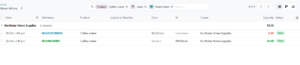
- Use Group By – Add Custom Group and choose From Owner (Figure 8).
- Use Inventory – Reporting – Forecasted Inventory to review forecasted quantities if required.
Moves History shows where stock moved and which operation recorded it. In Figure 5, receipt WH/IN/00007 moves 50 units from Vendors to WH/Stock with Owner Northstar Home Supplies. Figure 8 groups the history by From Owner and adds the delivery WH/OUT/00006 (8 units, WH/Stock to Customers). Its group total of 58.00 adds both movements; it is not the remaining stock.
Step 8: Reconcile remaining consignment quantity
In this example, 50 units were received and 8 delivered. If there are no other movements, the expected physical balance is 42 units.
| Movement | Quantity | Expected balance |
| Receive on consignment | +50 | 50 |
| Deliver to Greenfield Café | -8 | 42 |
| Expected remaining stock | – | 42 |
- Open Inventory – Reporting – Stock and search for Coffee maker; compare the on-hand quantity with the expected 42 units.
- Use Moves History grouped by From Owner (Figure 8) to confirm the owner’s movements: 50 received and 8 delivered.
- Compare the report with physical stock and the supplier statement or agreement.
- Investigate differences using Moves History and the relevant receipt, delivery, return, scrap, or adjustment documents.
Do not simply change a quantity to make the report match. Identify the cause and use the appropriate stock correction workflow so the movement history remains useful.
End-to-end workflow summary
| Stage | Odoo action | Key control |
| Enable | Inventory settings – Traceability – Consignment | Save setting. |
| Receive | Create a manual receipt | Receive From and Assign Owner match. |
| Move/store | Use normal internal stock operations | Preserve ownership and location accuracy. |
| Sell | Create and confirm sales order | Customer differs from supplying vendor. |
| Deliver | Open delivery and validate after picking | Ship the actual picked quantity. |
| Report | Stock report and Moves History | Check owner, locations, quantities, references. |
| Reconcile | Compare system balance with physical stock | Investigate before adjusting. |
Troubleshooting common issues
| Issue | Likely cause | What to do |
| Consignment option missing | Feature disabled, unsaved settings, or insufficient rights. | Enable Consignment under Inventory settings → Traceability; save and check permissions. |
| Assign Owner not visible | Feature not enabled or receipt layout differs. | Verify settings, permissions, and receipt view in Odoo 20. |
| Receipt quantity not recorded | Missing fields, wrong locations, or incomplete lines. | Review product lines, source/destination, owner, and done quantity before validation. |
| Receive From and Assign Owner differ | Receipt partners are mismatched. | For this documented workflow, set both to the supplying vendor. |
| Sales order cannot be fulfilled | Product not sellable, insufficient available stock, or reservation/location issue. | Check Can Be Sold, stock availability, owner, location, and reservations. |
| Customer equals supplier | Sales flow does not meet the documented condition. | Select the actual customer partner, not the supplying vendor. |
| Owner column hidden | Optional report column or view difference. | Use available column/list controls to display Owner if supported. |
| Moves History looks incomplete | Filters, company context, date range, or reference is wrong. | Clear filters and search by product or receipt/delivery reference. |
| Physical stock differs | Unrecorded moves, damage, returns, or count errors. | Recount, investigate movement history, document the cause, and use an approved correction. |
| Supplier settlement unclear | Inventory consignment does not define every commercial or accounting step. | Refer to the contract and configure invoicing/accounting with the finance team. |
Best practices
- Document the legal ownership-transfer point and settlement terms with each supplier.
- Keep supplier-owned and company-owned stock distinguishable in warehouse procedures and reports.
- Use clear product references and labels for consignment goods.
- Reconcile regularly with suppliers; compare physical stock, Odoo quantities, sales, returns, and damaged goods.
- Record receipts, deliveries, transfers, returns, and scrap promptly.
- Restrict access to inventory adjustments and ownership changes.
- Test the complete receipt-to-sale workflow in a sandbox before using live stock.
Frequently asked questions
What is consignment in Odoo 20?
A workflow for receiving and storing vendor-owned goods. Odoo tracks physical movement while retaining the vendor as stock owner.
Do I need a purchase order to receive consignment stock?
Odoo’s documented flow uses a manual receipt because the consignee is not purchasing the goods upfront.
Why must Receive From and Assign Owner match?
The supplier both sends and owns the consignment goods in this workflow.
Can I sell consignment stock in Odoo?
Yes, when available and configured as sellable. The customer must differ from the supplying vendor.
Does it affect the consignee’s stock valuation?
Odoo documentation says consignment stock is excluded from the consignee’s Stock Valuation and Aging reports.
How do I find consignment movement history?
Use Inventory – Reporting – Moves History and filter by product or operation reference. Group by From Owner (Add Custom Group) to see the vendor’s movements.
Does Odoo automatically pay the supplier when goods are sold?
Do not assume so. Settlement depends on the commercial agreement and configured invoicing/accounting workflows.
What if consignment goods are damaged or missing?
Record the event using the appropriate inventory operation and follow the supplier agreement; reconcile rather than silently changing quantities.
Can multiple vendors supply the same product on consignment?
The same product can have stock ownership recorded by vendor on relevant quantities. Use Owner and report filters to distinguish stock, and test the workflow in your database.
Conclusion
Consignment in Odoo 20 lets you store and sell vendor-owned products without treating them as your own inventory valuation. Keep physical stock and ownership separate: receive the goods on a manual receipt with the vendor as owner, sell and deliver as usual, and review quantities and ownership in the Stock and Moves History reports.
Combine accurate Odoo transactions with a written supplier agreement and regular reconciliation to keep consignment inventory reliable.
Official Odoo documentation
- Odoo 20 — Consignment: buy and sell stock without owning it – Primary reference for enabling consignment, manual receipts, sales/delivery, Moves History, and location reports.
- Odoo 20 — Inventory documentation overview – Related Inventory workflows and reports.
1 Comment