
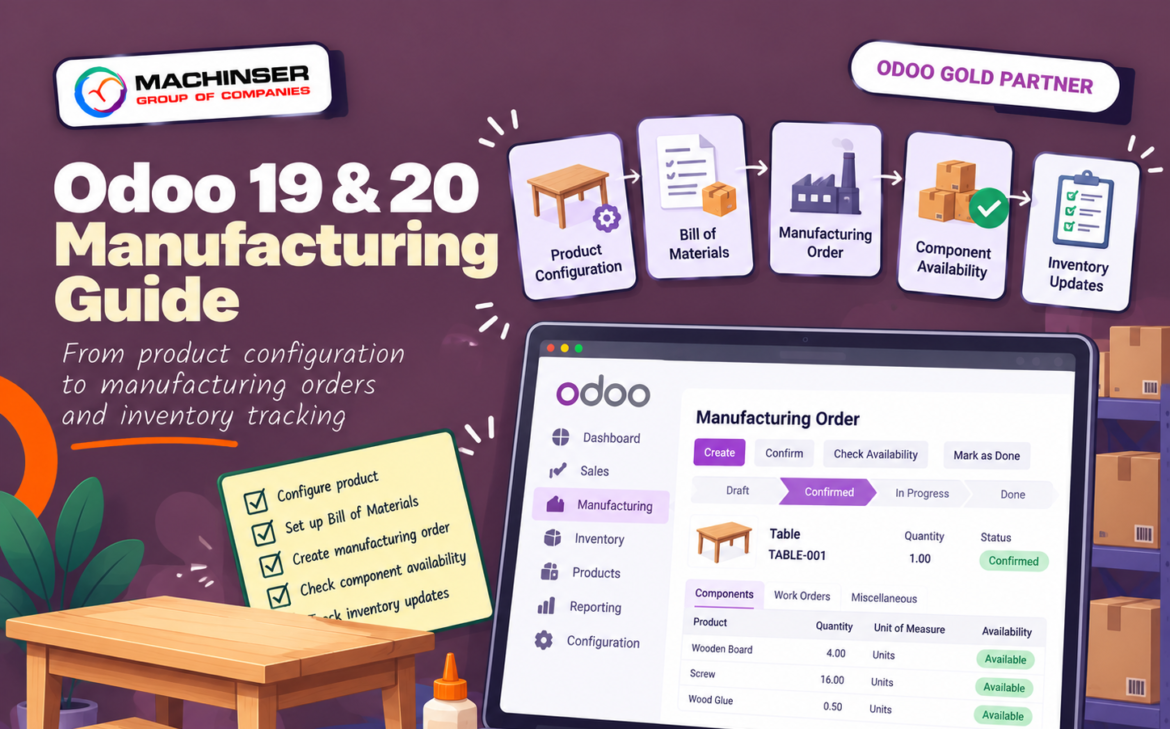
Efficient manufacturing requires complete visibility into required components, clear assembly routing, and accurate inventory tracking. In this comprehensive guide, we walk through how Odoo manufacturing connects these moving parts using Odoo’s built-in tools. Using a practical example – building a wooden table from a table top, legs, bolts, and screws – we cover everything from configuring your Bill of Materials (BoM) and generating manufacturing orders to processing production and verifying final inventory. Please note that all screenshots in this guide are captured directly from Odoo 20
What you will learn
- Difference between a Bill of Materials and a manufacturing order.
- How to configure components and a finished product.
- How to create a BoM with component quantities.
- How to manufacture a product using a manufacturing order.
- How component consumption and finished-goods quantities appear in inventory.
- When to use work orders, work centers, and multi-step manufacturing.
- How to troubleshoot common manufacturing issues.
Understand the core concepts
Bill of Materials (BoM)
A BoM is the recipe or blueprint for a product. It lists the components and quantities required to produce a defined quantity of finished product. Depending on configuration, it can also include operations, work centers, instructions, and by-products.
Manufacturing Order (MO)
An MO records a planned production run for a specific product and quantity. Odoo can use the product’s BoM to populate required components and, when configured, work orders.
Components, finished goods, and operations
Components are materials or subassemblies consumed during production. The finished product is the item produced. Work orders represent operations such as assembly or testing; work centers represent the equipment or production areas where those operations occur.
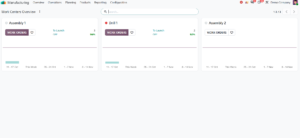
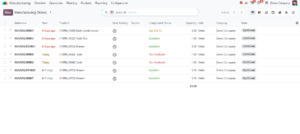
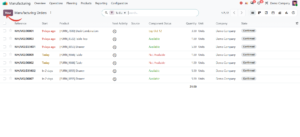
Open the Manufacturing app. Its Overview menu shows the Work Centers Overview (Figure 1), with a card for each work center, its Work Orders button, the number of orders To Launch and its OEE. Operations > Manufacturing Orders lists the manufacturing orders (Figure 2).
Prepare the example products
The products below come from Odoo’s demo data, as shown in the screenshots. We will manufacture five Tables; each Table needs one Table Top, four Table Legs, four Bolts, and ten Screws.
| Product | Role | Quantity per Table | Shown in the screenshots |
| Table [FURN_9666] | Finished product | 1 | Sales price $520.00, cost $290.00, tracked by unique serial number |
| Table Top [FURN_8522] | Component | 1 | Sales price $380.00, cost $240.00, tracked by unique serial number |
| Table Leg [FURN_2333] | Component | 4 | On the BoM only |
| Bolt [CONS_89957] | Component | 4 | On the BoM only |
| Screw [CONS_25630] | Component | 10 | On the BoM only |
Prices are shown in dollars because the demo database uses that currency. Actual Odoo manufacturing costs may also depend on operation durations, work-center costs, component valuation, and costing configuration.
Install and configure Manufacturing
- Open Apps and install Manufacturing if it is not already installed.
- Open Manufacturing – Configuration – Settings.
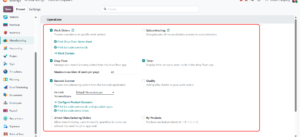
- In Operations, tick Work Orders (and Shop Floor if you want to run orders from the shop floor app), as in Figure 3. Enable only the options you need.
- Click Save and return to Manufacturing.
Figure 3 shows the Operations section of the Manufacturing settings. Work Orders (Process operations at specific work centers), Shop Floor, Timer, and Barcode Scanner are ticked; Subcontracting, Quality, Unlock Manufacturing Orders, and By-Products are not. Work Orders and Shop Floor are needed for the operations and Shop Floor steps later in this guide. Start with a basic one-step workflow, and explore two-step or three-step manufacturing after confirming it works.
Create component products
- Go to Manufacturing – Products – Products, or open Products from Inventory.
- Click New and create the first component, for example Table Top.
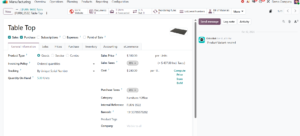
- Set the Product Type (Goods in the example), the Tracking option if needed (By Unique Serial Number for Table Top), the Sales Price and Cost, and the Internal Reference.
- Save, then repeat for Table Leg, Bolt, and Screw.
Figure 4 shows the Table Top form: Product Type Goods, Tracking By Unique Serial Number, Quantity On Hand 5.00 Units, Sales Price $380.00, and Cost $240.00. Its Bill of Materials smart button shows 1, because Table Top also has its own BoM. If you need on-hand quantities and stock movements, check that the products are configured for inventory tracking in your database.
Create the finished product
- Open Manufacturing – Products – Products and create or open the product Table.
- Set Product Type to Goods, and Tracking to By Unique Serial Number if you want to follow serial numbers, as in the example.
- Save the product record.
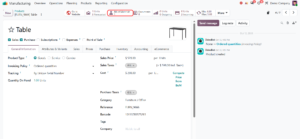
- Click the Bill of Materials smart button (it shows 1 in Figure 5) to open the product’s BoM.
A product name alone does not configure the manufacturing workflow. The BoM and relevant inventory settings must also be in place. In Figure 5, the Table form shows Sales Price $520.00, Cost $290.00 with a Compute Price from BoM button, and Quantity On Hand 1.00 Units.
Create the Bill of Materials
Open Manufacturing – Products – Bills of Materials and click New. Alternatively, open the finished product and use its Bill of Materials smart button if available.
- Select Table in the Product field.
- Set the Quantity to 1 Unit and leave BoM Type on Manufacture this product (the other option is Kit).
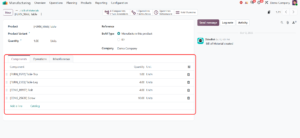
- In the Components tab, click Add a line and add Table Top with quantity 1.
- Add Table Leg with quantity 4.
- Add Bolt with quantity 4 and Screw with quantity 10 (Figure 6).
- Review and save the BoM.
The BoM quantity defines how many finished units the listed component quantities produce. If the BoM quantity is 10, component quantities should describe the materials needed to produce 10 Tables. The smart buttons at the top of the BoM show 4 Components (2 Sub Assemblies), 1 Operations (7 Instructions), Operations Performance, and BoM Overview.
Add operations and work centers
If operation-level tracking is needed, enable Work Orders in Manufacturing settings. Open the BoM and use its Operations tab to add steps such as Assembly.
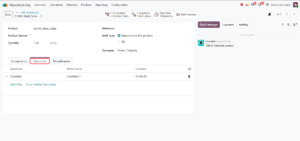
- Open the Table BoM and click the Operations tab (Figure 7).
- Click Add a line (or Copy Existing Operations) and enter the operation, Assembly in this example.
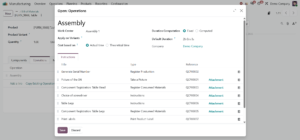
- Select the Work Center (Assembly 1) and the Duration (2h 0m 0s).
- Open the operation to review its settings (Figure 8): Duration Computation (Fixed), Default Duration, Cost based on (Actual time or Theoretical time), and the Instructions tab.
- Save the operation and the BoM.
Work centers and operation durations can affect planning and cost calculations. Configure them to reflect the real production process rather than adding unnecessary steps.
Create a Manufacturing Order
Create an MO to manufacture five Tables.
- Go to Manufacturing – Operations – Manufacturing Orders and click New (Figure 9).
- Select Table in the Product field.
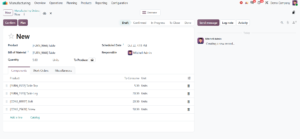
- Enter 5 in the Quantity field.
- Check that the intended BoM ([FURN_9666] Table) is selected in the Bill of Material field.
- Review Components (Figure 10): Odoo calculates 5 Table Tops, 20 Table Legs, 20 Bolts, and 50 Screws to consume.
- Click Confirm.
If several BoMs exist for the product, verify the selected BoM. Before confirmation the MO is in Draft and also offers a Plan button. After confirmation, Odoo may show component availability, reservations, transfers, or work orders depending on configuration.
Check component availability
- Open the confirmed MO and review the Component Status and the badge on each component line (Figure 11).
- Check on-hand quantities for Table Top, Table Leg, Bolt, and Screw in Inventory.
- If a component is Not Available, replenish it through purchasing or an appropriate internal stock workflow.
- If multi-step manufacturing is configured, process the component-picking transfer before production.
A BoM does not create missing physical materials. Component shortages must be resolved through replenishment or an appropriate exception workflow. In Figure 11, the confirmed MO WH/MO/00010 for five Tables shows Component Status Not Available: Table Top and Table Leg are flagged Not Available, while Bolt and Screw are Available.
Figure 11: The confirmed MO WH/MO/00010. The highlighted status badges show Table Top and Table Leg Not Available, and Bolt and Screw Available.
Process production and consume components
Completion controls depend on whether work orders and one-step, two-step, or three-step manufacturing are configured. The remaining screenshots follow a one-unit MO, WH/MO/00002, from the same database.
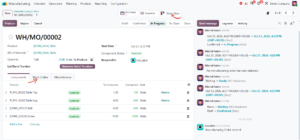
- Open the confirmed MO (Figure 12 shows WH/MO/00002, In Progress, for one Table).
- Review the components to consume and the quantity to produce. Because the Table is tracked by unique serial number, the form also shows a Generate Serial Numbers button next to Lot/Serial Number.
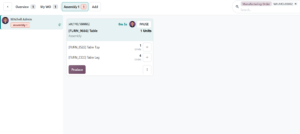
- If work orders are enabled, open the Work Orders tab or click Shop Floor, and select the Assembly 1 work center to see its work order card with the timer, Pause button, and components (Figure 13).
- Click Produce, on the work order card or on the MO.
- Review consumption and quantity prompts before validating.
Button labels and action order differ by configuration. Follow the controls shown in your database and verify the final MO status rather than assuming a particular button appears in every setup.
Verify finished goods in inventory
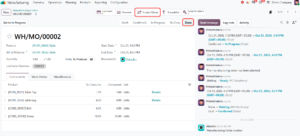
- Confirm the MO has reached its completed status: Done is highlighted in the status bar (Figure 14).
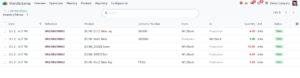
- Click the Product Moves smart button to review the stock moves (Figure 15).
- Open Table and check its on-hand quantity.
- Open component products and check their updated quantities; the Traceability and Serial Numbers smart buttons show where each serial number was used.
- For three-step manufacturing, validate the finished-product storage transfer to move goods to the intended stock location.
One-step, two-step, and three-step manufacturing
Odoo supports different manufacturing flows. The number of steps is configured at warehouse level; confirm the options in your installed version.
| Workflow | Typical flow | Useful when |
| One-step | Manufacture in one production workflow | A simple process without separate picking and finished-goods storage transfers. |
| Two-step | Pick components, then manufacture | Components must move from storage to the production area first. |
| Three-step | Pick components, manufacture, then store finished goods | Separate records are needed for picking and finished-product storage. |
For three-step manufacturing, Odoo creates separate transfers for picking components and storing finished products. The number of steps is set on the warehouse (Inventory → Configuration → Warehouses); check the Manufacture setting before following a multi-step tutorial. The screenshots in this guide use a simple flow and do not show that setting.
Understand manufacturing costs
Odoo can calculate an expected MO cost from the BoM and configured operations, then compare it with the real cost of a completed MO. Differences may result from actual component quantities, component prices, operation durations, or production conditions.
In this demo example, the Table form shows a Cost of $290.00 with a Compute Price from BoM button (Figure 5), and Table Top shows $240.00 (Figure 4). The Assembly operation is set to Cost based on Actual time (Figure 8). These are demo-database figures, not a guaranteed Odoo valuation result. Costing methods, inventory valuation, work-center costs, and accounting configuration affect reported costs.
Common problems and troubleshooting
- The BoM is not available on the MO. Check that the BoM is saved, active, linked to the correct product, and suitable for the selected variant.
- Component quantities are incorrect. Review the BoM output quantity, component quantities, MO quantity, and selected BoM.
- Production cannot be completed. Check component availability, consumed quantities, work-order status, lot/serial requirements, and validation prompts.
- A component is unavailable. Check on-hand stock and reservations; replenish the component or resolve competing reservations.
- Work Orders or Operations is missing. Enable Work Orders in Manufacturing settings, save, and reopen the BoM. Check permissions and version-specific interface details.
- Finished goods are in the wrong location. Review warehouse manufacturing steps and validate any required finished-product storage transfer.
- Actual cost differs from the estimate. Compare component consumption and prices, operation durations, work-center settings, and costing method.
- Lot or serial tracking blocks completion. Configure traceability on the product and assign required lot or serial information before completing production.
- Stock did not update as expected. Check MO status, completed quantity, stock moves, and any separate transfer steps; confirmation alone may not mean production is complete.
Best practices
- Use clear product names and consistent units of measure.
- Verify component quantities and BoM output quantity before confirming production.
- Update the BoM when materials or the manufacturing process change.
- Use operations and work centers when production tracking or capacity planning requires them.
- Check component availability before starting production.
- Use lots or serial numbers where traceability is important.
- Test one-step, two-step, or three-step flows before training users.
- Review planned versus actual costs using the correct costing setup.
- Use a test database for screenshots and training.
- Follow documentation for the exact Odoo version in use.
Frequently asked questions
What is a Bill of Materials in Odoo?
A BoM lists the components and quantities needed to manufacture or repair a product. It can also include operations and production instructions.
What is the difference between a BoM and a Manufacturing Order?
The BoM defines how a product is made; the MO records a planned production run and quantity.
Can I manufacture without work orders?
Yes. Work orders are optional for a basic workflow and can be enabled when individual operations need tracking.
Does confirming an MO increase finished stock?
Confirmation starts or reserves the workflow; stock updates depend on completing production and any required transfer steps.
Why are component quantities multiplied on the MO?
Odoo scales BoM requirements according to the MO quantity and the BoM output quantity.
What is the difference between one-step and three-step manufacturing?
One-step is a simpler production flow; three-step separates component picking, manufacturing, and finished-goods storage.
Can Odoo track manufacturing costs?
Yes. Odoo can calculate MO costs from component and operation configuration, but reported values depend on costing and valuation settings.
Can I track manufactured products by serial number?
Yes. Configure product traceability and serial-number tracking, then register required serial information during production.
Are the instructions identical in Odoo 19 and 20?
The concepts are similar, but menus and interface details can differ. Follow documentation for your installed version.
Conclusion
Odoo Manufacturing connects product structure, production execution, and inventory updates. By configuring the finished product and its BoM, creating a Manufacturing Order, checking component availability, recording production, and verifying stock movements, teams can build a consistent workflow.
Start with a simple one-step example, validate the results, and add work orders, work centers, multi-step manufacturing, traceability, or cost analysis as needed. Verify the workflow in the Odoo version and warehouse configuration used by your organization.
For further reading
- Odoo 19 — Manufacturing overview: https://www.odoo.com/documentation/19.0/applications/inventory_and_mrp/manufacturing.html
- Odoo 19 — Manufacturing product configuration: https://www.odoo.com/documentation/19.0/applications/inventory_and_mrp/manufacturing/basic_setup/configure_manufacturing_product.html
- Odoo 19 — Basic setup: https://www.odoo.com/documentation/19.0/applications/inventory_and_mrp/manufacturing/basic_setup.html
- Odoo 19 — Three-step manufacturing: https://www.odoo.com/documentation/19.0/applications/inventory_and_mrp/manufacturing/basic_setup/three_step_manufacturing.html
- Odoo 19 — Manufacturing order costs: https://www.odoo.com/documentation/19.0/applications/inventory_and_mrp/manufacturing/basic_setup/mo_costs.html
- Odoo 20 — Manufacturing overview: https://www.odoo.com/documentation/20.0/applications/inventory_and_mrp/manufacturing.html
- Odoo 20 — Bill of Materials: https://www.odoo.com/documentation/20.0/applications/inventory_and_mrp/manufacturing/management/bill_configuration.html
- Odoo 20 — Manufacturing product configuration: https://www.odoo.com/documentation/20.0/applications/inventory_and_mrp/manufacturing/management/configure_manufacturing_product.html
- Odoo 20 — Supply Chain documentation: https://www.odoo.com/documentation/20.0/applications/inventory_and_mrp.html