

Functional | Odoo 19 | Project Module
Managing a project involves more than creating a task list. Teams need a central place to define the project, organize activities, assign responsibilities, monitor progress, record working hours, and understand project costs. The Odoo 19 Project module brings these activities together in one workspace so that project managers and team members can follow the work from planning through delivery.
In this practical walkthrough, we use a sample project named “Project Zenith” for the customer “Azita-Sg Clothing.” The example demonstrates how a project can be created, divided into stages, viewed in different formats, connected with timesheets and invoicing, and extended with additional workflow stages.
1. Creating a New Project
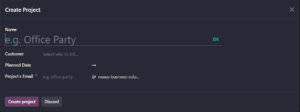
To begin, open the Project application in Odoo 19 and select New. Odoo displays a project creation form where the user can enter the project name, customer, planned date, and project email. These fields help identify the project and provide basic information for communication and billing.
For the sample implementation, the project is named “Project Zenith.” The customer is selected as “Azita-Sg Clothing,” and the planned period is entered from August 1 to October 15. A project email can also be configured so that project-related messages are directed to the appropriate project record.
2. Viewing the Project from the Projects Dashboard
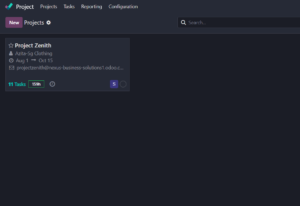
After the project is created, it becomes available in the Projects dashboard. The dashboard provides a quick overview of the projects available in the database. Each project card can display the customer, planned dates, project email, number of tasks, and total allocated or recorded time.
In the example, Project Zenith is displayed with the customer name, project duration, project email, 11 tasks, and the remaining 159 hours. This summary allows a project manager to identify the project and review its workload without opening every task individually.
3. Organizing Work with Project Stages
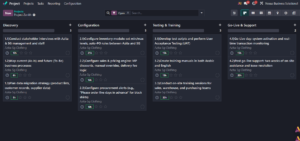
Odoo’s Kanban view helps teams organize tasks according to their current stage. A project can be divided into meaningful phases. Here, four phases were created: Discovery, Configuration, Testing & Training, and Go-Live & Support. Tasks can then be moved between stages as work progresses.
For Project Zenith, the Discovery stage contains activities such as stakeholder interviews, business-process mapping, and data migration planning. The Configuration stage contains inventory, pricing, and procurement configuration tasks. Testing & Training contains user acceptance testing and training activities, while Go-Live & Support contains deployment and post-go-live assistance.
This stage-based structure gives the team a visual understanding of the project lifecycle. It also makes it easier to identify which phase contains the largest number of pending activities.
4. Monitoring Tasks in List View
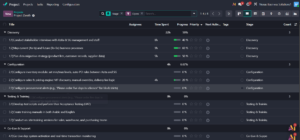
Although the Kanban view is useful for visual task management, the list view is helpful when a project manager needs to compare task information in a structured format. The list view displays fields such as task title, assignees, time spent, progress, priority, next activity, tags, and stage.
The screenshot shows tasks grouped by stage. For example, the Discovery group displays a total of 22 hours and an overall progress value of 50%. Individual tasks show their recorded time and completion percentage. In the Configuration group, some tasks have not yet started, while another task has recorded time and partial progress.
This view is especially useful during project reviews because it allows managers to compare workload, progress, and time consumption across several tasks in one screen.
5. Reviewing Project Information and Settings
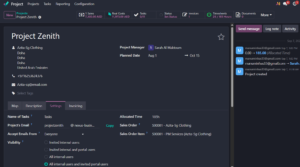
Opening a project record provides access to its general information and configuration. The project overview can show the customer, location details, project manager, planned dates, contact information, sales order, allocated time, and other related records.
The Settings tab contains operational options such as the name used for tasks, project email, email acceptance rules, visibility, allocated time, and the sales order item connected to the project. These settings help determine how users interact with the project and how project services are linked to sales and billing.
The project record also includes areas for description, settings, invoicing, and related communication. Keeping these details within the project record reduces the need to search through separate applications for basic project information.
6. Managing Individual Tasks and Timesheets
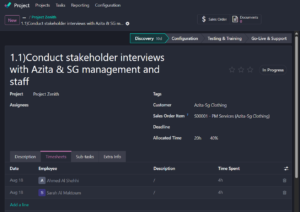
Each project task has its own detailed form. The task record identifies the project, customer, sales order item, allocated time, deadline, assignees, and current stage. Team members can use the task record to document work and update progress.
The Timesheets tab allows employees to record the time spent on the task. In the example, Ahmed Al Shehhi and Sarah Al Maktoum have each recorded four hours on August 18. These entries provide a more detailed view of how the total project effort is distributed among employees.
Accurate timesheet entries are important for project costing, resource planning, performance monitoring, and customer billing when the project is configured for time-based invoicing.
7. Configuring Project Invoicing
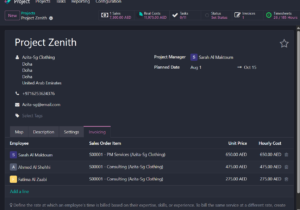
Odoo 19 can connect project work with sales order items and invoicing rules. In the Invoicing tab, the project manager can define the rate at which an employee’s time is billed. The rate may vary depending on the employee’s role, expertise, or the service being provided.
The example lists employees such as Sarah Al Maktoum, Ahmed Al Shehhi, and Fatima Al Zaabi. Each employee is linked to a sales order item and has a unit price and hourly cost in AED. This configuration helps the organization calculate billable project services based on the recorded time and the applicable billing rate.
Before using time-based invoicing in a live environment, the company should confirm that the correct sales order items, employee rates, and invoicing policy are configured according to its commercial agreement with the customer.
8. Adding and Customizing Project Stages
Project stages can be customized to match the organization’s actual implementation methodology. When a new stage is required, the user can add a stage name from the stage configuration area. The stage can then be used to group tasks and represent another step in the project workflow.
For example, a company may add stages such as Business Approval, Data Validation, User Sign-off, or Hypercare if those steps are part of its project delivery process. Clear stage names help users understand the status of a task and make the Kanban board more meaningful.

9. Practical Project Workflow
A typical workflow in the Odoo 19 Project module can follow the sequence below:
- Create the project and select the customer.
- Set the planned start and end dates and configure the project email.
- Create project stages that represent the delivery process.
- Add tasks and assign them to responsible employees.
- Set allocated time, deadlines, and priorities for each task.
- Record employee working hours through timesheets.
- Review task progress through Kanban and list views.
- Configure invoicing rates and connect work with sales order items when required.
- Move tasks through the stages until the project reaches go-live and support.
10. Conclusion
The Odoo 19 Project module provides a centralized workspace for planning, executing, monitoring, and billing project activities. With project stages, task management, multiple views, timesheets, and invoicing configuration, teams can maintain better visibility over their work and responsibilities.
Using Project Zenith as an example, we can see how a project is created, organized into phases, monitored through different views, and connected with employee time and billing information. By configuring stages and task details according to the company’s workflow, Odoo can support both simple internal projects and structured customer implementation projects.