
When a business purchases products from a supplier, the purchase price is not always the final cost. A company importing 100 televisions may also pay for international shipping, customs duties, insurance and local transportation.
If these expenses are recorded separately without being included in inventory valuation, the product cost may not reflect the full cost of bringing the goods into the warehouse. Landed Costs in Odoo 19 allows eligible additional expenses to be distributed across products in a stock receipt.
What Are Landed Costs?
Landed costs are additional expenses incurred to purchase, transport and receive products at a company’s warehouse.
Common examples include:
- International shipping charges
- Customs duties
- Freight and transportation expenses
- Cargo insurance
- Port handling charges
- Import clearance fees
- Other eligible acquisition-related expenses
Example: A company purchases 100 televisions from an overseas supplier.
| Expense | Amount |
| Purchase cost (100 × ₹10,000) | ₹10,00,000 |
| International shipping | ₹50,000 |
| Customs duties | ₹30,000 |
| Insurance | ₹10,000 |
| Total cost | ₹10,90,000 |
If the additional expenses are distributed equally across 100 televisions, the additional cost is ₹900 per television. The original purchase cost is ₹10,000, so the total landed cost becomes ₹10,900 per television.
Why Use Landed Costs in Odoo 19?
Using Landed Costs helps businesses calculate a more complete inventory cost, distribute additional expenses across products, improve inventory valuation accuracy, understand the cost of imported products, and make better pricing and profitability decisions. It is particularly useful for importing, wholesale distribution and manufacturing businesses.
Enable Landed Costs in Odoo 19
Before creating landed costs, enable the feature in Inventory settings:
- Open the Inventory application.
- Go to Configuration → Settings.
- Find the Valuation section.
- Enable Landed Costs.
- Select a Default Journal for landed cost accounting entries.
- Click Save.
The supplied screenshot shows the Landed Costs option enabled under Inventory Valuation. Select the appropriate Default Journal for the company’s accounting setup before saving.
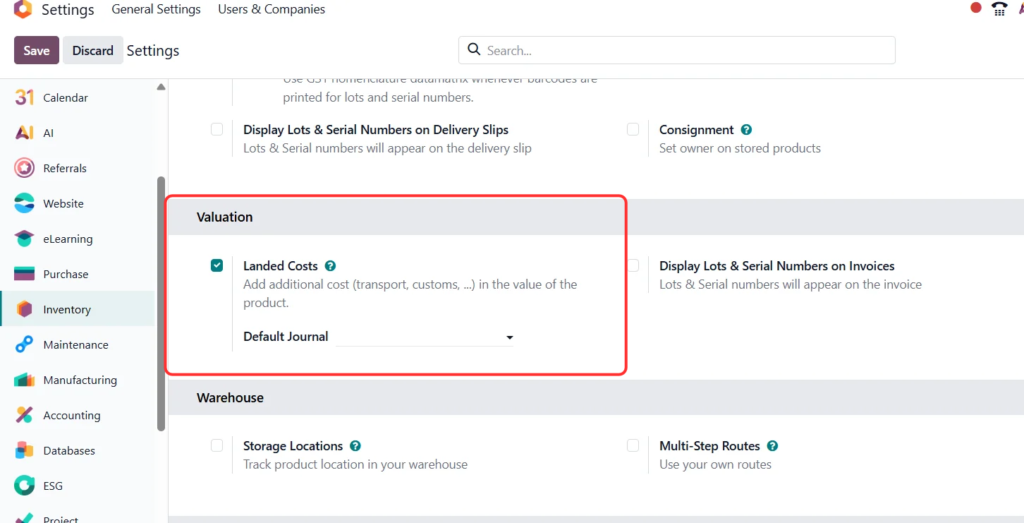 Figure 1. Enable Landed Costs in Inventory settings and choose the default journal.
Once enabled, Odoo provides the options needed to create and process landed cost records.
Important: The product category used for the purchased products must use FIFO (First In First Out) or AVCO (Average Cost) as its costing method to apply landed costs. Checkout our blog about FIFO and AVCO costing methods
The screenshot shows the Landed Costs category using Average Cost (AVCO) and Perpetual (at invoicing) inventory valuation. Configure the category according to your accounting policy.
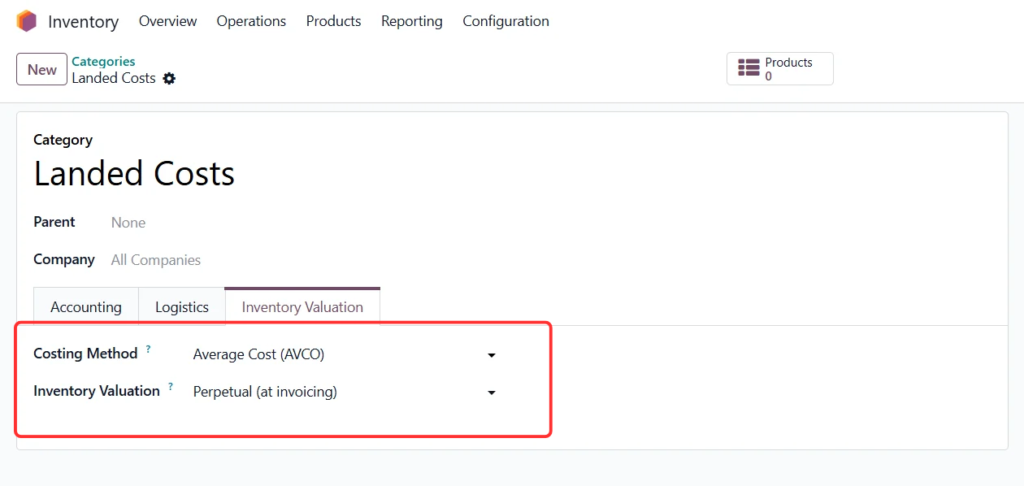 Figure 2. Example product category configured with Average Cost (AVCO) and Perpetual (at invoicing) valuation.
Create a Landed Cost Service Product
Additional expenses are represented using a service product configured as a landed cost product. A company may create separate service products for International Shipping, Customs Duty, Cargo Insurance and Local Transportation.
- Go to Inventory → Products → Products.
- Click New and enter a name, such as International Shipping.
- Set Product Type to Service.
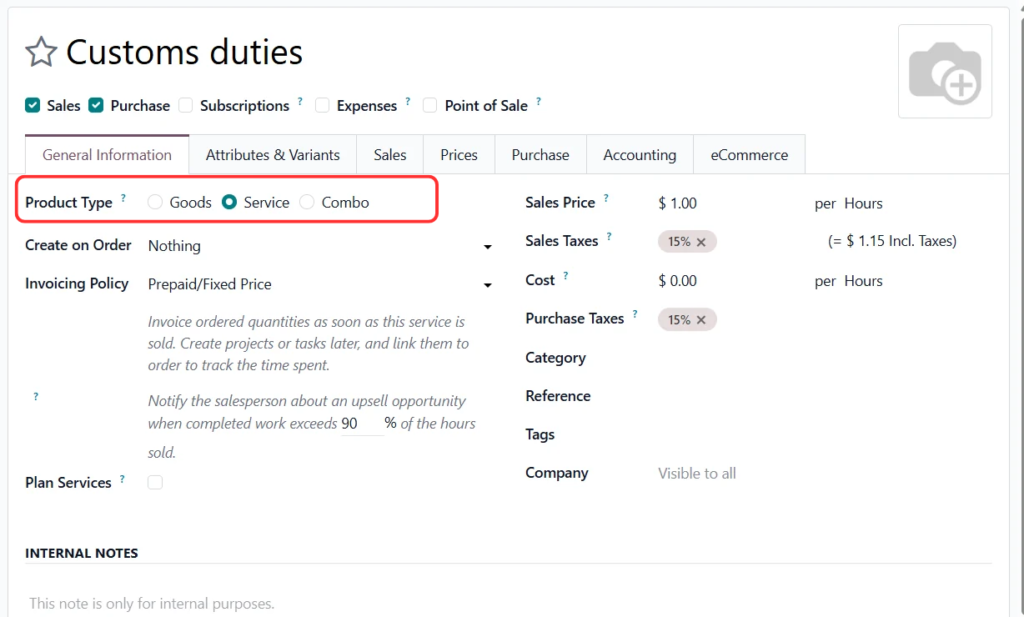 Figure 3. Set the landed cost charge product’s Product Type to Service.
- Open the Purchase tab.
- In Vendor Bills, enable Is a Landed Cost.
- Select a Default Split Method.
In the supplied example, the Default Split Method is Equal and the Control Policy is On ordered quantities. The alternative shown is On received quantities; choose the policy that fits your workflow.
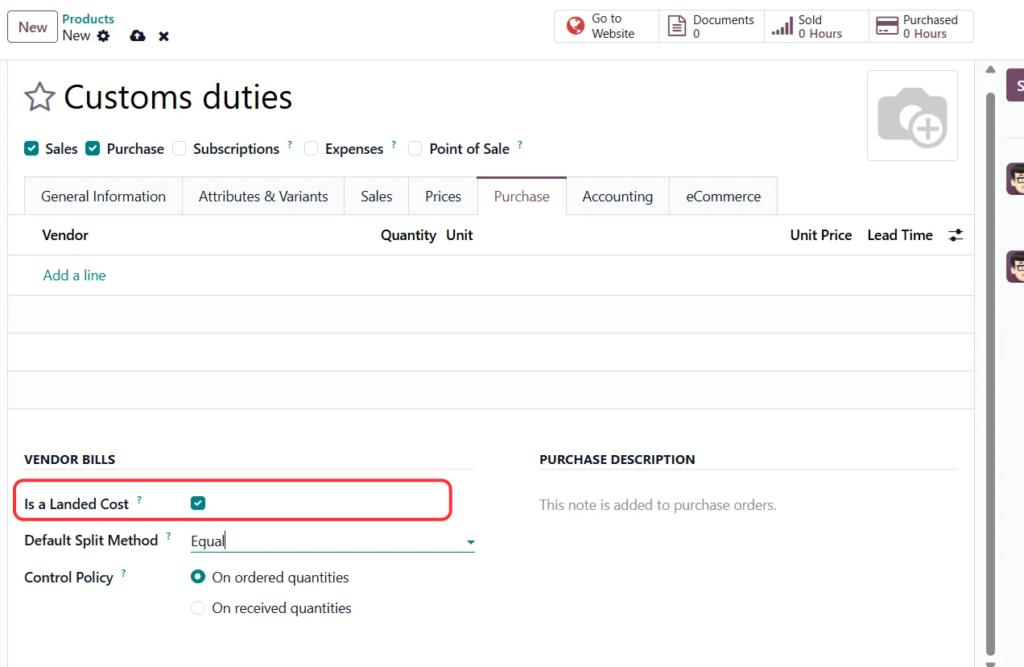 Figure 4. Enable Is a Landed Cost and select the default split method on the Purchase tab.
- Save the product.
Understanding the Split Methods
The split method determines how Odoo distributes the additional expense across the products in the selected receipt.
| Split method | How the cost is distributed |
| Equal | Divides the expense equally across products. |
| By Quantity | Distributes according to each product’s quantity. |
| By Current Cost | Allocates more cost to products with a higher current cost. |
| By Weight | Distributes according to product weight. |
| By Volume | Distributes according to product volume. |
Example: A receipt contains 10 televisions weighing 100 kg in total and 20 speakers weighing 50 kg in total. If shipping costs ₹15,000 and the split method is By Weight, televisions receive ₹10,000 and speakers receive ₹5,000.
Choose a split method that reflects how the expense is incurred. Weight may suit freight charges, while quantity may suit charges based on the number of units.
The landed cost service product also includes a Control Policy. The screenshot shows On ordered quantities selected, with On received quantities available as an alternative. Select the option that matches how the vendor bill should be controlled in your process.
Create a Purchase Order and Receive Products
After configuring the landed cost product, purchase and receive the products:
- Open the Purchase application.
- Go to Orders → Requests for Quotation.
- Click New and select the vendor.
- Add the product and enter the required quantity.
- Confirm the order.
- When the products arrive, click Receive.
- Validate the receipt.
After validating the receipt, the products are recorded as received inventory. The validated receipt is the transfer to which the landed costs will be applied.
Create the Vendor Bill for Additional Expenses
The company may receive a separate invoice from the shipping provider or customs agent. For example, the shipping invoice may be ₹50,000 and the customs invoice may be ₹30,000.
- Open the relevant Purchase Order or create the vendor bill for the expense.
- Open the draft vendor bill.
- Add a line for the landed cost service product, such as International Shipping.
- Enter the expense amount.
- Confirm Is a Landed Cost is enabled on the service product.
- Save the vendor bill.
Once the eligible service product is added, Odoo provides the Create Landed Costs action on the vendor bill.
Create and Apply Landed Costs
- Open the vendor bill.
- Click Create Landed Costs.
- Open the landed cost record created by Odoo.
- In Transfers, select the validated receipt associated with the purchased products.
- Review the Additional Costs tab.
- Click Compute.
The selected receipt determines which products receive the additional cost. If the company has several receipts, select the one associated with the products that incurred the expense.
Review Valuation Adjustments
Before validating the landed cost, review the Valuation Adjustments tab. It shows how the additional expenses affect product values.
- Original Value: the product’s original inventory value.
- Additional Landed Cost: the extra expense allocated to the product.
- New Value: the updated inventory value after adding the landed cost.
| Product | Original value | Additional cost | New value |
| Television | ₹10,00,000 | ₹50,000 | ₹10,50,000 |
| Speaker | ₹2,00,000 | ₹10,000 | ₹2,10,000 |
| Total | ₹12,00,000 | ₹60,000 | ₹12,60,000 |
These figures are illustrative. Actual allocations depend on the selected split method and the products included in the receipt. After reviewing the adjustments, click Validate to post the landed cost and update inventory valuation.
Check the Updated Inventory Valuation
- Open the Inventory application.
- Go to Reporting → Valuation, or the relevant stock valuation reporting view available in your database.
- Search for the product.
- Review its updated valuation information.
You can also inspect related accounting entries in the Accounting application. The exact accounting impact and timing depend on the company’s inventory valuation and accounting configuration.
Common Mistakes to Avoid
- Wrong product type: The landed cost product must be configured as a Service product.
- Forgetting Is a Landed Cost: Enable this option on the service product’s Purchase tab.
- Unsupported costing method: The products must belong to a category using FIFO or AVCO.
- Selecting the wrong receipt: Select the validated receipt associated with the products that incurred the expense.
- Unsuitable split method: Choose a method that reflects how the expense is actually incurred.
- Skipping the valuation review: Review Original Value, Additional Landed Cost and New Value before validating.
Frequently Asked Questions
What are landed costs in Odoo 19?
They allow businesses to include additional expenses, such as shipping, insurance and customs duties, in the valuation of purchased inventory.
Can I apply landed costs to multiple products?
Yes. Odoo can distribute additional expenses across multiple products in a selected validated receipt using the chosen split method.
Can I use a normal product for landed costs?
The charge must be represented by a service product with Is a Landed Cost enabled on its Purchase tab.
Which costing methods support landed costs?
The products in the original purchase order must belong to a product category using FIFO or AVCO.
What is the purpose of the split method?
It determines how the additional expense is distributed across products: Equal, By Quantity, By Current Cost, By Weight or By Volume.
Can I create landed costs without a vendor bill?
Yes. A landed cost record can also be created directly from Inventory → Operations → Landed Costs, with the relevant transfer and additional cost details entered manually.
Does validating landed costs update inventory value?
Yes. Validation posts the valuation adjustment. The accounting impact depends on inventory valuation and accounting configuration.
Conclusion
Accurately calculating product costs is important for businesses that purchase goods from suppliers, especially when additional expenses are involved.
With Landed Costs in Odoo 19, businesses can include eligible shipping, customs, insurance and other acquisition-related expenses in inventory valuation. The feature provides different allocation methods, allowing companies to distribute additional expenses according to quantity, weight, current cost, volume or equally.
By configuring the landed cost service product, validating the purchase receipt, creating the vendor bill and applying the additional expenses to the correct transfer, businesses can maintain a more complete view of their inventory costs.