
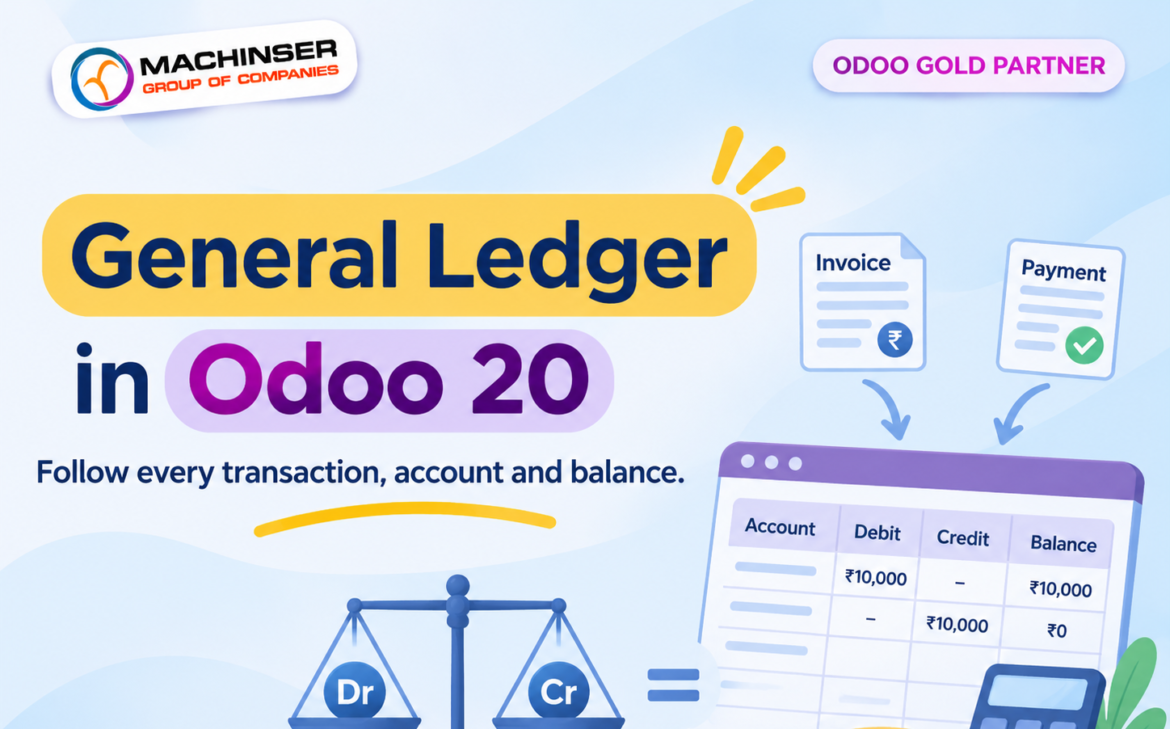
If you are new to accounting, or new to Odoo, financial reports can look intimidating. They get much easier once you understand one idea: the General Ledger in Odoo 20 is where every financial transaction of your company ends up, sorted by account.
When a business sells to a customer, receives a payment, buys goods, pays salaries or records an expense, each of those events eventually appears in the General Ledger as accounting entries. Odoo does most of this for you. You confirm an invoice, a bill or a payment, and Odoo creates the journal entries behind the scenes.
This guide walks through the basics with real screenshots from an Odoo 20 database: what the General Ledger is, how it relates to the Chart of Accounts, how debits and credits work, how a single customer invoice travels into the ledger, and how to read the General Ledger report.
Good to know: the dynamic General Ledger report shown here is part of Odoo’s accounting reports, which are Enterprise features in Odoo. If your report looks different, check your edition.
What Is a General Ledger?
Picture your company’s accounting as a big notebook in which every financial event is written down. The General Ledger is that notebook: the central record that groups all transactions under their accounts. For example, when a company sells a product, receives money, buys equipment, pays salaries or pays rent, each event creates entries in the relevant accounts, and the ledger brings them together so you can see how every account changes over time.
A General Ledger report typically shows:
- the account code and name;
- the transaction date and the journal entry reference;
- the description or label, and the related customer or vendor;
- the debit and credit amounts;
- a running or closing balance.
With these details, you can see the activity behind an account balance instead of a single final number.
The Chart of Accounts and the General Ledger
Beginners often mix up the two, but the difference is simple. Think of the notebook again:
| Chart of Accounts | General Ledger |
| Defines which accounts exist | Records the transactions made under those accounts |
| Works like the notebook’s index | Works like the actual pages |
| Contains account codes, names and types | Contains dates, descriptions, debits, credits and balances |
| Shows where entries can be recorded | Shows what has been recorded |
Every transaction must be assigned to an account in the Chart of Accounts; without an account, there is nowhere to record it. In Odoo 20, open it from Accounting ‣ Configuration ‣ Chart of Accounts.
Figure 1 shows a Chart of Accounts with 65 accounts. Each row has a code, a name and a type, for example 101401 Bank (type Bank and Cash) or 101403 Outstanding Receipts (type Current Assets). The Payment Reconciliation toggle decides whether an account’s journal items are suggested during bank reconciliation. It is switched on here for Accounts Receivable (PoS), Outstanding Receipts and Outstanding Payments. The accounts available to you depend on your company’s fiscal localization and accounting setup.
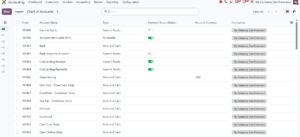 Figure 1: The Chart of Accounts in Accounting ‣ Configuration, listing account codes, names, types, the Payment Reconciliation toggle and the company.
Understanding Debits and Credits
Before reading a ledger, you need two words: debit and credit. In double-entry accounting every transaction touches at least two accounts. One gets a debit, another gets a credit, and the total debits must equal the total credits in each balanced journal entry. They are the two sides of the same event.
A simple example. A business buys office equipment for $10,000 and pays from its bank account:
| Account | Debit | Credit |
| Office Equipment | $10,000 | – |
| Bank | – | $10,000 |
| Total | $10,000 | $10,000 |
Office Equipment is debited because the business gained an asset. Bank is credited because money left the account. Both sides carry the same amount, so the entry balances.
Debit does not always mean money in
Many beginners assume a debit means money coming in and a credit means money going out. That is not true. What a debit or credit does depends on the type of account:
| Account type | A debit… | A credit… |
| Assets | Increases | Decreases |
| Expenses | Increases | Decreases |
| Liabilities | Decreases | Increases |
| Equity | Decreases | Increases |
| Income | Decreases | Increases |
How Odoo Builds the General Ledger for You
You do not write the ledger by hand. Odoo creates journal entries when accounting documents are confirmed or validated:
- confirming a customer invoice or a vendor bill creates its entries;
- registering a customer or vendor payment creates payment entries;
- other accounting operations create their own journal entries.
These entries are recorded under the right accounts and automatically become part of the General Ledger. The next two sections follow one real invoice from creation to payment.
Example: How a Customer Invoice Reaches the Ledger
Our example is invoice INV/2026/00007, sent to the customer OpenWood on 22 October for one unit of “Office Design Software” at $275.00 (Figure 2).
Step 1: Create and confirm the invoice
Go to Accounting ‣ Customers ‣ Invoices, create an invoice with the customer, product, quantity and price, and click Confirm. Figure 2 shows the finished invoice: the status bar reads Posted, the PAID ribbon shows that payment was registered, and the chatter records the change from Not Paid to Paid. The tax on the line is 0%, so the invoice has no tax line. The highlighted Journal Items button at the top opens the accounting entries behind the invoice.
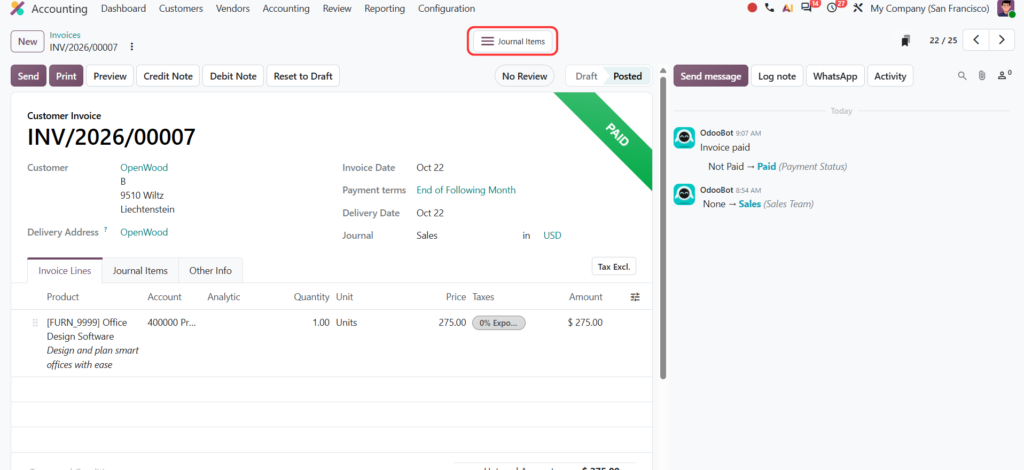 Figure 2: Customer invoice INV/2026/00007, posted and paid, with the Journal Items button highlighted.
Step 2: Read the journal entry
Click Journal Items and Odoo lists the two lines it created (Figure 3):
| Account | Debit | Credit |
| 121000 Accounts Receivable | $275.00 | – |
| 400000 Product Sales | – | $275.00 |
| Total | $275.00 | $275.00 |
Accounts Receivable is debited because the customer now owes the company $275. Product Sales is credited because the company has earned that revenue. The totals at the bottom of the list, $275.00 and $275.00, show that the entry is balanced. The red 154 in the Matching column is a matching number: it appears when a journal item has been reconciled with another one, in this case the customer’s payment, which fits the invoice’s Paid status.
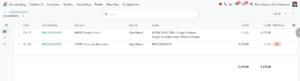 Figure 3: The journal items of INV/2026/00007: a $275.00 debit to Accounts Receivable and a $275.00 credit to Product Sales.
What Happens When the Customer Pays?
When the customer pays, the accountant registers the payment on the invoice with the Pay (Register Payment) action, chooses the journal and amount, and confirms. Odoo creates a second entry that clears the receivable.
With a standard bank journal, the payment first goes through an Outstanding Receipts account, because the money has not yet been matched with the bank statement. The entry looks like this for our $275 invoice:
| Account | Debit | Credit |
| 101403 Outstanding Receipts | $275.00 | – |
| 121000 Accounts Receivable | – | $275.00 |
Accounts Receivable is credited because the customer has paid what they owed. Outstanding Receipts is debited because the money is on its way into the bank. When the bank transaction is matched through bank reconciliation, Odoo moves the amount from Outstanding Receipts to the Bank account. If the journal is configured without outstanding accounts, the debit goes to Bank directly.
Put together, the two documents tell one story: the invoice raises Accounts Receivable and records revenue, and the payment clears the receivable and brings the money into the bank. The General Ledger shows this as it happens, without anyone re-typing anything. Figure 5 shows Outstanding Receipts with a balance of $67.36, which means receipts that have been registered but not yet reconciled with the bank.
How to Open the General Ledger Report
Open Accounting ‣ Reporting and look for General Ledger in the Ledgers group, highlighted in Figure 4. Note that the same menu contains many other reports, which Section 11 compares.
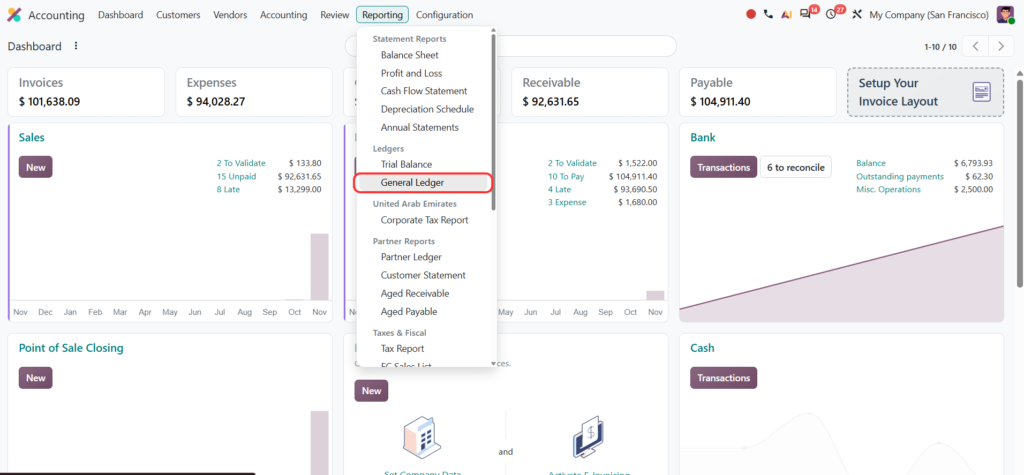 Figure 4: The Reporting menu of the Accounting app, with General Ledger (in the Ledgers group).
Odoo then shows each account with its debit, credit and balance for the selected period (Figure 5). Use the date filter, here set to Nov 2026, to choose the period you want. Click the arrow in front of an account to expand its transactions.
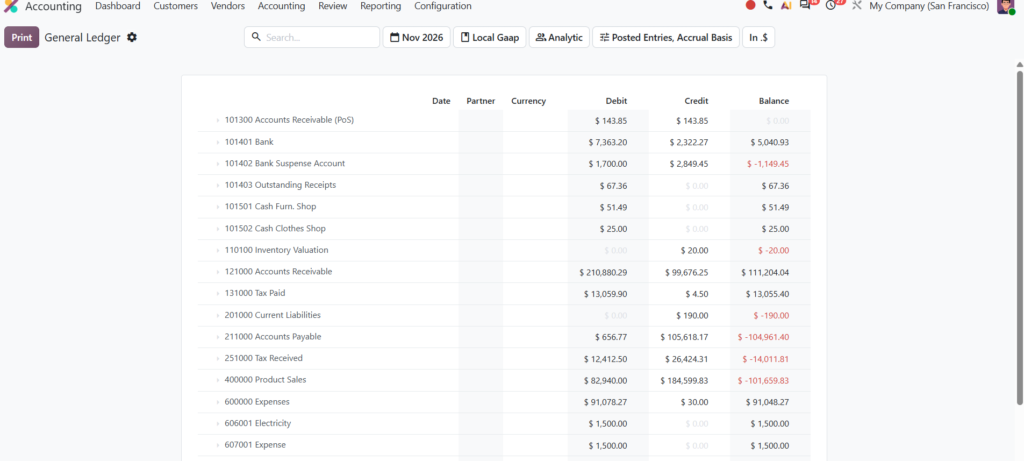 Figure 5: The General Ledger report for Nov 2026 with Date, Partner, Currency, Debit, Credit and Balance columns, and the report filters at the top.
Reading the Balance column. Balance is simply debit minus credit. For Accounts Receivable in Figure 5, $210,880.29 minus $99,676.25 gives $111,204.04. A negative balance, shown in red, is a net credit: Product Sales shows $-101,659.83 and Accounts Payable $-104,961.40. That is normal for income and liability accounts and is not an error. A period filter only shows movements in that period, so to find invoice INV/2026/00007 from 22 October you would select October 2026, not November.
What You Can Do in the General Ledger Report
Filters at the top
- Date and comparison: choose the period, for example one month or the financial year. The % Comparison option compares it with another period, such as last month.
- Journals: Odoo’s documentation describes a journal filter (a book icon, set to All Journals by default) for including only chosen journals, such as Bank or Sales. It is not visible in the screenshot above, so check whether your database shows it.
- Analytic: includes only selected analytic accounts and plans.
- Posted Entries, Accrual Basis: this options button controls whether posted or draft entries are included and whether the report uses the accrual or cash basis. In Figure 5 the report shows posted entries on an accrual basis.
- Display options: inside the same options menu, Hide lines at 0 removes accounts with a zero value, which helps when the Chart of Accounts is long. Split Horizontally keeps the report within the screen.
- Number format: the In .$ button controls how figures are displayed; Odoo also offers thousands and millions.
Drill down and trace to the source
Click the arrow next to an account, for example Bank, to see the lines behind its balance: date, journal entry reference, description, partner, debit and credit. From a line you can open the journal entry and, from there, the source document, such as the customer invoice, so you do not have to hunt for it in other apps.
Comparison periods
Use the comparison option to see two periods side by side, for instance October and November expenses, to spot changes in spending.
The Golden Rule: Total Debits Equal Total Credits
The rule behind double-entry accounting is that debits and credits must match. Every balanced entry follows it, as Figure 3 shows with $275.00 on each side. For the whole report, the total debit and credit amounts shown should also match when you compare the same set of entries.
Accountants and auditors use this to check the integrity of the books. If totals for the same scope do not match, something needs investigating. Two cautions: filters change which entries are included, so compare totals using the same period, entry status and accounting basis; and a balanced ledger does not prove that every transaction is correct. It is an important control, not a guarantee.
How to Export the General Ledger Report
You can share the report with managers, auditors or your external accountant:
- Open Accounting ‣ Reporting ‣ General Ledger.
- Choose the period and apply the filters you need.
- Check the figures on screen.
- Click the Print button at the top left to download the report as a PDF.
- For an Excel file, look for the XLSX option next to the PDF button or in the report’s settings menu. Odoo’s documentation describes an XLSX export in addition to PDF, but where the option sits can vary between versions.
General Ledger vs. Other Odoo Reports
The Reporting menu in Figure 4 groups the reports by purpose. The ones most relevant to this guide are:
| Report | Menu group | Main purpose |
| General Ledger | Ledgers | Detailed transactions organised by account. |
| Trial Balance | Ledgers | Debit and credit balances of all accounts in one summary. |
| Balance Sheet | Statement Reports | Assets, liabilities and equity. |
| Profit and Loss | Statement Reports | Revenue, expenses and profitability. |
| Cash Flow Statement | Statement Reports | How cash moved in and out of the business. |
| Partner Ledger | Partner Reports | Transactions with customers and vendors. |
| Aged Receivable / Aged Payable | Partner Reports | Unpaid customer invoices and supplier bills, by age. |
| Tax Report | Taxes & Fiscal | Tax amounts to report. Country-specific reports, such as the Corporate Tax Report, appear in their own group. |
Which report when? Use the General Ledger to investigate transactions on one account, the Trial Balance to check balances across all accounts, the Balance Sheet for financial position, Profit and Loss for performance, and the Partner Ledger or aged reports for customer and vendor balances. Together they give a complete picture.
Practical Scenario: Investigating an Unexpected Expense
Imagine an accountant notices that electricity costs look high. In Figure 5, the account 606001 Electricity shows $1,500.00 in debits for Nov 2026. Instead of opening vendor bills one by one, the accountant can use the ledger:
- Open the General Ledger and select the period, then use the comparison option to bring in the previous month.
- Find the Electricity account and expand it.
- Spot the transaction that explains the amount.
- Open the related journal entry and its vendor bill.
- Check the amount, date and accounts used, and compare them with the previous month.
Within minutes the accountant knows whether the increase is a genuine cost, a duplicate or a wrongly coded entry.
Best Practices
- Keep the Chart of Accounts tidy with clear names and codes.
- Record documents correctly, so invoices, bills and payments land in the right accounts.
- Review the report regularly, for example monthly, and investigate unusual balances by expanding the account.
- Check the filters before exporting: period, entry status, accounting basis and journals.
- Reconcile bank transactions so Outstanding Receipts, Outstanding Payments and suspense accounts do not pile up. Figure 5 shows a Bank Suspense Account with a balance of $-1,149.45, a good starting point for a review.
- Use clear references and labels on journal entries so future reviews are easier.
Frequently Asked Questions
What is the General Ledger in Odoo 20?
A report showing financial transactions organised by account, so you can review balances and investigate individual entries.
Where can I find it?
In Accounting ‣ Reporting, under the Ledgers group (Figure 4). The dynamic report is part of Odoo’s accounting reports, which are Enterprise features.
What is the difference between the Chart of Accounts and the General Ledger?
The Chart of Accounts lists the accounts. The General Ledger holds the transactions recorded under them.
Does Odoo create the General Ledger automatically?
Yes. Odoo creates journal entries when you confirm invoices, bills and payments, and those entries feed the ledger.
Can I open the original invoice or payment from the ledger?
Yes. Expand the account, open the journal entry, and use the links to the source document.
Why must debits equal credits?
Because double-entry accounting records both sides of every transaction, which keeps the books balanced.
What is the difference between the General Ledger and the Trial Balance?
The General Ledger gives the detail of each account’s transactions. The Trial Balance summarises the balance of every account.
Can I compare periods or export the report?
Yes. Use the comparison option for periods, and export the report as PDF, plus XLSX where available.
Conclusion
The General Ledger is one of the best tools for understanding what is going on in a company’s finances. The key ideas are simple: the Chart of Accounts says where transactions can be recorded, debits and credits keep every entry balanced, and Odoo creates the journal entries automatically from everyday documents like the invoice in our example.
With Odoo 20’s accounting reports you can review balances, drill into individual transactions, trace them back to their source and compare periods. Make a habit of reviewing the ledger regularly and your records will be clearer, your discrepancies easier to find and your decisions better informed.
References and Further Learning
- Odoo 20 documentation, Chart of accounts: https://www.odoo.com/documentation/20.0/applications/finance/accounting/get_started/chart_of_accounts.html. Accounts, types and the reconciliation options.
- Odoo Tutorials, Chart of accounts (video): https://www.odoo.com/slides/slide/chart-of-accounts-6834. How the chart of accounts works in Odoo.