
Updating hundreds of records manually is time-consuming. Before jumping into bulk changes, make sure you understand the basics by reading our Odoo 19 Import Data: The Excel and CSV Guide to learn how standard data imports work. Odoo’s import tool can help change contact details, product information, and other business data in bulk. The risk is that a spreadsheet may be imported as new records instead of updating records that already exist. Using Odoo 20 External IDs correctly is essential when you want to update Odoo records in bulk without creating duplicate entries.
External IDs help prevent this. They provide a stable reference that Odoo can use to identify a record during later imports. The core principle is the same in Odoo 19 and Odoo 20: preserve the identifier, map it correctly during import, and test the update before processing a large file.
This guide explains the shared concepts and workflow across both versions, highlights a notable difference in export-screen wording, and provides a practical contact example. Interface labels can vary by build, language, and edition, so use the wording shown in your own database.
What is an External ID?
An External ID is a named identifier used to reference a record in imports and other data operations. For example, a contact might have an identifier such as `migration.contact_001`. This is illustrative; your real External IDs may use another namespace or format.
An External ID is different from a database ID. A database ID is an internal numeric identifier assigned by the database. An External ID is a named reference that can be preserved in a file and used again when importing or linking records.
Why External IDs matter
- They help Odoo recognize an existing record during repeat imports.
- They support bulk updates when the identifier is mapped correctly.
- They can help link related records, such as contacts and companies.
- They reduce duplicate risk when identifiers remain stable and unique.
External IDs are not mandatory for every import, but they are especially useful when a dataset will be imported more than once or existing records must be updated. Do not reuse the same External ID for unrelated records.
What is the same in Odoo 19 and Odoo 20?
The core External ID concept and safe update workflow are substantially the same in both versions.
- External IDs act as stable references to records.
- An import can update an existing record when it includes the correct identifier and maps it to the External ID field.
- If an identifier is changed, removed, or does not match the intended record, Odoo may create a new record instead of updating the existing one.
- The general workflow remains: select records, export the required fields using an update-compatible option, edit a copy, import it, and verify the result.
- External IDs can help identify related records when importing connected data.
Most of the concepts and spreadsheet preparation advice therefore apply to both versions. However, check the screen layout, exact labels, and available fields in the database being used.
What is different between Odoo 19 and Odoo 20?
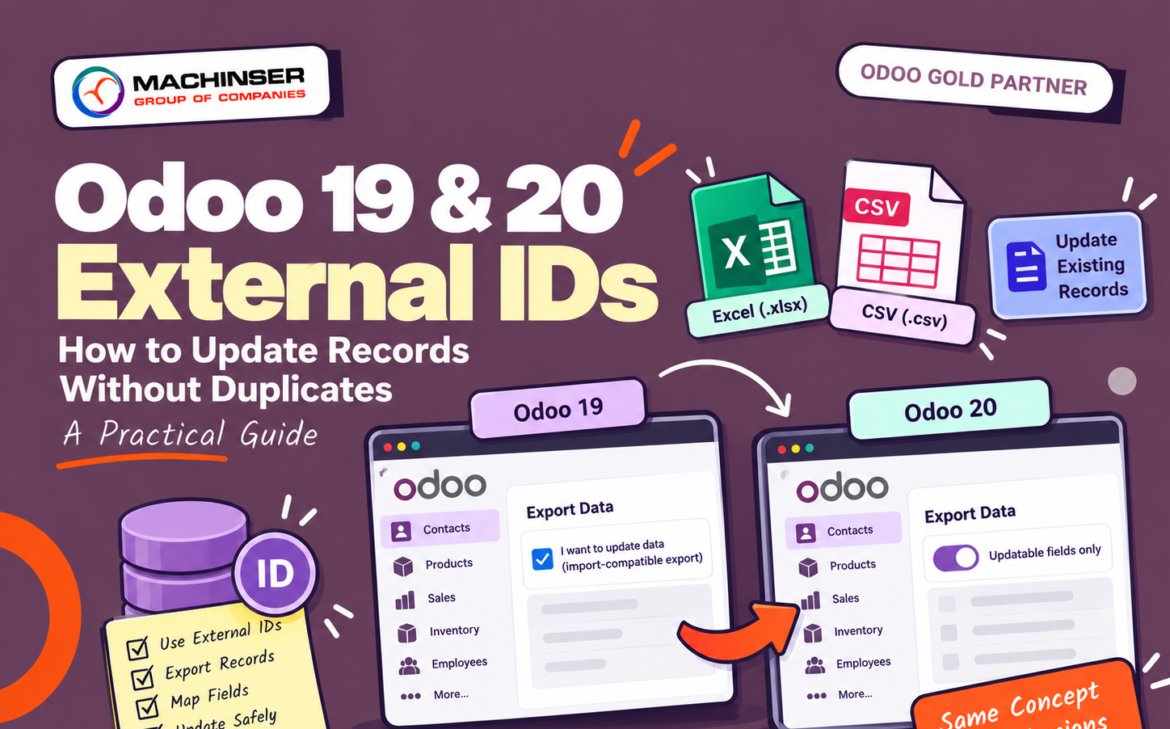
The main difference highlighted here is the wording and presentation of the export option used to prepare a file for updates. Odoo 19 documentation describes a checkbox labelled “I want to update data (import-compatible export)”. Odoo’s current master documentation describes an “Updatable fields only” switch. This suggests a newer wording/presentation; confirm the exact label in your Odoo 20 instance before publishing screenshots.
| Topic | Odoo 19 documentation | Odoo 20 / current master documentation |
| Export option | “I want to update data (import-compatible export)” checkbox | “Updatable fields only” switch in current master documentation; verify the exact Odoo 20 label |
| Purpose | Includes External ID and limits export fields to importable fields | Same intended purpose: focus on updatable fields and include External ID |
| External ID principle | Keep the identifier unchanged for updates | Same principle |
| Overall workflow | Export, edit, import, verify | Same workflow |
The safest way to update existing records using Odoo 20 External IDs
When records already exist, start from Odoo’s own export instead of building a new spreadsheet from scratch. This reduces the risk of using incorrect field names or losing the identifier needed to match the record.
Step 1: Open the correct app and list view
Open the app containing the records you want to update, such as Contacts or Products. Switch to list view and filter the records so you only select the intended records.
Step 2: Select records and choose Export
Select the target records, open the Action menu, and choose Export. The exact menu placement can vary with the view and version.
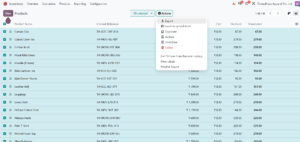
Step 3: Enable the update-compatible option
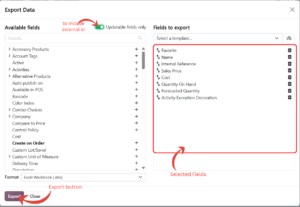
In Odoo 19, look for “I want to update data (import-compatible export)”. In current master documentation, the corresponding option is called “Updatable fields only”. In Odoo 20, use the actual label displayed in your interface.
This option includes External ID in the exported file and limits available export fields to those that can be imported. The External ID may not appear as a normal selected field in the export field list, but it is included when the update-compatible option is enabled.
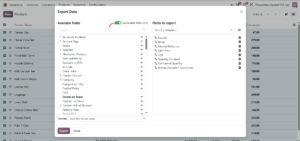
Step 4: Select only the fields you need
Choose fields that need changing, such as phone, email(in contacts cases) or product description, sale prices(product). Avoid unnecessary columns. Export the file and keep an untouched copy as a backup.
.
Edit the spreadsheet carefully
Open the exported file in Excel or another spreadsheet editor. Change only the values you intend to update.
Keep External IDs unchanged
Do not delete the External ID column, overwrite its values, or replace them with spreadsheet row numbers. Each identifier must remain attached to the correct record. If an identifier is altered or removed, Odoo may no longer recognize the intended existing record.
Be careful with empty cells
Do not assume every blank cell will be ignored. An empty value can clear a field depending on the import format and mapping. If a field should remain unchanged, avoid including it in the update file unless you have confirmed how empty values are handled.
Keep data consistent
- Preserve phone numbers with leading zeroes or country codes as text.
- Check dates, decimals, and CSV delimiters before saving.
- Keep External IDs unique and attached to the correct row.
- Do not change unrelated fields just because they are present.
- Keep the original export so you can compare or restore values.
Import the updated file in Odoo 19 or Odoo 20
- Return to the same app and model from which you exported the records.
- Open the list view and choose Import records.
- Upload the edited .xlsx or .csv file.
- Confirm that External ID is mapped to Odoo’s External ID field.
- Check the mapping for each field you changed.
- Click Test and resolve reported errors.
- Import the file only after reviewing the test results.
- Open several records and verify the new values.
The process is conceptually the same in Odoo 19 and Odoo 20, although screen layout and wording may differ. Always check the mapping shown by your own instance.
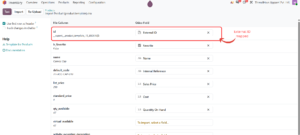
Common mistakes and how to avoid them
| Mistake | Safer approach |
| Removing External ID | Use an update-compatible export and preserve the identifier. |
| Changing an identifier accidentally | Restore it from the untouched export or export the records again. |
| Using duplicate External IDs | Make identifiers unique and verify each belongs to the right record. |
| Mapping External ID to the wrong field | Choose Odoo’s External ID field explicitly. |
| Importing a spreadsheet without a stable identifier | Export existing records first or establish a reliable identifier strategy. |
| Leaving blank cells without checking the effect | Include only fields you intend to update and confirm empty-value behavior. |
| Assuming Test guarantees perfect results | Verify records after importing. |
| Updating production data without a test | Try a small batch and keep a recoverable backup. |
What if records do not already have External IDs?
If records were created manually, you may not know their External IDs. Use Odoo’s update-compatible export workflow to prepare an export for the existing records. Keep the generated External IDs when importing changes back.
If you are migrating from another system, a stable unique identifier from the source system can also be used as an External ID when planned and mapped correctly. Avoid relying only on names or email addresses if they may not be unique or may change.
For complex migrations or linked records, test a small sample first. The right strategy depends on the model, existing data, and relationships.
External IDs for related records
External IDs can help link records during imports. For example, a contact may need to be linked to a company, or a product to a category. The relationship field must be mapped correctly, and the related record must be identifiable.
Depending on the field and import screen, Odoo may offer a relation by record name, database ID, or External ID. Choose one appropriate method for each relationship field. Import referenced records first when that makes the process easier to validate.
Do not confuse the External ID of the record being imported with the External ID of a related record. One identifies the current row’s record; the other identifies the linked record.
Pre-import checklist
- I selected the correct model and records.
- I used the update-compatible export option shown in my Odoo version.
- The External ID column is present and unchanged.
- Each identifier is unique and attached to the correct row.
- I changed only the fields that need updating.
- I checked blank cells, dates, phone numbers, and decimal formats.
- External ID and changed fields are mapped correctly.
- I tested a small batch or used a safe test database.
- I verified the records after import.
Conclusion
External IDs play the same essential role in Odoo 19 and Odoo 20: they provide stable references that help Odoo recognize records during imports. The main difference highlighted here is the export option wording: Odoo 19 documentation describes an “I want to update data (import-compatible export)” checkbox, while current master documentation uses “Updatable fields only”. Confirm the exact label in your Odoo 20 build.
For reliable updates, export existing records using the appropriate option, preserve External IDs, edit only the required fields, test the import, and verify the results. This workflow helps reduce duplicates and makes repeat updates safer.
Frequently asked questions
Are External IDs used in both Odoo 19 and Odoo 20?
Yes. External IDs are used in both versions to identify records in import workflows and help reference related records.
Does Odoo 20 handle External IDs differently from Odoo 19?
The core concept and update workflow are the same. The export dialog wording may differ; Odoo 19 documentation describes an import-compatible export checkbox, while current master documentation describes an “Updatable fields only” switch. Verify the exact label in your installed version.
Will Odoo create duplicates if I remove an External ID?
It may. Without the identifier that matches the existing record, Odoo may treat a row as a new record. Keep External ID unchanged when you want to update the existing record.
Can I update records created manually?
In supported cases, yes. Export the records using the update-compatible option, preserve the generated External IDs, and import the edited file back into the same model.
Is External ID the same as Database ID?
No. Database ID is an internal numeric identifier. External ID is a named identifier used in import/export workflows and other data operations.
References and further reading
Odoo 19 Documentation — Export and import data: https://www.odoo.com/documentation/19.0/applications/essentials/export_import_data.html
Odoo master documentation — Export and import data: https://www.odoo.com/documentation/master/applications/general/base_import/adapt_template.html