
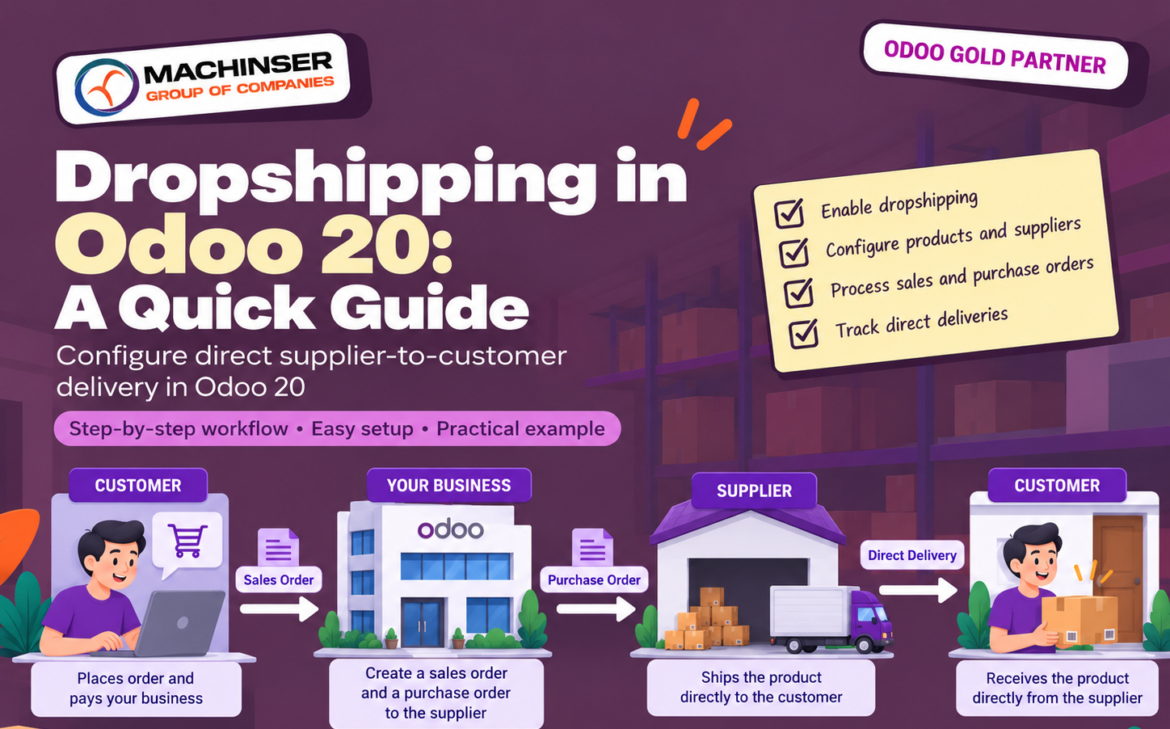
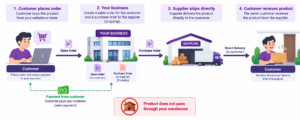
Dropshipping is an order-fulfilment method in which the supplier ships products directly to your customer instead of sending them to your warehouse first. Your business manages the customer sale and the supplier purchase, while the supplier handles the physical shipment.
In Odoo 20, a dropshipped product moves from the vendor location directly to the customer location. Because it never enters your internal warehouse, it is not reflected in the Locations report or the Aging report.
Step 1: Enable dropshipping
- Open the Purchase app.
- Go to Configuration – Settings.
- Under Logistics, tick the Dropshipping checkbox.
- Click Save.

Step 2: Configure the product
- Go to Inventory – Products – Products and open or create the product.
- Make sure the Sales and Purchase checkboxes under the product name are ticked.
- Open the Purchase tab and add the vendor and the vendor price. If the product has several vendors, Odoo uses the first one in the list for purchase orders.
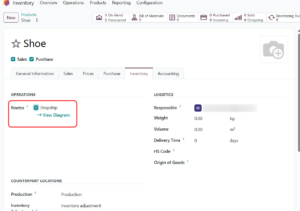
- Open the Inventory tab and tick Dropship in the Routes field under Operations.
- Save the product.
If your database also lists a Buy route, you can tick it together with Dropship to choose between buying stock for your own warehouse and shipping directly from the supplier. Only Dropship is listed in this example.
Step 3: Process a customer order
Example: a customer orders one pair of shoes that your company does not keep in stock.
- Go to Sales – Orders – Quotations and click New.
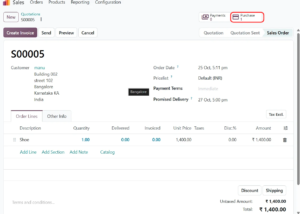
- Select the customer, add the product with quantity , and click Confirm to turn the quotation into a sales order (S00005 in this example).
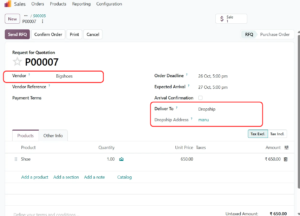
- Click the Purchase smart button at the top of the sales order to open the linked request for quotation (RFQ), P00007 in this example.
- Check the Vendor, the quantity, the expected dates, and that Deliver To is set to Dropship with the customer as the Dropship Address. Then click Confirm Order to convert the RFQ into a purchase order.
Step 4: Track and validate the delivery
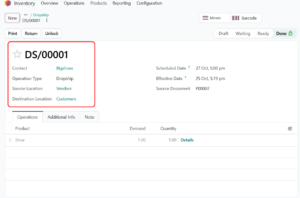
- Open the purchase order and click the Dropship smart button to open the linked dropship transfer (DS/00001 in this example).
- Check that the Operation Type is Dropship, the Source Location is Vendors, and the Destination Location is Customers.
- When the supplier or carrier confirms delivery, validate the transfer so its status changes to Done. Do not validate it just because the purchase order was confirmed.
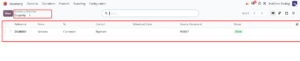
- To review all dropship transfers, open Inventory – Overview and click the To Process button on the Dropship card.
Benefits and limitations
Benefits
- Reduces warehouse storage and handling for eligible products.
- Lets you fulfil orders without first receiving goods into internal stock.
- Links the sales order, the supplier RFQ and purchase order, and the delivery transfer in one traceable flow.
Limitations
- Depends on the supplier’s stock accuracy, packing quality, shipping speed, and delivery confirmation.
- Warehouse inspection and internal quality checks do not happen before customer delivery.
- Shipping costs, delivery promises, returns, and supplier settlement still need clear processes.
Dropshipping vs. consignment
| Question | Dropshipping | Consignment |
| Where are the goods? | With the supplier, then shipped directly to your customer. They never enter your warehouse. | In your warehouse (you are the consignee), but still owned by the vendor. |
| How do they appear in stock reports? | Not shown in the Locations or Aging reports. | Shown in location reports, but excluded from your stock valuation. |
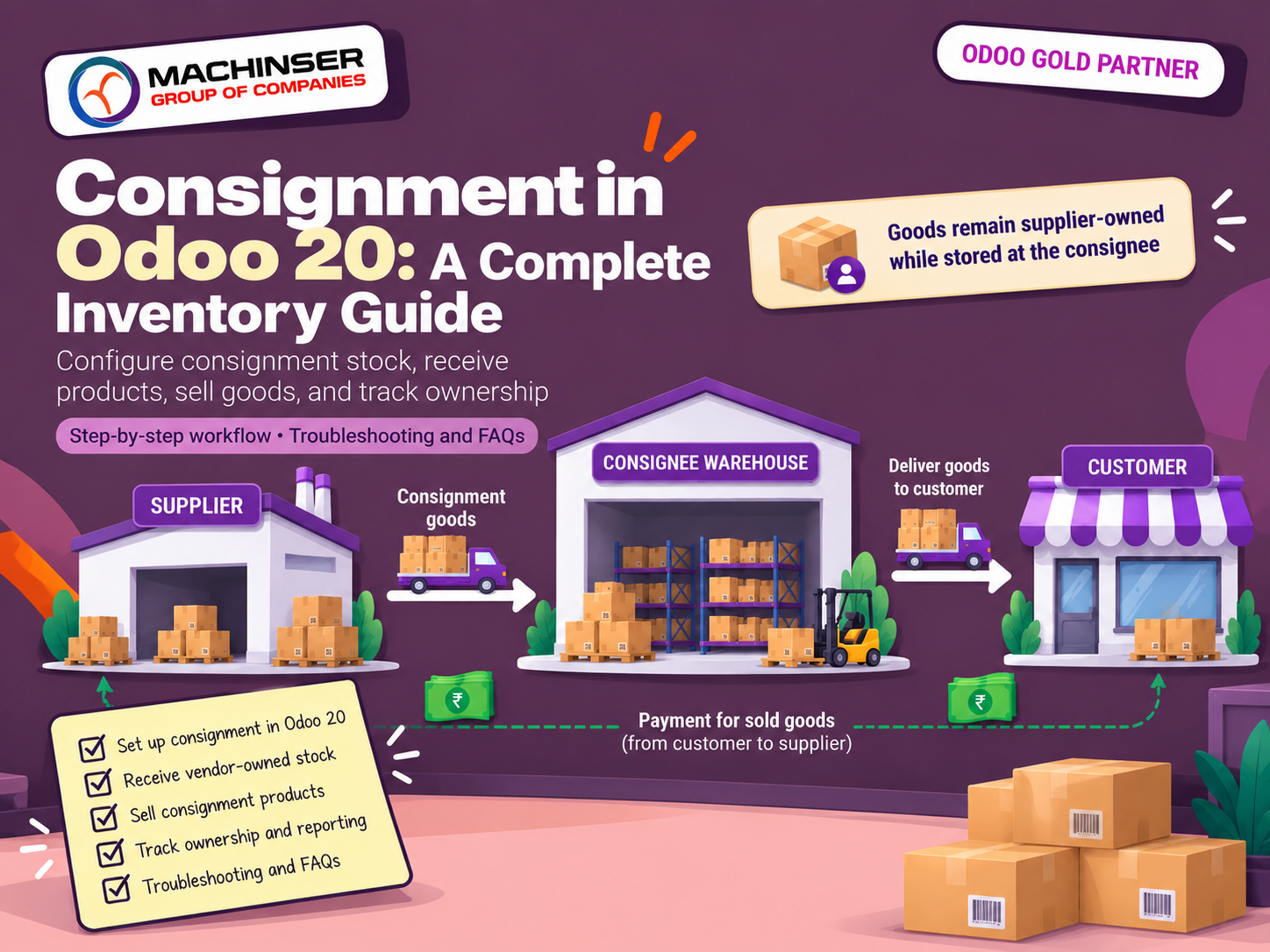
While dropshipping ensures goods are shipped directly from suppliers without entering your storage, businesses handling supplier-owned goods on-site should review our complete guide on Consignment in Odoo 20: A Complete Inventory Guide to manage vendor stock valuation correctly.”
Troubleshooting
Dropship route is not available
Confirm Dropshipping is enabled in the Purchase settings (Step 1), then check the Routes field on the product’s Inventory tab.
No supplier RFQ is created
Confirm the Purchase checkbox is ticked, a vendor and vendor price are set on the Purchase tab, and the Dropship route is ticked.
Wrong vendor is selected
Review the vendor list on the product’s Purchase tab and reorder it if needed, because Odoo uses the first vendor listed.
Delivery address is incorrect
Check the customer address on the sales order and the Dropship Address on the RFQ before clicking Confirm Order.
Delivery status is not updated
Open the linked dropship transfer and validate it once the supplier or carrier has confirmed delivery.
Conclusion
Dropshipping in Odoo 20 links a customer sale to a supplier purchase and a direct vendor-to-customer transfer, so you can fulfil orders without holding stock. Test the complete flow with a sample product before using it for live orders, and agree clear expectations with suppliers on availability, shipping, returns, and customer communication.
Official Odoo documentation
- Odoo 20 – Dropshipping – Primary reference for configuration and the end-to-end workflow.
- Odoo 20 – Inventory documentation – Related Inventory operations and reporting.