
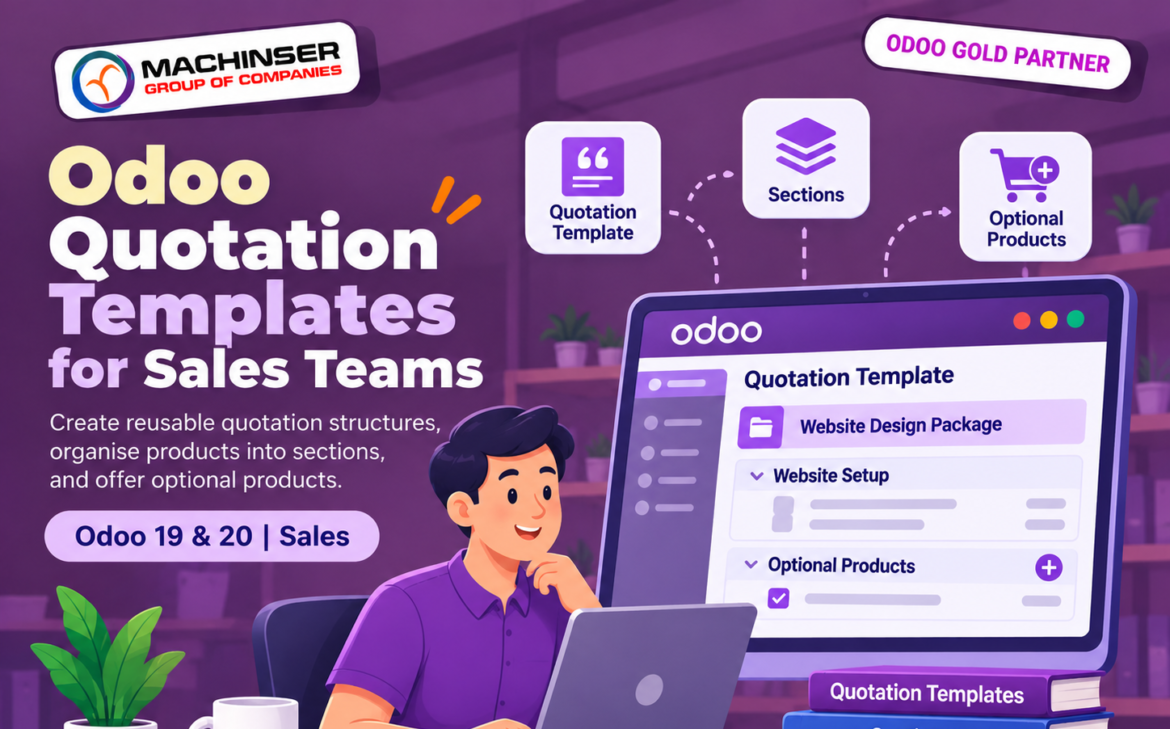
Sales teams often prepare similar quotations for different customers across various projects. Creating the same order lines and descriptions from scratch every time takes valuable time and can lead to inconsistent proposals. Utilizing Odoo Quotation Templates helps sales teams eliminate repetitive work by preparing a reusable structure once, saving it, and applying it instantly to new opportunities.
Odoo Sales helps reduce this repetitive work with quotation templates. A team can prepare a reusable structure once, save it, and use it when creating a new quotation. Templates can include products, descriptions, quantities, sections, notes, terms and other settings, depending on the configuration.
This guide walks through the quotation template screen, explains the difference between the Quotation and Section template types, and shows how the Add a Section option can organise a sales proposal. The screenshots are kept as supplied; their visible details have not been edited.
Where to find quotation templates
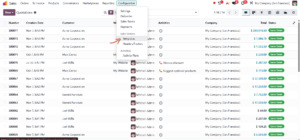
Open the Sales application and go to Configuration -> Templates. The Templates menu is grouped under Sales Orders in the configuration menu. From this page, users with the required access rights can create and manage reusable templates.
Create a quotation template
From the Templates page, select New. Enter a clear name that helps salespeople identify when the template should be used. In this example, the template is named “Standard Web Design Package”.
The Type field determines whether the record is a complete quotation template or a section template. The next screenshot shows the available choices.
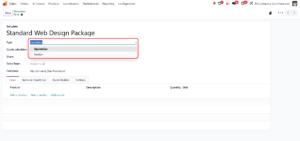 Figure 2. The Type field offers Quotation and Section.
Quotation type vs Section type
Quotation
Choose Quotation when you want to create a reusable quotation structure for a sales opportunity. It can contain several order lines, product descriptions, sections, notes and optional products. A salesperson can select this template when preparing a quotation, then review and adapt the details for the customer.
Section
Choose Section when you want to save a reusable group or heading structure for use inside quotation lines. A section template is not a complete customer quotation by itself. It is intended to be inserted into the order lines of a quotation to organise related items under a heading. In the example workflow, “Optional Products” is saved as a section template.
In short: a Quotation template provides a broader starting point for a quotation, while a Section template provides a reusable section within the quotation’s line structure. The two types serve different levels of reuse.
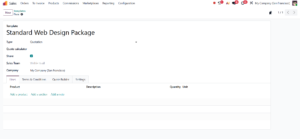 Figure 3. A new template form with Quotation selected as its type.
Understand the quotation template form
The template form contains general information at the top and several tabs below it. The exact fields visible can vary with the Odoo version, installed applications, enabled features and user permissions.
Template name
This is the name shown to salespeople when they select a template. Use a clear and practical name that immediatly indicates its purpose.
Type
Select Quotation for a full quotation template or Section for a reusable section template.
Quote calculator
This field is available for quote-calculator workflows where configured. It can be used to connect a calculator that helps determine or configure a quotation. If your database does not use this feature, it may remain empty.
Share
The Share option controls whether the template is shared for broader use rather than being limited to a narrower internal scope. In the example, it is enabled. Review your company’s access and sharing needs before enabling it.
Sales Team
This field can restrict or define which sales team the template is associated with. The example shows “Visible to all”, meaning it is not limited to one named sales team in this form.
شركة
In a multi-company database, this field identifies the company associated with the template. Select the correct company so that the template is used in the appropriate business context.
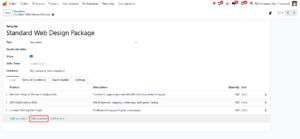 Figure 4. The template form with its general fields and the Lines tab.
Add products and descriptions in the Lines tab
The Lines tab is where the main quotation structure is prepared. In the example, the template contains three services:
- Website Setup & Theme Configuration -> Custom 5-page responsive WordPress/Odoo website layout.
- SEO Optimization Pack – Initial keyword mapping, meta tags and speed tuning.
- Content Writing (Per Page) – Professional copywriting for core pages.
Each product line can carry a product, description, quantity and unit. When a quotation is created from the template, these lines provide the salesperson with a starting point. Always review quantities, descriptions, prices, taxes and units on the actual quotation before sending it to a customer.
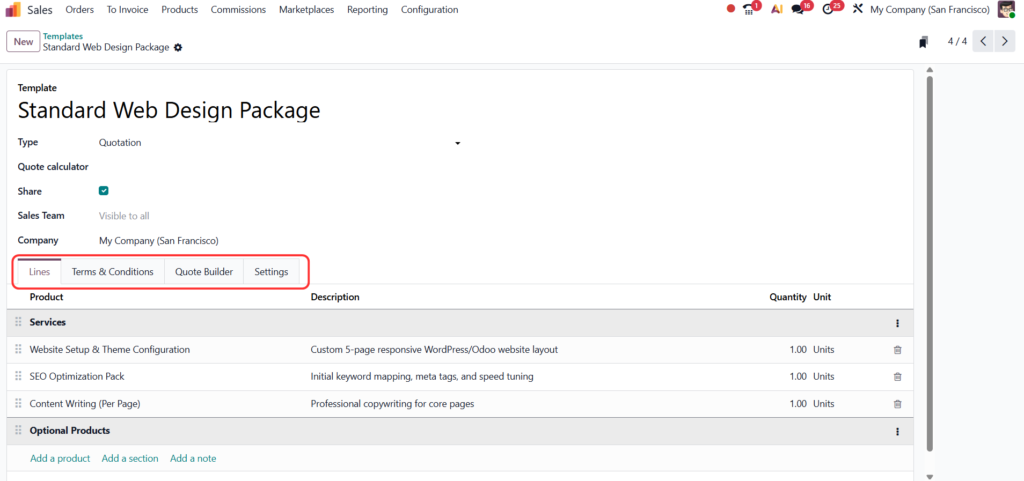 Figure 5. Example service lines included in the Standard Web Design Package template.
Tabs available in the quotation template
Lines
Use this tab to add products, sections and notes that form the quotation structure. It is the main area for defining what the customer is being quoted for.
Terms & Conditions
Use this tab to include the terms that should accompany quotations created from the template. This may include payment expectations, scope boundaries, delivery conditions, validity notes or a link to the company’s terms. Make sure the wording is approved for your business and suitable for the relevant customer or jurisdiction.
Quote Builder
The Quote Builder tab supports a more presentation-focused quotation experience when the relevant features are configured. It can help organise content that makes a proposal easier for a customer to understand. Available options depend on the installed Odoo features and configuration.
Settings
The Settings tab contains confirmation and invoicing-related options. The example shows Quotation Validity, Online Signature, Online Payment, Confirmation Mail and Journal.
- Quotation Validity: the number of days for which the quotation remains valid, according to the template setting.
- Online Signature: allows the customer to accept the quotation electronically by signing online, when the customer portal and relevant settings support it.
- Online Payment: enables online payment for the quotation when the payment providers and payment settings are configured.
- Confirmation Mail: relates to the email sent when the quotation is confirmed, subject to the available configuration.
- Journal: the accounting journal used for the relevant invoicing flow, where applicable.
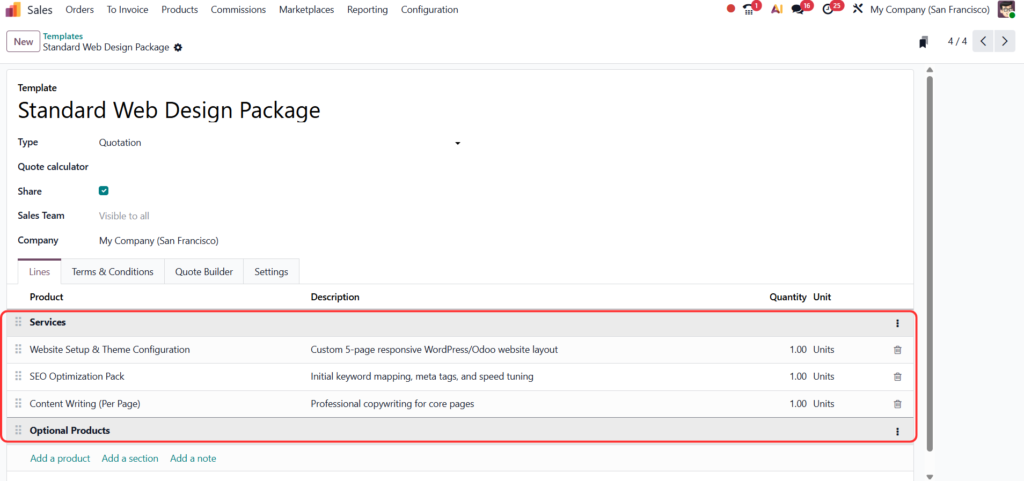 Figure 6. The template’s Lines, Terms & Conditions, Quote Builder and Settings tabs.
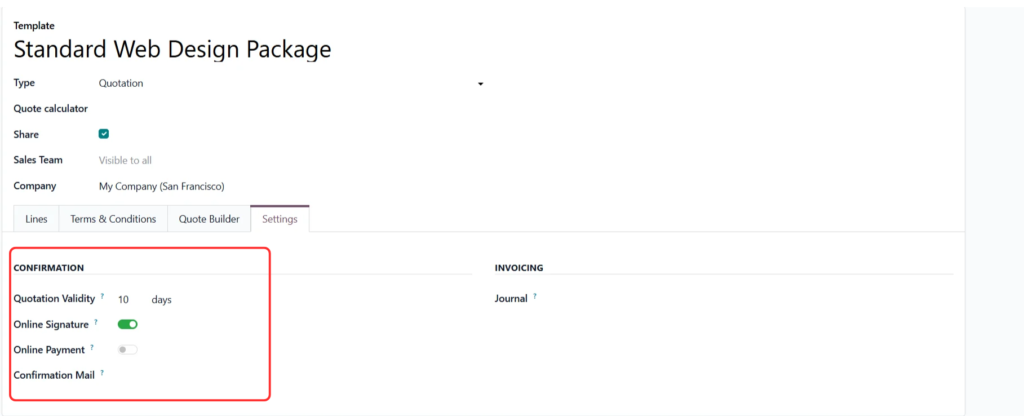 Figure 7. Settings tab showing confirmation and invoicing options.
Save and reuse the quotation template
After entering the template details and adding the required lines, save the record. The saved template can then be selected from the quotation creation flow. In the example, the saved appears in the New menu on the Quotations screen.
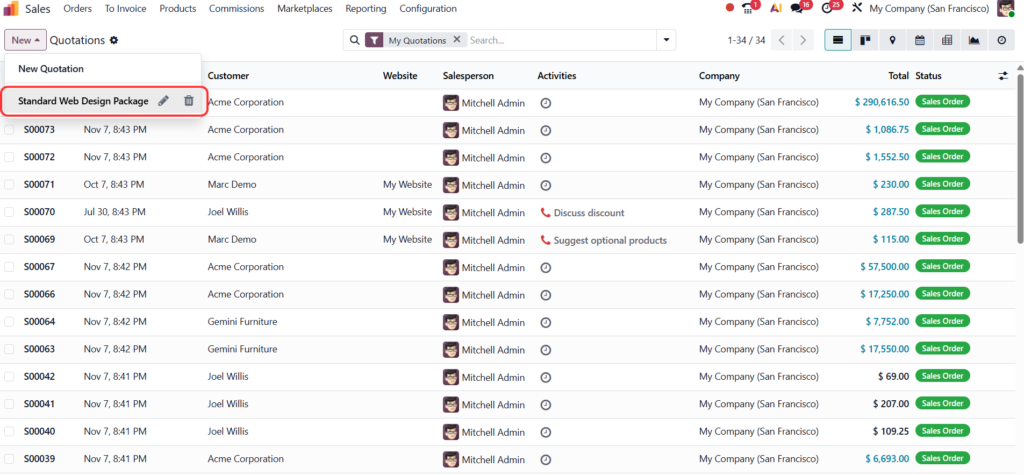 Figure 8. The saved Standard Web Design Package is available from the New menu.
When the salesperson selects the template, Odoo creates a new quotation with the template’s predefined structure. The salesperson can then choose the customer and review the quotation details before sending it.
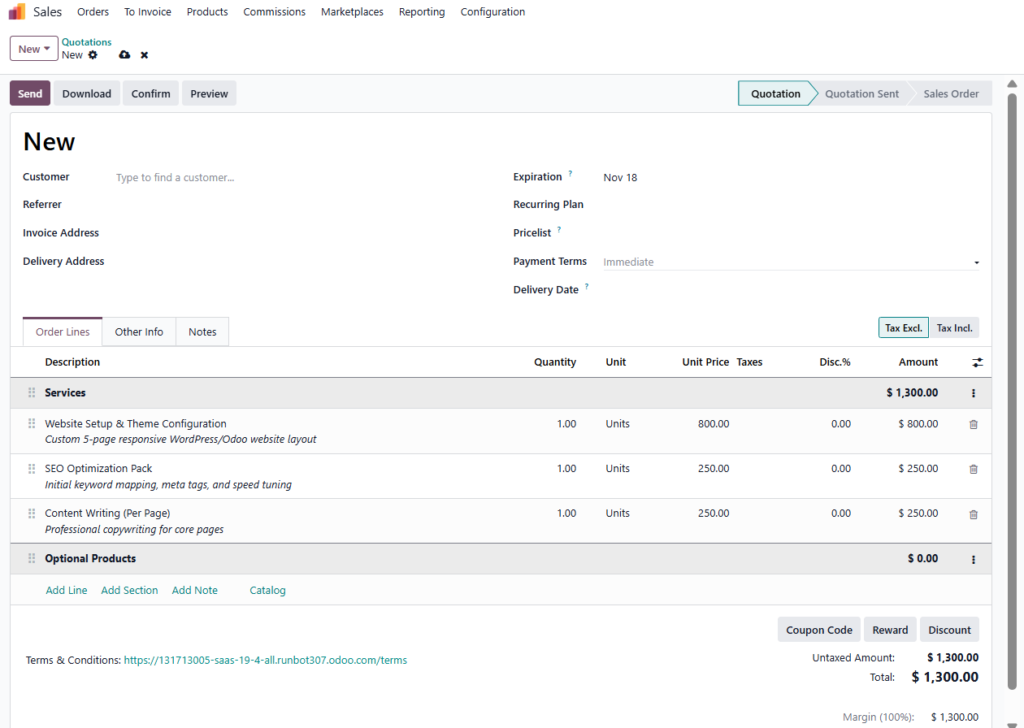 Figure 9. A new quotation created using the saved template.
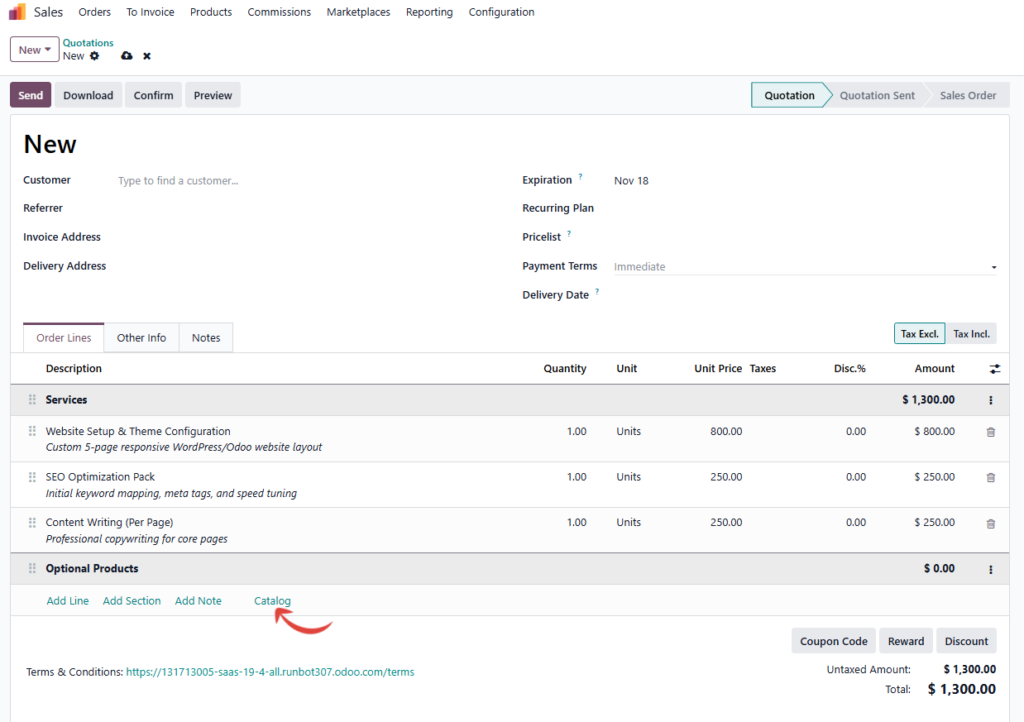 Figure 10. The quotation lines and totals populated from the template.
What does Add a Section do?
The Add a Section button inserts a heading row into the quotation’s order lines. It does not add a billable product by itself. Instead, it divides the quotation into meaningful groups so the customer and salesperson can understand which products or services belong together.
For example, a web design quotation may use a “Services” section for the core package and an “Optional Products” section for add-on services. The heading improves readability, especially when a quotation contains many lines.
To add a section:
- Open a quotation or quotation template and go to its Lines or Order Lines area.
- Select Add a Section.
- Enter a meaningful heading, such as “Services”, “Implementation”, “Support” or “Optional Products”.
- Add the relevant product lines below the heading. Reorder lines if needed so they appear under the correct section.
- Save the quotation or template.
A section is a structural heading. It is different from a product line: it does not represent a product quantity or unit price. In the example, the Services heading groups the three core web design services.
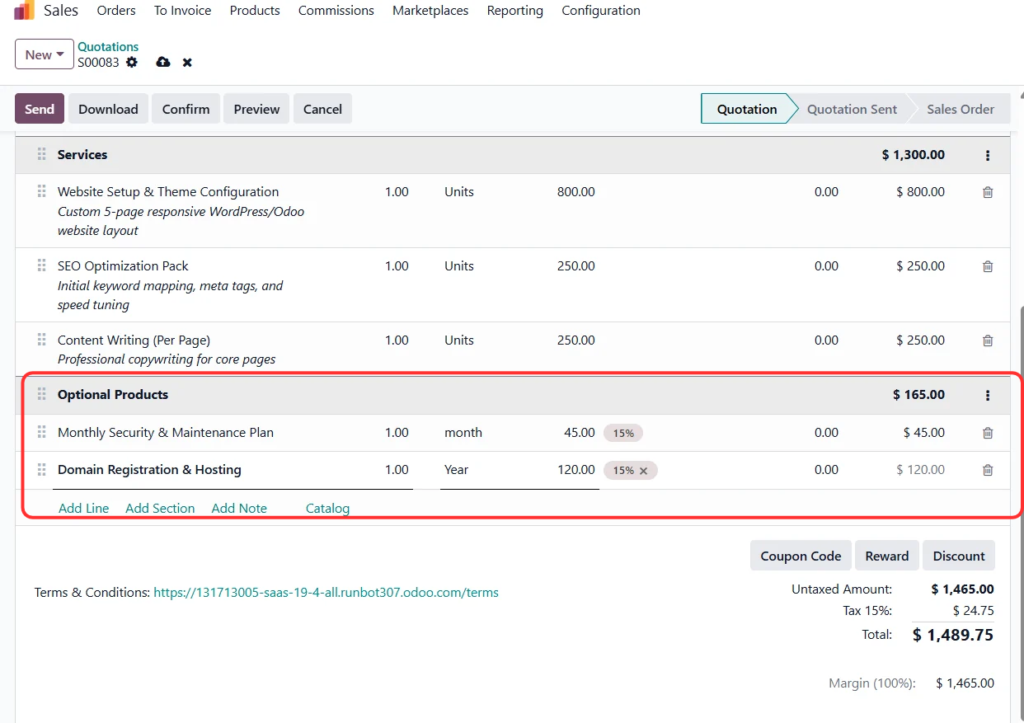 Figure 11. The quotation includes an Optional Products section with two product lines.
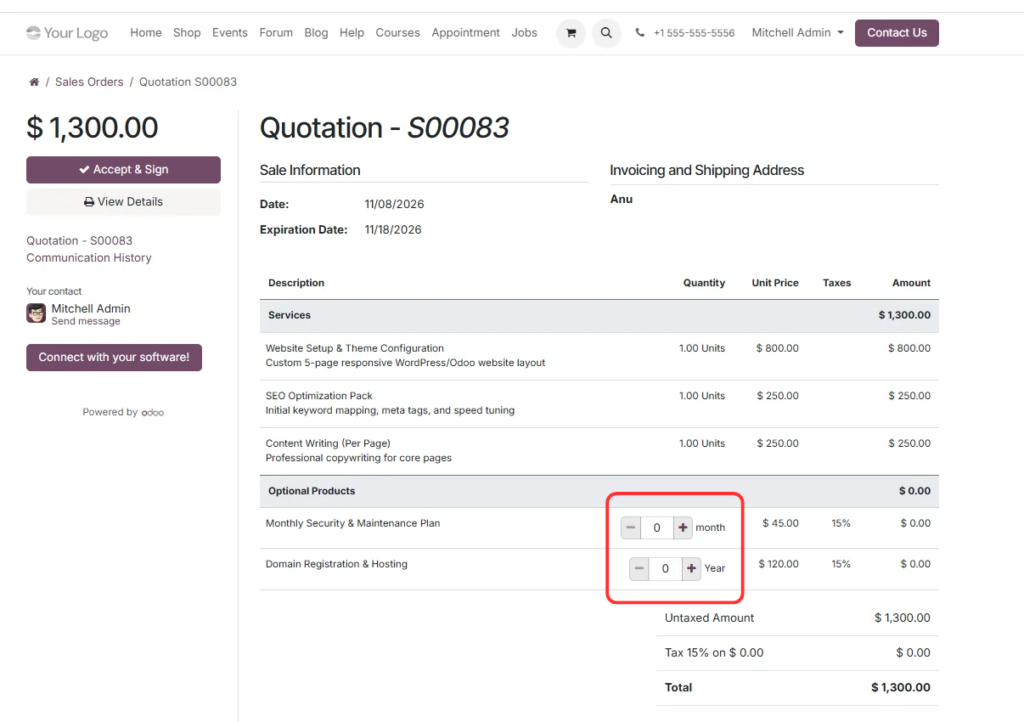 Figure 12. The customer-facing view showing interactive quantity controls to add or remove optional products during quotation review.
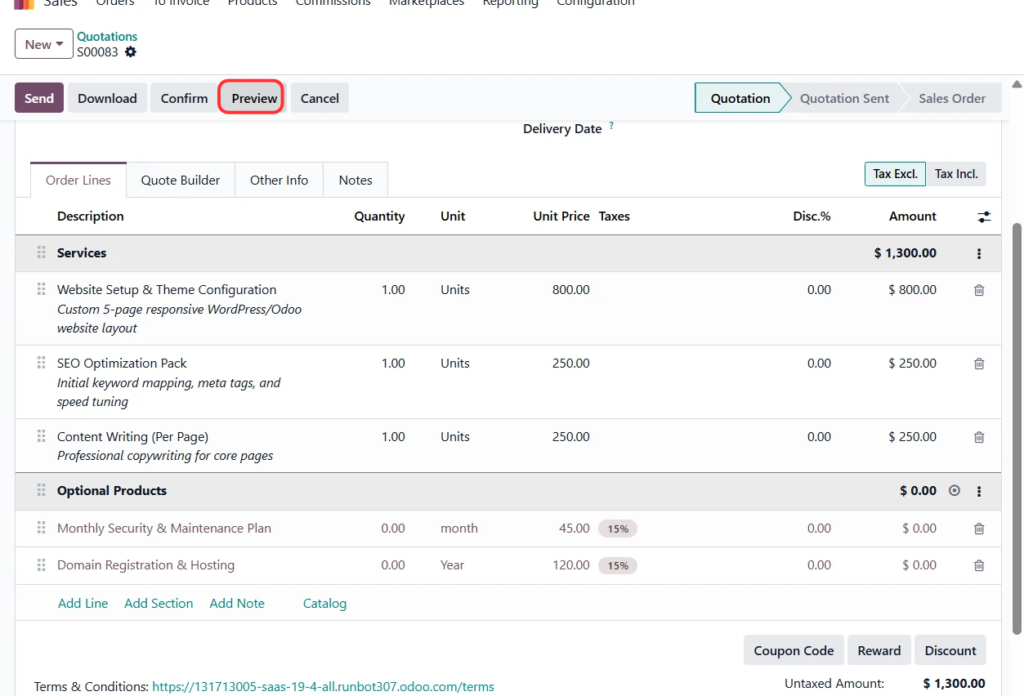 Figure 13. Preview the quotation to review how its sections and lines are presented.
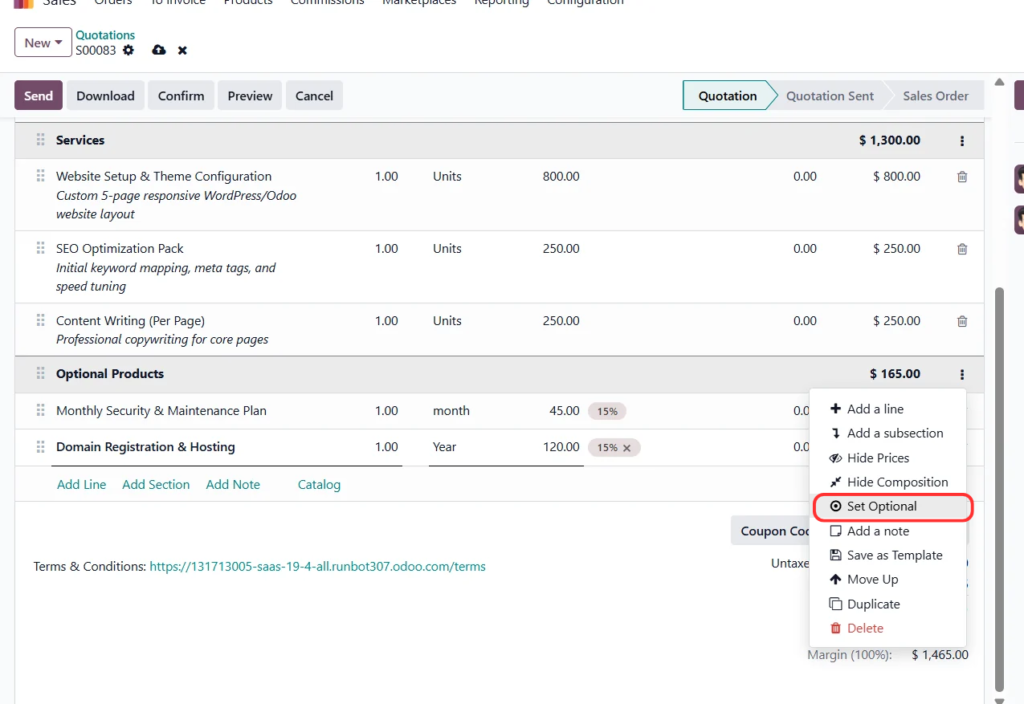 Figure 14. The customer-facing quotation preview shows the Services and Optional Products headings.
Optional products: offer extras without forcing them into the quote
The example uses the Optional Products section to present add-on services separately from the main package. It includes Monthly Security & Maintenance Plan and Domain Registration & Hosting.
Optional products allow a customer to choose additional items when reviewing the quotation online, where the quotation portal supports that interaction. They are not the same as ordinary mandatory order lines. In the example, their quantities initially appear as zero and the optional section total is zero.
If the customer chooses an optional item and updates its quantity, the quotation amount changes accordingly. The screenshots illustrate a case where the Monthly Security & Maintenance Plan quantity is changed to 12 and the amount is reflected in the order. The customer-facing portal also displays quantity controls for the optional products.
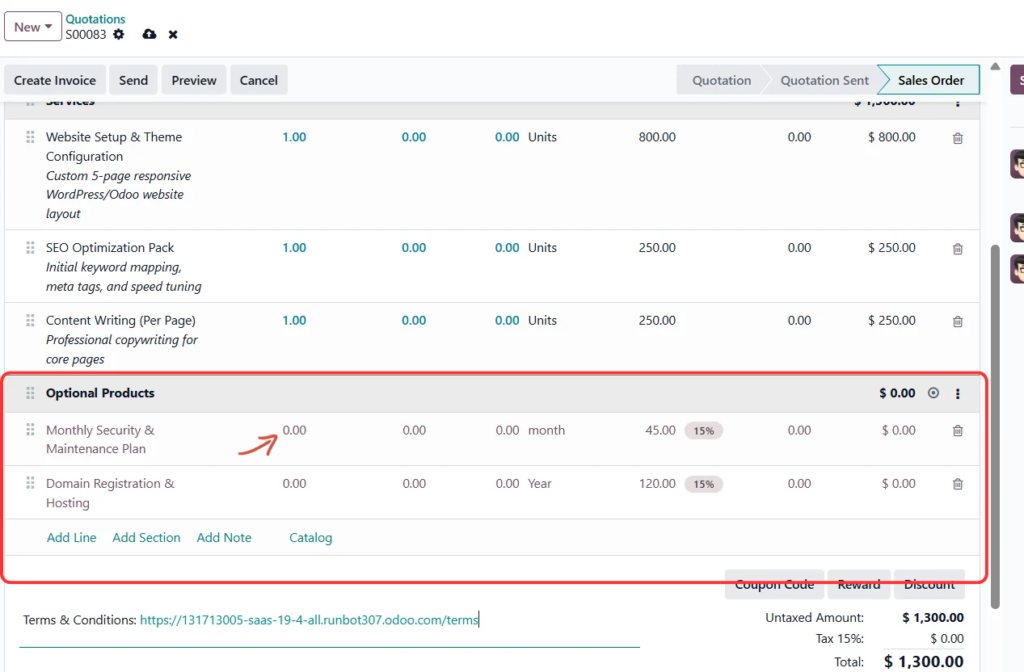 Figure 15. Optional products are grouped separately from the main services.
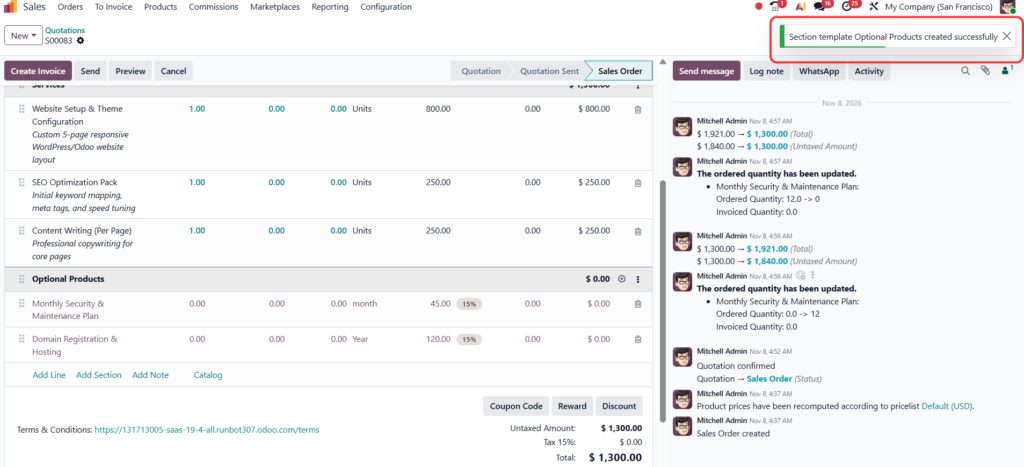 Figure 16. The optional section total changes when an optional product quantity is entered.
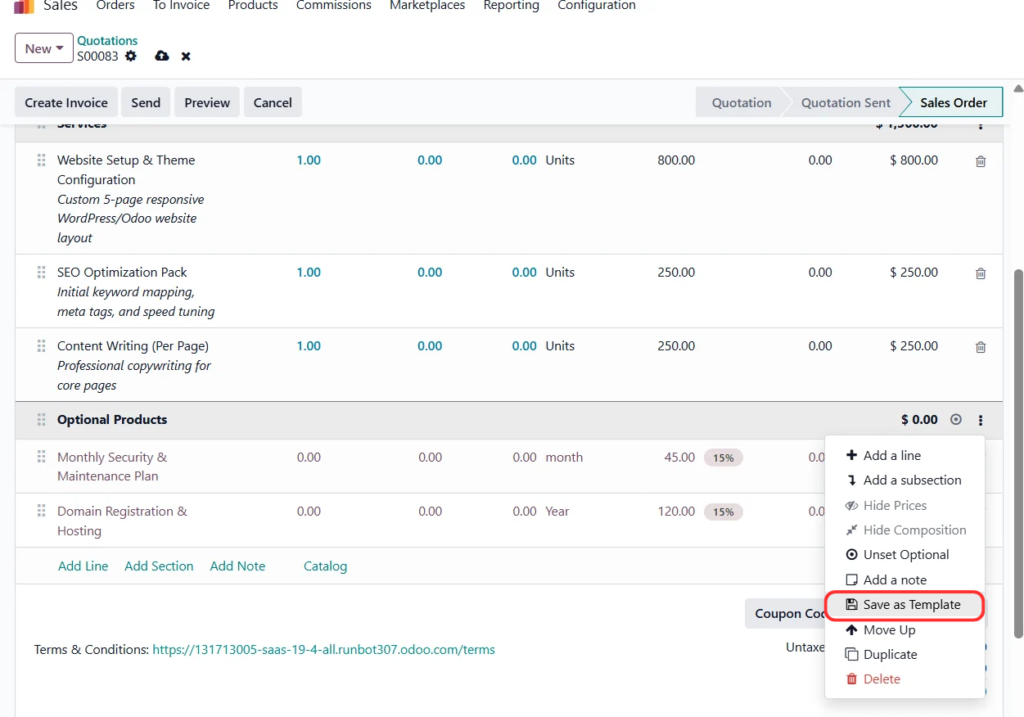 Figure 17. The section menu provides a Set Optional action.
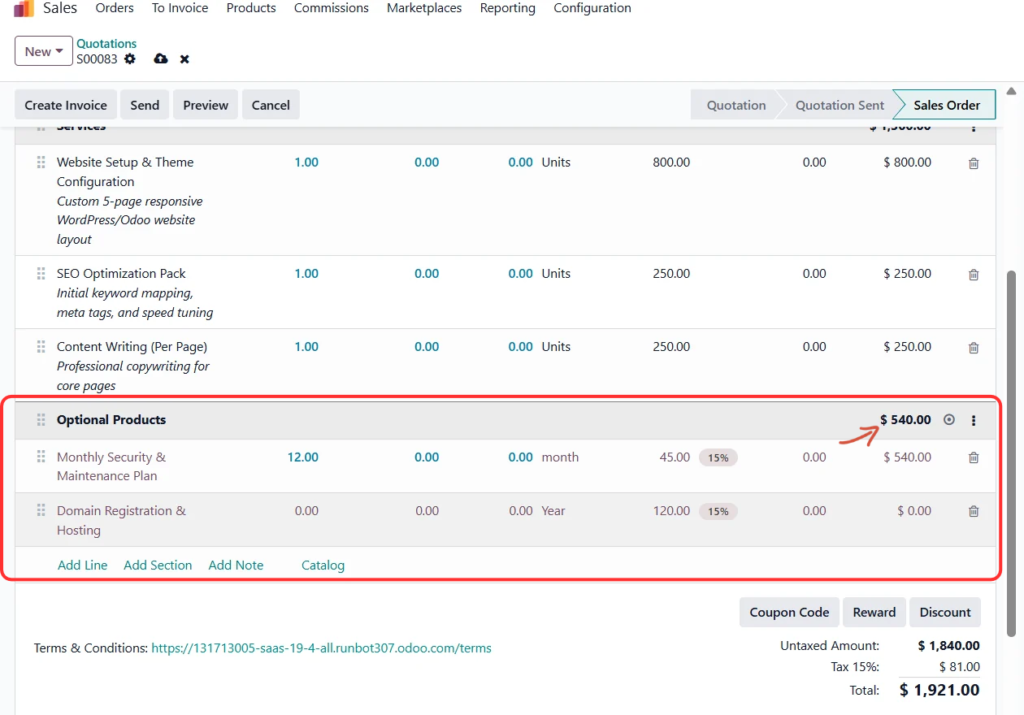 Figure 18. The optional products are shown as selectable items in the quotation.
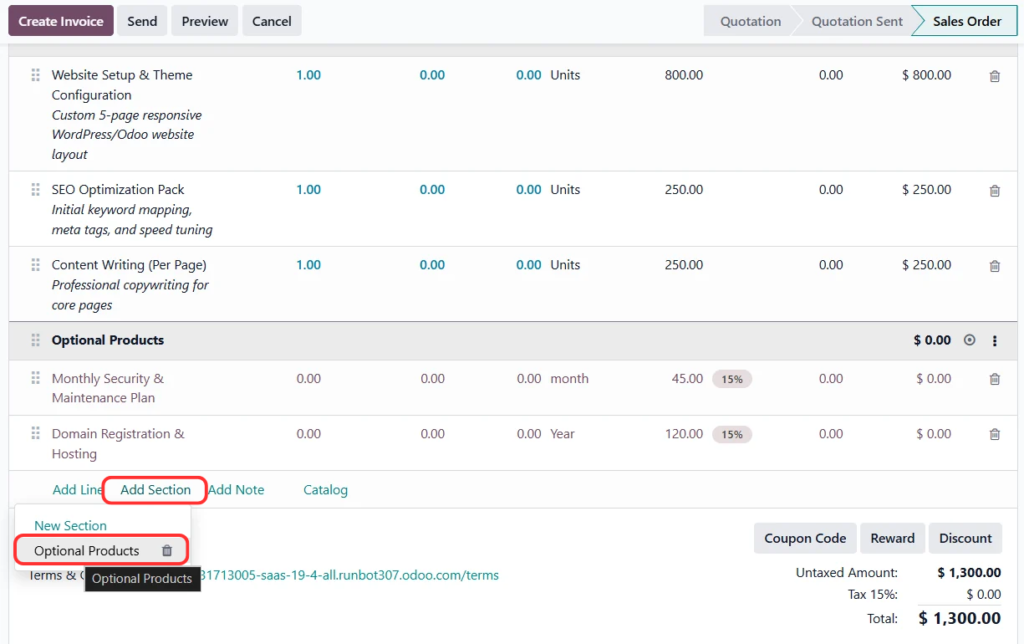 Figure 19. The customer portal displays quantity controls for optional products.
Save a section as a reusable Section template
A useful way to reuse a group of lines is to save the section as a template. In the example, the Optional Products section contains two add-on products. Open the section’s options menu and choose Save as Template. Odoo then creates a section template from that group.
The success notification in the screenshot confirms that the section template was created. This is useful when the same group of add-ons is offered across multiple quotations.
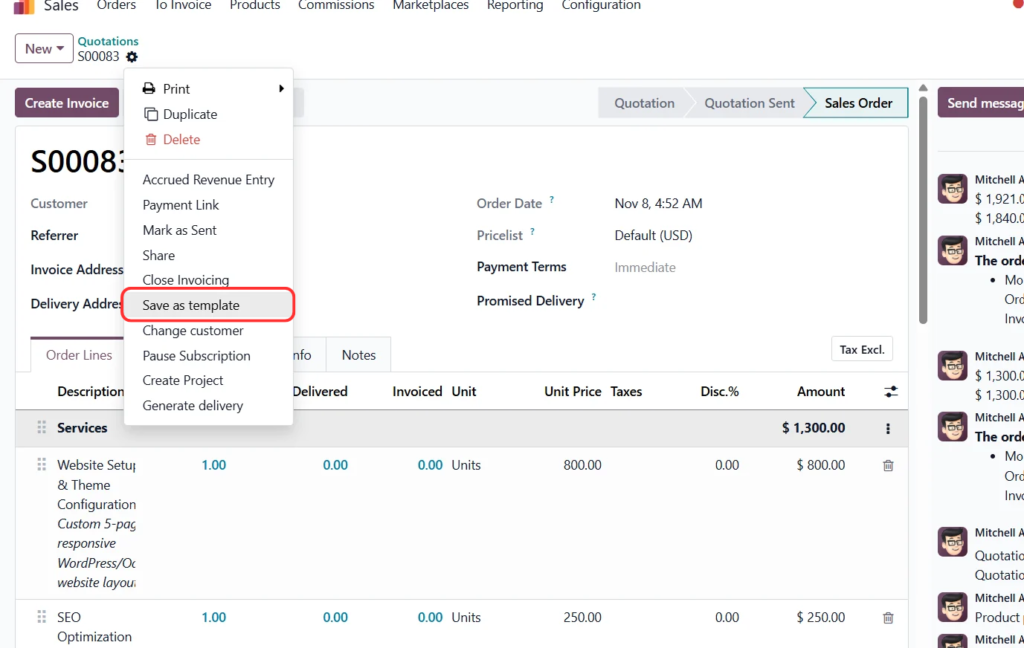 Figure 20. Use Save as Template from the section menu to create a reusable section template.
The section template can then be inserted into another quotation using the section-template selection available from Add a Section. The exact wording and menu behaviour can differ slightly by Odoo version and installed customisations.
The final screenshot shows the Sales application’s Configuration menu and the Templates entry under Sales Orders. Open this menu to access the templates list, where quotation and section templates can be managed. The earlier screenshots in this guide show the Standard Web Design Package quotation template and the creation of the Optional Products section template.
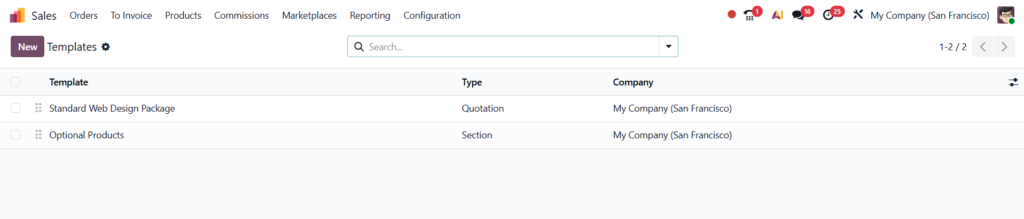 Figure 21. In Sales, open Configuration – Templates to manage quotation and section templates.
Best practices for sales teams
- Use clear, customer-friendly template names so salespeople can find the right starting point quickly.
- Keep product descriptions specific. Explain what is included rather than relying only on internal product names.
- Separate core deliverables from optional extras using sections.
- Review quantities, prices, taxes, pricelists, units and validity dates before sending each quotation.
- Keep terms and conditions up to date and obtain appropriate internal approval.
- Use team or company visibility settings carefully, especially in multi-team or multi-company databases.
- Test the customer portal preview to confirm that optional products and online acceptance work as expected.
- Avoid putting customer-specific information into a reusable template.
Frequently asked questions
What is an Odoo quotation template?
It is a reusable starting structure for preparing quotations. It can include predefined order lines and related quotation content, reducing repeated manual entry.
What is the difference between Quotation and Section template types?
A Quotation template is used as a starting point for a complete quotation. A Section template is used to reuse a group or heading structure within quotation lines.
Does Add a Section add a product?
No. It adds a heading row to organise quotation lines. Add a product or service separately when you need a billable line.
Can I save an existing section as a template?
In the demonstrated workflow, yes. Open the section’s options menu and choose Save as Template.
Can customers select optional products?
When optional products are configured and the quotation is shared through the customer portal, customers can select supported optional items and quantities.
Do quotation templates lock prices and quantities?
No. Treat a template as a reusable starting point. Review the actual quotation’s prices, quantities, taxes, units and terms before sending it.
Conclusion
Odoo quotation templates help sales teams prepare consistent proposals without rebuilding the same structure for every customer. The Quotation type is suitable for a complete reusable quotation, while the Section type helps reuse a group of lines within a quotation. Add a Section keeps related services organised, and optional products let customers consider additional services without mixing them into the main package.
By maintaining clear templates, useful descriptions and accurate terms, sales teams can spend less time formatting quotations and more time responding to customers.
Official documentation
Odoo Sales documentation: https://www.odoo.com/documentation/19.0/applications/sales/sales.html
Odoo Sales quotations and orders: https://www.odoo.com/documentation/19.0/applications/sales/sales/sales_quotations.html