

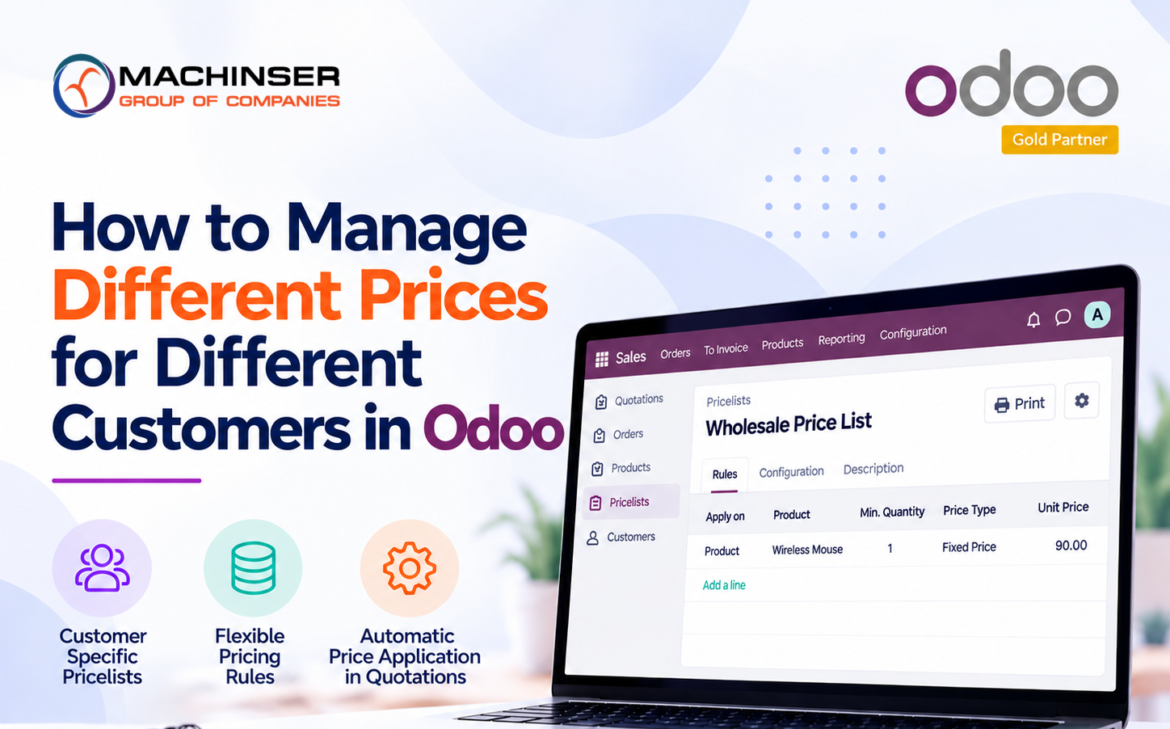
Businesses often sell the same product to different types of customers at different prices. For example, a company may sell a product at the standard price to regular customers while offering a discounted price to wholesale customers.Managing these prices manually for every quotation can be time-consuming and may also lead to pricing errors.Odoo 19 Pricelist allow businesses to define different prices for products and apply them to specific customers. Once configured, Odoo can automatically apply the appropriate price when creating a quotation for a customer.
In this blog, we will see how to configure a customer-specific pricelist in Odoo 19.
How to Configure an Odoo 19 Pricelist for Specific Customers
Step 1: Enable Pricelists
First, open the Sales application.
Go to:
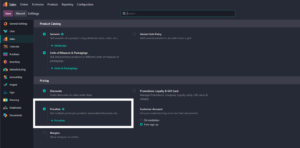
Sales → Configuration → Settings
Under the Pricing section, enable the Pricelists option and click Save.
Step 2: Create a Pricelist
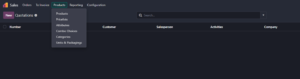
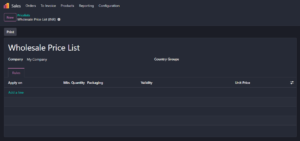
After enabling the Pricelists option, go to Sales → Products → Pricelists.
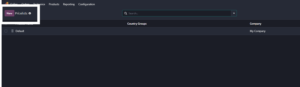
Click New to create a new pricelist.
Step 3: Enter Pricelist Details
Enter a name for the new pricelist.
For this example, we will create a Wholesale Price List.
Step 4: Add a Product Price
Under the Price Rules section, click Add a line.
Select the product for which you want to provide a special price.
For example, select Wireless Mouse.
Set the pricing rule to a Fixed Price and enter the required price.
For this example, the standard price of the Wireless Mouse is RS 100, while the wholesale price is RS 90.
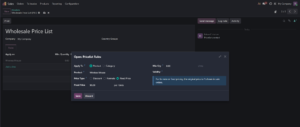
Once the price rule is added, save the pricelist.
The Wholesale Price List is now configured with the required product price.
Step 5: Open the Customer
Next, open the customer to whom the special pricing should be applied.
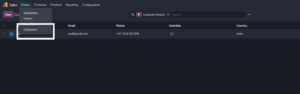
Go to Sales → Orders → Customers and select the required customer.
Step 6: Assign the Pricelist to the Customer
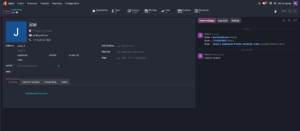
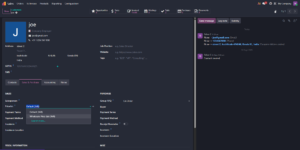
Open the customer’s contact form and go to the Sales & Purchase tab.
Under the Sales section, locate the Pricelist field.
Select Wholesale Price List.
This assigns the wholesale pricing to the customer.
Step 7: Create a Quotation
Now, create a new quotation by going to Sales → Orders → Quotations and clicking New.
Select the customer to whom the Wholesale Price List was assigned.
Add the Wireless Mouse to the quotation.
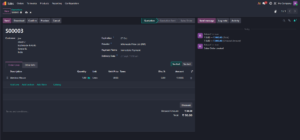
Odoo automatically applies the price configured in the customer’s assigned pricelist.
Step 8: Verify the Customer-Specific Price
Check the product price shown in the quotation.
In our example:
Standard Price: RS 100
Wholesale Customer Price: RS 90
Since the customer has the Wholesale Price List assigned, Odoo automatically applies the RS 90 price instead of the standard RS 100 price.
Example of Customer-Specific Pricing
Consider a company that sells Wireless Mouse for RS 100 to regular customers.
The company also sells the same product to wholesale customers at a special price of RS 90.
Instead of manually changing the product price every time a wholesale customer places an order, the company can create a Wholesale Price List and assign it to the relevant customers.
| Configuration | Details |
| Product | Wireless Mouse |
| Standard Price | RS100 |
| Customer Type | Wholesale Customer |
| Wholesale Price | RS90 |
| Pricelist | Wholesale Price List |
When the wholesale customer is selected in a quotation, Odoo automatically applies the configured wholesale price.
Benefits of Using Pricelists
Using Odoo 19 Pricelists helps businesses:
- Manage different prices for different customers
- Reduce manual price changes
- Minimize pricing errors
- Using an Odoo 19 Pricelist helps businesses manage customer-specific rates
- Manage wholesale and retail pricing
- Create flexible pricing strategies
Conclusion
Managing different prices for different customers can become difficult when prices are changed manually for every quotation. Odoo 19 Pricelist provide a simple way to manage these customer-specific prices.
By creating a dedicated pricelist, defining the required product prices, and assigning it to the appropriate customer, businesses can automatically apply the correct price when creating quotations.
This helps businesses simplify their pricing process, reduce manual work, and maintain more consistent customer-specific pricing.
5 Comments