

A customer places an order and asks when it will arrive. Your sales team checks stock, the purchase team waits for a supplier, and the warehouse needs time to prepare the shipment. If these activities are not planned together, the delivery date can quickly become unrealistic. Lead times in Odoo 20 estimate how long each stage of order fulfilment will take. In Odoo 20, lead time settings connect sales, purchasing, inventory replenishment and manufacturing, so teams can plan backwards from the expected delivery date.
What Are Lead Times?
A lead time is the expected number of days needed to complete an activity. Several lead times usually add up to one customer delivery date. A business may need time to confirm a supplier quotation, wait for the supplier to deliver, receive and prepare the goods, and finally dispatch the order. Odoo uses the configured values to calculate dates and schedule replenishment.
Lead times are planning values, not guarantees. Their accuracy depends on realistic estimates and on updating them when suppliers or internal operations change.
Main Types Of Lead Times in Odoo 20
| Lead time | What it represents | Where to set it |
| Delivery Time | Expected time frame for fulfilling a customer order. Called Customer Lead Time in earlier versions. | Product form ‣ Inventory tab ‣ Logistics section |
| Sales security lead time | A buffer that moves the delivery order’s scheduled date earlier. | Inventory ‣ Configuration ‣ Settings ‣ Advanced Scheduling |
| Vendor lead time | Days from confirming a Purchase Order to receiving the products. | Product form ‣ Purchase tab, vendor line (Lead Time column) |
| Days to Purchase | Days needed to confirm a PO, meaning the time the vendor takes to review and confirm an RFQ. | Inventory settings ‣ Advanced Scheduling |
| Replenishment Horizon | How many days ahead reordering rules look when planning replenishment. | Inventory settings ‣ Advanced Scheduling |
| Manufacturing lead time | Estimated time to complete a Manufacturing Order. | Product or Bill of Materials, depending on your setup |
| Days to prepare Manufacturing Order | Time needed to obtain components or sub-assemblies before production. | Bill of Materials |
| Shipping policy | Decides whether a multi-product order ships as soon as possible or when everything is ready. | Quotation or Sales Order ‣ Other Info tab |
Odoo’s documentation explains that these lead times are applied in sequence, working backwards from the delivery deadline with just-in-time logic.
Configure Delivery Time
Delivery Time is the expected time frame for fulfilling a customer’s order. Odoo uses it to suggest an expected delivery date on quotations and sales orders. To set it:
- Open the product, for example from Inventory ‣ Products ‣ Products.
- Open the Inventory tab.
- In the Logistics section, enter the number of days in Delivery Time.
- Save the product.
Figure 1 shows the Drawer product with a Delivery Time of 14 days. With that value, a quotation for the drawer shows an expected delivery around two weeks after the order date. The scheduled dates can then shift because of the sales security lead time and the order’s shipping policy.
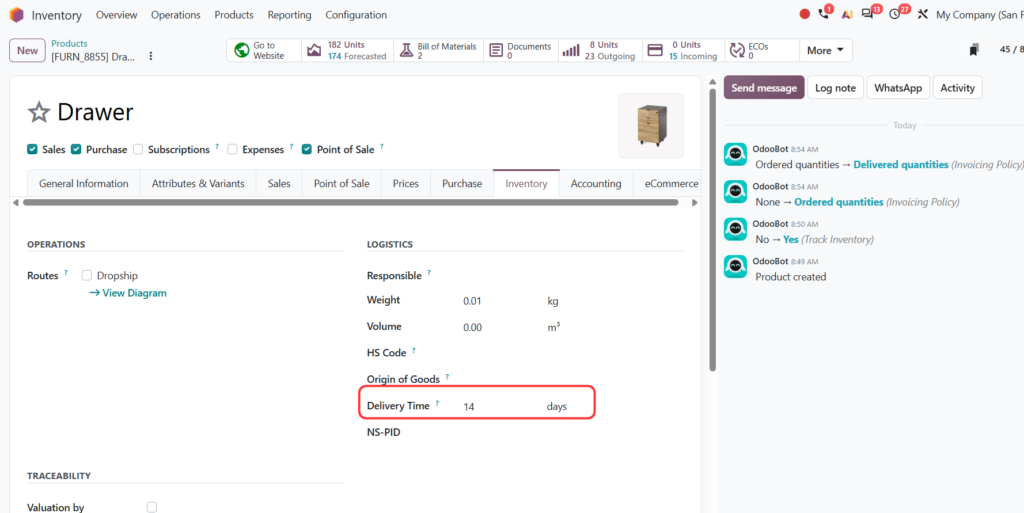 Figure 1: The Inventory tab of the Drawer product, with a Delivery Time of 14 days.
Use product-specific values where fulfilment times differ. A stocked accessory may be ready quickly, while a made-to-order item needs longer.
Add a Sales Security Lead Time
The sales security lead time is an extra planning buffer. It moves the delivery order’s scheduled date earlier, so the warehouse has time to pick, pack and prepare the shipment before the date promised to the customer. It applies to all sales orders of the company. To set it:
- Open Inventory ‣ Configuration ‣ Settings.
- Scroll to the Advanced Scheduling section near the end of the page.
- Tick Security Lead Time for Sales.
- Enter the number of days in Move forward expected delivery dates by and click Save.
In Figure 2 the option is ticked with a buffer of 3 days. If a delivery is expected on 20 December, the delivery order is then scheduled for 17 December. The building icon next to the setting shows that it belongs to the company, not to a single product.
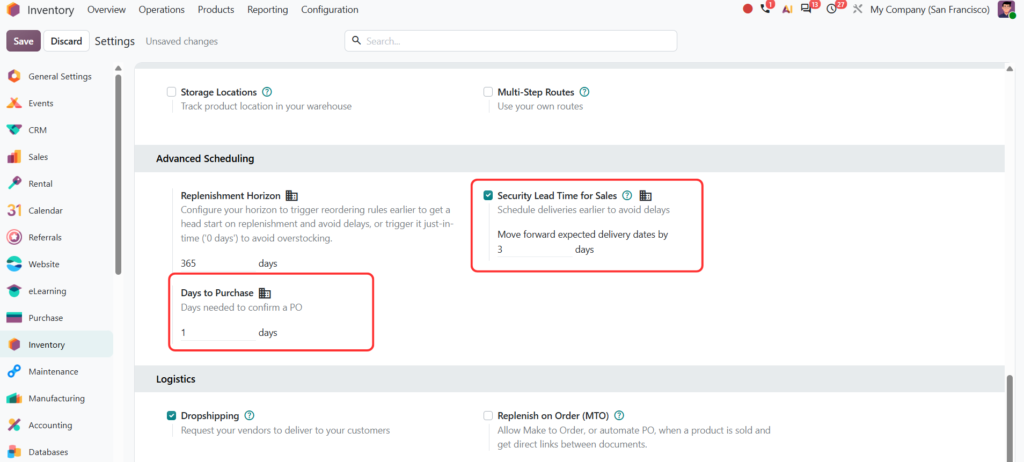 Figure 2: The Advanced Scheduling section of the Inventory settings: Security Lead Time for Sales (3 days) and Days to Purchase (1 day).
Base the buffer on the time your warehouse really needs. Too small a value will not protect the operation; too large a value makes planning needlessly early.
Understand Shipping Policy for Multi-Product Orders
A quotation can contain products with different lead times. The Shipping Policy, found in the Other Info tab of the order, decides whether the customer gets separate deliveries as products become ready or waits for the complete order.
- As soon as possible: products ship as soon as they are ready, and the scheduled date follows the shortest lead time among the products.
- When all products are ready: everything ships together, and the scheduled date follows the longest lead time.
Example: an order contains a desk with an 8-day lead time and a chair with a 5-day lead time. With As soon as possible the chair can leave first. With When all products are ready the business plans one combined shipment once the desk is ready. The choice is operational as well as commercial: separate deliveries are faster but can raise shipping and handling costs.
Configure Vendor Lead Time
Vendor lead time is the number of days between confirming a Purchase Order and receiving the goods. It helps purchasing and inventory teams estimate when supplier deliveries will arrive. To set it:
- Open the product and go to its Purchase tab.
- Add a vendor line, or open an existing one.
- Enter the vendor, the quantity if a minimum applies, the price and the Lead Time. If the Lead Time column is hidden, use the optional columns icon at the right of the table header.
- Save the product.
Figure 3 shows the Drawer with one vendor line: Wood Corner, a unit price of $95.50 and a Lead Time of 10 days. A product can have several vendors, each with its own price and lead time. Odoo uses the vendor information that applies to the selected supplier, so review the order of the vendor lines when more than one is available.
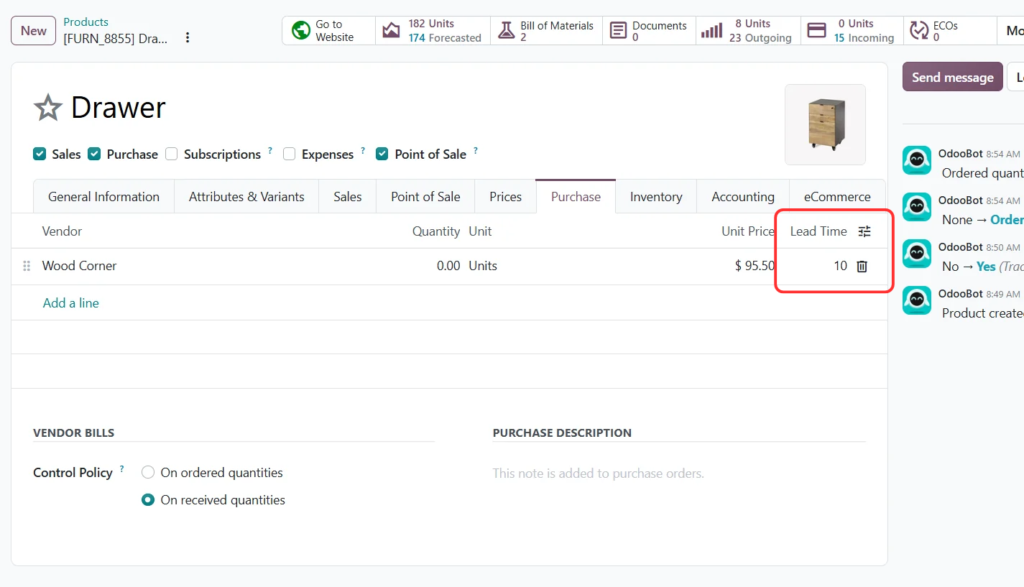 Figure 3: The Purchase tab of the Drawer product, with the Lead Time of 10 days..
Days to Purchase and RFQ Planning
Days to Purchase is the time the vendor needs to review and confirm an RFQ. In Odoo 20 the field is described as “Days needed to confirm a PO”. It helps Odoo decide how early an RFQ must be prepared when replenishment is planned against a future delivery deadline.
To set it, open Inventory ‣ Configuration ‣ Settings, find Advanced Scheduling, enter the number of days in Days to Purchase and save. Figure 2 shows it set to 1 day.
Understand Order Deadline and Expected Arrival
Two dates matter on an RFQ or Purchase Order:
- Order Deadline: the latest date by which the RFQ should be confirmed and become a Purchase Order.
- Expected Arrival: the date the products should arrive. Odoo calculates it as the Order Deadline plus the vendor lead time.
Example from Odoo’s documentation: today is 21 April, Days to Purchase is 2 days and the vendor lead time is 1 day. The Order Deadline is 23 April and the Expected Arrival is 24 April. The RFQ must be confirmed by 23 April to support arrival on 24 April. When the Expected Arrival date passes, the Purchase Order is marked as late.
How Reordering Rules Use Lead Times
Reordering rules keep stock between a minimum and a maximum quantity. When forecasted stock drops below the minimum, Odoo can suggest or create a replenishment. Lead times decide when that replenishment has to start.
Odoo’s just-in-time logic works backwards from the required date. For example, if a product needs 5 days to be replenished and the customer delivery date is 10 days away, Odoo waits 5 days before placing the order, so it arrives just in time instead of sitting in stock. The result still depends on the replenishment route, forecasted quantities and configured rules. For MTO products, the same principle ties a specific customer demand to the purchase or production it requires.
Best Practices for Managing Lead Times
- Base vendor lead times on actual delivery history, not on the supplier’s best-case promise.
- Review vendor lead times regularly, especially for imported goods or unreliable suppliers.
- Use buffers for real risks, such as customs, transport or warehouse preparation, and not to make up for poor estimates.
- Keep each product’s Delivery Time up to date when fulfilment methods change.
- Check the shipping policy on quotations that mix products with different lead times.
- Compare expected arrival dates with actual receipts, and review late Purchase Orders.
- Test reordering rules and MTO flows on sample products before applying new settings widely.
- Update dates when a supplier confirms a delay.
Common Mistakes to Avoid
Confusing Days to Purchase with vendor lead time. One covers RFQ confirmation; the other covers delivery after the PO is confirmed.
Using one lead time for every vendor. Set the right value on each vendor line.
Ignoring the shipping policy. Multi-product orders are scheduled differently depending on the policy.
Planning with no buffer. If delays are common, a zero-buffer plan will not hold. Use a buffer based on evidence.
Assuming lead times guarantee delivery. They support planning but cannot account for every delay or stock discrepancy.
Following older screenshots. Labels changed between versions, for example Customer Lead Time became Delivery Time.
Frequently Asked Questions
What is lead time in Odoo?
The expected duration of a process such as customer fulfilment, supplier delivery or manufacturing.
Where do I set the delivery time for customers?
On the product form, in the Inventory tab, in the Delivery Time field of the Logistics section (Figure 1).
Where do I set vendor lead time?
On the product’s Purchase tab, in the Lead Time column of the vendor line (Figure 3).
What is the sales security lead time?
A company-wide buffer that moves the delivery order’s scheduled date earlier, so the warehouse has time to prepare the shipment (Figure 2).
What is the difference between Days to Purchase and vendor lead time?
Days to Purchase is the time to review and confirm an RFQ. Vendor lead time is the time from PO confirmation to receipt.
What is the Order Deadline?
The latest date to confirm an RFQ so that the planned receipt can still be met.
What does the Replenishment Horizon do?
It controls how far ahead reordering rules look. A longer horizon triggers replenishment earlier; 0 days triggers it just in time.
Does Odoo use lead times with reordering rules?
Yes. Just-in-time planning uses lead times with replenishment methods such as reordering rules and MTO.
Are lead times in calendar days or working days?
They are entered as a number of days. Odoo’s purchase and manufacturing lead time guidance treats them as calendar days without adjusting for weekends or holidays, so check the field help for the value you are setting.
Conclusion
Lead times turn delivery planning from guesswork into a coordinated process. With realistic delivery times and vendor lead times, a sensible buffer, an RFQ confirmation window and a suitable replenishment horizon, businesses get better delivery forecasts and can plan replenishment with confidence. In Odoo 20 these settings connect Sales, Purchase and Inventory. When the values are kept accurate, teams can see when to order, when products should arrive and when the warehouse needs to start.
Further Reading
- Odoo 20 documentation, Lead times: https://www.odoo.com/documentation/20.0/applications/inventory_and_mrp/inventory/warehouses_storage/replenishment/lead_times.html. Delivery time, sales security lead time, vendor lead time, Days to Purchase, and the Order Deadline and Expected Arrival example.
- Odoo 20 documentation, Just-in-time logic: https://www.odoo.com/documentation/20.0/applications/inventory_and_mrp/inventory/warehouses_storage/replenishment/just_in_time.html. How Odoo works backwards from the delivery date.