
Customers rarely buy everything one piece at a time. A shop may sell bottled water singly, in six-packs or by the carton; a dealer may sell televisions one by one or by the dozen. When staff have to convert those pack sizes by hand, small arithmetic slips turn into wrong quotes, wrong deliveries and wrong stock figures.
Odoo 19 handles this with packagings. You define a pack size once, offer it on the products that come in it, and Odoo carries the pack through quotations, deliveries and, if you wish, barcode scanning. This guide follows one example from start to finish, a TV sold either by the unit or by the dozen, using screenshots from a real database.
What Is Odoo Product Packaging?
In Odoo Inventory, a packaging is a ready-made container holding a fixed number of units of a product: a six-pack, a case of 24 or, in this guide, a dozen. In Odoo 19, packagings sit in the same Units & Packagings list as units of measure, so a Dozen appears right next to Units. A product only offers the packagings you add to it, and every packaging stores how many units it contains. Odoo uses that number to keep quantities consistent from the order to the warehouse.
A packaging does not create a new product. A dozen TVs is still the TV product; only the way the quantity is expressed changes.
Packaging, units of measure and packages
Three similar-sounding concepts solve different problems:
- Units of measure: express a quantity in a measurement such as metres, kilograms or yards, with conversions between compatible units. Buying fabric in yards and stocking it in metres is a unit-of-measure job.
- Product packaging: a fixed quantity of the same product, such as one dozen. Selling twelve TVs as one dozen is a packaging job.
- Packages: physical containers used to move and store goods in the warehouse. A package can hold several different products. Putting different items into one shipping box is a packages job.
Step 1: Enable Units of Measure & Packagings
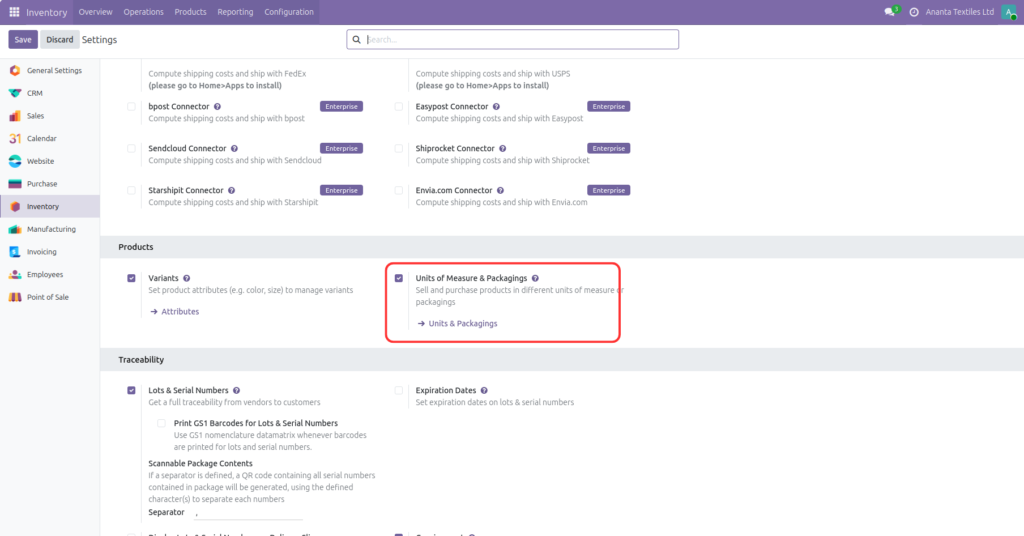
Packagings are switched off by default. Open Inventory ‣ Configuration ‣ Settings, scroll to the Products section, tick Units of Measure & Packagings and click Save. Figure 1 shows the setting ticked; the Units & Packagings link underneath leads to the list you will use in the next step. If packaging fields are missing on your product or category forms, check this setting first.
take a look at our guide on Odoo Units of Measurements.
Step 2: Create a Packaging
Go to Inventory -> Configuration -> Units & Packagings and click New. This page lists every unit and packaging in the database, so it is the best place to review them. Figure 2 shows the Dozen record used in this guide. Its fields are:
- Unit Name: the name shown on documents, here Dozen. Choose names people recognise, such as 6-Pack or Carton of 12.
- Quantity: how many units the packaging contains. Here it reads 12.00000 Units.
- Package Type: an optional link to a package type, which describes the physical container.
- Group Products in POS: a setting for the Point of Sale app, left unticked here.
- Indian GST UQC: a localisation field that appears because this database uses Indian accounting; you will not see it in every database.
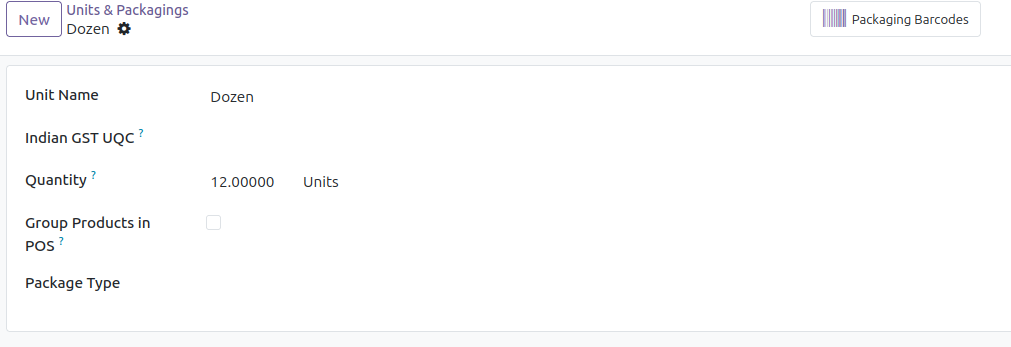
The quantity must match what is physically in the pack. A carton of 12 saved with 10 will distort order quantities and warehouse documents. The Packaging Barcodes smart button at the top is where barcodes for this packaging are managed; see Step 7.
You can also create a packaging straight from a product form by choosing Create and edit in the Packagings field, as described in the next step.
Step 3: Offer the Packaging on a Product
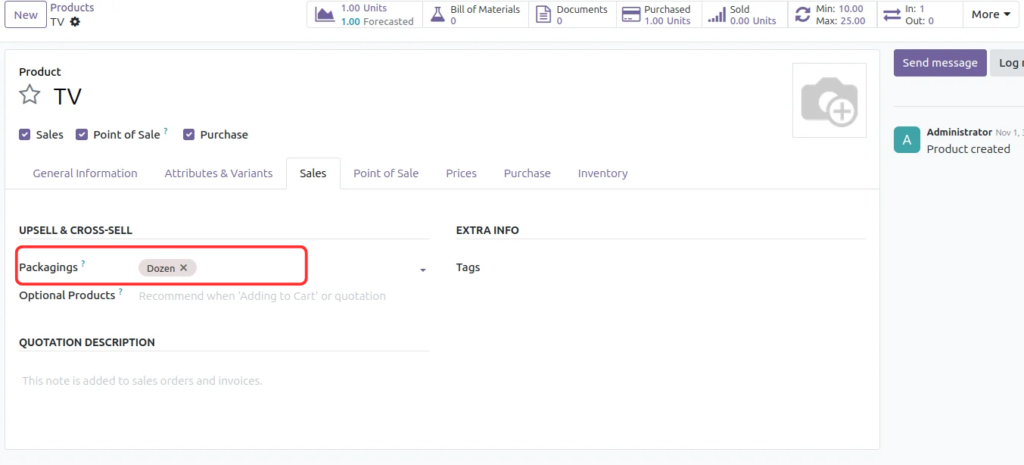
Open Inventory ‣ Products ‣ Products and select the product. In the Sales tab, under Upsell & Cross-Sell, use the Packagings field to add an existing packaging or create a new one with Create and edit. A product can carry several packagings. Figure 3 shows the TV with Dozen added; this is what makes Dozen selectable on its sales documents. Without this step, a packaging that exists in the list is still not offered on that product.
Step 4: Set Up Packaging for Purchases
A business often buys in a different pack from the one it sells in. A supplier might ship TVs by the dozen while the shop sells single sets. Open the product’s Purchase tab, add or open the vendor line and choose the packaging in its Unit field, using Create and edit if it does not exist yet. If the packaging is not offered in that list, add it to the product’s Packagings field in the Sales tab first.
Packaging only fixes the pack quantity. Check the vendor price and lead time on the same line, because they are separate commercial terms.
Step 5: Sell by Packaging on a Sales Order
Create a quotation in the Sales app, pick the customer, add the product and choose the packaging in the Unit column of the order line, then enter the quantity. Figure 4 shows a quotation for the TV with two lines: one Dozen at 144,000.00 and one Units line at 12,000.00. In this example the dozen is priced at twelve times the single unit, so 1 Dozen + 1 Unit gives an untaxed amount of ₹156,000.00 and, with 5% GST, a total of ₹163,800.00.
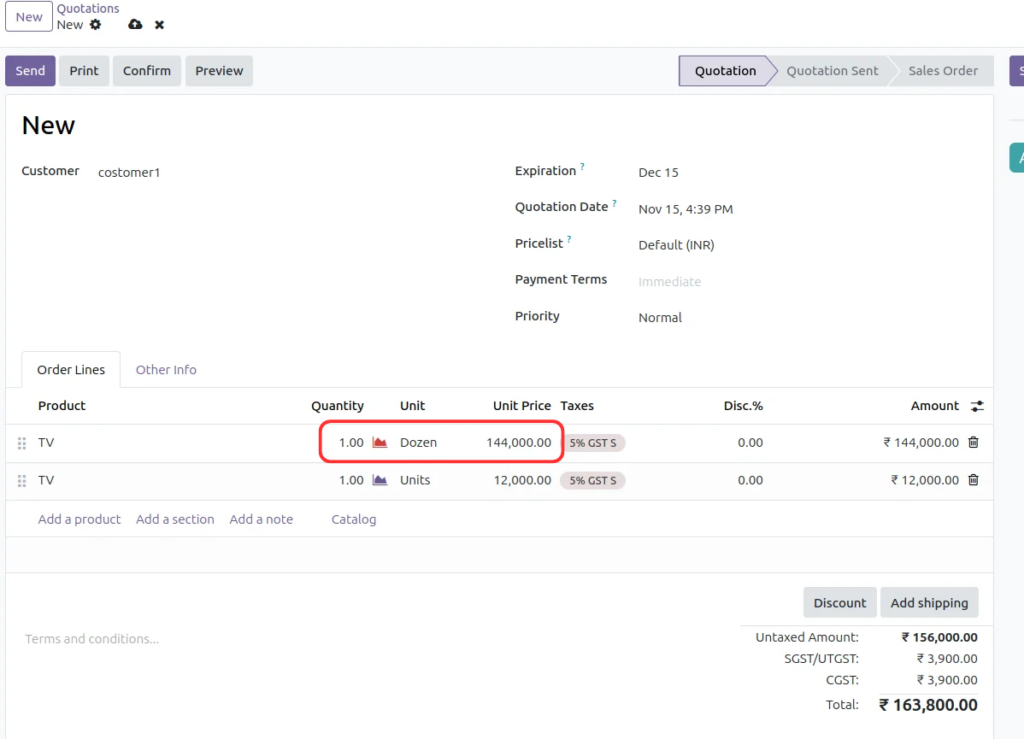
The pack size is visible on the order, so nobody has to multiply by hand. Review the unit and quantity before confirming, especially when an order mixes single units and larger packs.
Step 6: Follow the Packaging on the Delivery Order
Confirming the order creates the delivery. To see the packaging on it, open the Operations tab, click the optional-columns icon at the right end of the header row and tick Packaging Quantity and Packaging, as highlighted in Figure 5.
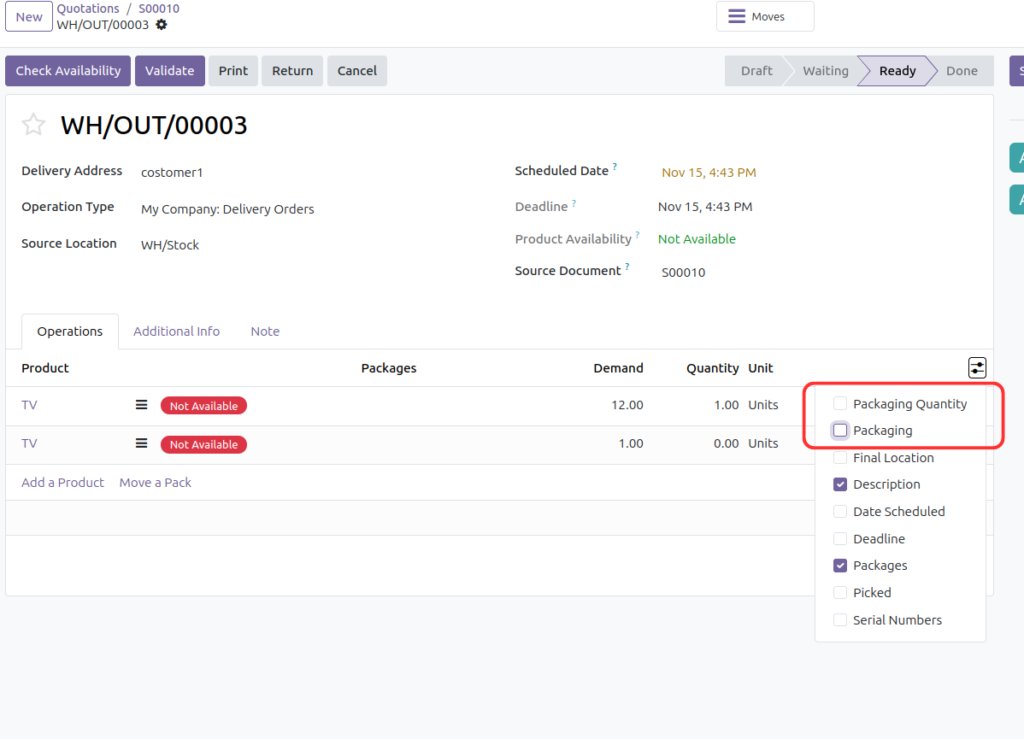
Figure 6 shows the result for delivery WH/OUT/00003, created from sales order S00010. The first line is 1.00 Dozen (Packaging Quantity 1.00) with a Demand of 12.00 Units; the second is 1.00 Units with a demand of 1.00. Demand is always expressed in the product’s base units, so the delivery needs 13 TVs in total, while the packaging columns tell the warehouse how many packs that represents.
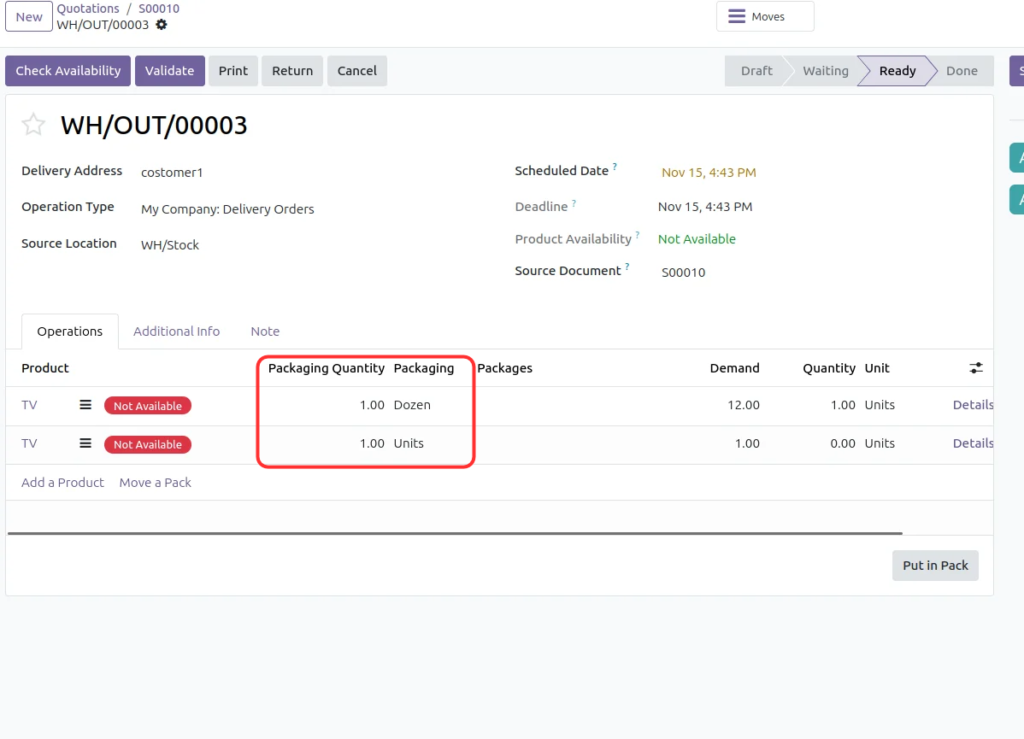
Notice that the dozen line shows a Quantity of 1.00 against a demand of 12.00, and both lines are marked Not Available. The product form in Figure 3 reports only 1.00 Unit on hand, which fits a reservation limited to what exists. That is a partial reservation, covered in Step 8.
Step 7: Use Packaging Barcodes
A packaging can have its own barcode, managed through the Packaging Barcodes smart button (Figure 2). With the Barcode app configured, scanning that barcode on a receipt registers the whole quantity the packaging contains. Scanning a carton barcode that stands for 12 bottles records 12 units instead of 12 separate scans.
Before relying on this on the warehouse floor, check that:
- the barcode is stored against the right packaging and the packaging’s quantity matches the physical pack;
- the printed barcode is exactly the value saved in Odoo;
- the Barcode app and the warehouse workflow are configured.
A packaging barcode identifies a type of pack and its quantity. It is not a unique serial number for an individual carton.
Step 8: Choose Full or Partial Packaging Reservations
Odoo can reserve only complete packagings on outgoing transfers, or allow partial quantities. The choice is made on the product category: go to Inventory ‣ Configuration ‣ Product Categories, open the category your product belongs to and set Reserve Packagings in the Logistics section. The field only appears when the packaging feature is enabled (Step 1). The options are:
- Reserve Only Full Packagings: Odoo reserves complete packs only.
- Reserve Partial Packagings: Odoo reserves whatever is available, even if it does not fill the last pack.
Take a product packed 12 units per packaging. A delivery asks for two packs (24 units) but only 22 units are in stock. With full packagings, Odoo reserves one pack of 12 units. With partial packagings, it reserves all 22. In Figure 6 the dozen line holds a reserved quantity of 1 against a demand of 12, which suggests the TV category allows partial reservations. Choose the setting that matches your picking and shipping policy; it changes how stock is reserved but never creates missing stock.
Putting It Together: The TV Example
| Stage | What happens | Screenshot |
| 1. Enable | Units of Measure & Packagings ticked in Inventory settings | Figure 1 |
| 2. Create | Dozen with Quantity 12 Units in Units & Packagings | Figure 2 |
| 3. Offer | Dozen added to the TV’s Packagings field | Figure 3 |
| 4. Sell | 1 Dozen at 144,000.00 plus 1 Unit at 12,000.00 | Figure 4 |
| 5. Deliver | Delivery demand of 12 + 1 = 13 units, shown with packaging columns | Figures 5 and 6 |
The same pattern fits a buyer who purchases LED bulbs from a supplier in cartons of 50 and sells them in boxes of 10: define two packagings, add each where it belongs (sales or the vendor line), and keep a single product record behind both.
Common Mistakes to Avoid
- Mixing up packaging and packages. One defines a fixed quantity of a product; the other tracks a physical container.
- Entering the wrong quantity. A dozen must contain exactly 12 units.
- Forgetting to add the packaging to the product. Creating it in Units & Packagings is not enough.
- Using the wrong vendor line for a purchase packaging. Purchase units are set per vendor line.
- Ignoring reservation settings. Full and partial reservation give different picking results.
Frequently Asked Questions
Can one product have several packagings?
Yes. A product can offer a 6-pack, a 12-pack and a case, each with its own quantity.
Can I reuse a packaging on other products?
Odoo 19 lists packagings centrally in Units & Packagings, so an existing one such as Dozen can be picked in another product’s Packagings field. Check the quantity is right for that product.
Does a packaging create a separate product or separate stock?
No. Stock stays tied to the same product; the packaging only changes how a quantity is expressed.
Do sales and purchase packagings have to match?
No. You can offer customers one set of packs and buy from a supplier in another.
Do I need the Barcode app to use packagings?
No. Barcodes are optional. Packagings work on quotations and deliveries without them.
Conclusion
Product packaging lets a business buy or sell the same product in fixed pack sizes without duplicating products. Enable the feature, define each pack accurately, offer it on the right products, and the pack size follows the order from quotation to delivery. Add barcodes where scanning pays off, and pick the reservation setting that fits your warehouse.
Official References
- Odoo 19, Packaging: https://www.odoo.com/documentation/19.0/applications/inventory_and_mrp/inventory/product_management/configure/packaging.html
- Odoo 19, Units of measure: https://www.odoo.com/documentation/19.0/applications/inventory_and_mrp/inventory/product_management/configure/uom.html
- Odoo 19, Configure products: https://www.odoo.com/documentation/19.0/applications/inventory_and_mrp/inventory/product_management/configure.html
- Odoo 19, Packages: https://www.odoo.com/documentation/19.0/applications/inventory_and_mrp/inventory/product_management/configure/package.html