

Want to explore Odoo without installing it on your computer? Or do you need to compare versions before starting a project? Odoo Runbot is a useful starting point. It provides access to builds generated by Odoo’s development and continuous-integration infrastructure, allowing users to inspect running instances and, where available, try applications in a browser.
Runbot is useful for developers, functional consultants, testers, students, and businesses that want to understand Odoo’s interface before committing to a local setup. However, Runbot is primarily a build and testing platform, not a permanent database or production hosting service.
In this guide, we explain what Odoo Runbot does, how to find a suitable build, how to explore Odoo applications, and how Runbot differs from a demo database, Odoo Online, and Odoo.sh.
What Is Odoo Runbot?
Odoo Runbot is Odoo’s build and continuous-integration environment. It is used to build and test code changes across Odoo repositories and branches. The public dashboard lists branches, build batches, and checks for different versions. When a suitable build is available, users can open a running instance in a browser and inspect the corresponding Odoo environment.
For developers, Runbot shows whether a change passes the automated checks configured for that build. For functional users, it is also a convenient way to explore an Odoo version or application without installing the full system locally.
Official access: https://runbot.odoo.com/runbot
The dashboard changes constantly. A build may be running, queued, completed, or failed, and not every build offers the same applications or login experience.
Who Should Use Odoo Runbot?
Functional consultants: explore menus and standard workflows before client demonstrations.
Developers: inspect branches, review build status, and reproduce or investigate issues on a specific branch.
Testers: perform initial manual checks on a given build.
Students: get familiar with Odoo’s interface.
Businesses: preview standard applications such as CRM, Sales, Inventory, Accounting, or Website, when available in the selected build.
How to Access Odoo Runbot
- Open https://runbot.odoo.com/runbot in your browser.
- Review the dashboard, which groups builds by branch or version and shows associated checks and batches.
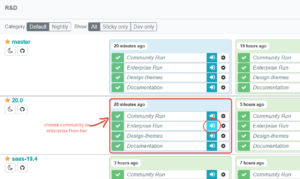
- Find the version or branch you want to explore, such as 19.0, 20.0, or a SaaS branch when listed.
- Open the relevant batch or build details and look for the connect button(blue door-with-an-arrow button) which lets you access or log directly into that specific build environment.
- Wait for the instance to load, then sign in using the accounts described in Section “Odoo Runbot Login: Admin, Demo, and Portal Accounts”
- Once logged in, explore the applications and workflows relevant to your task.
Understanding Runbot Builds and Statuses
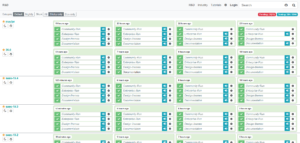
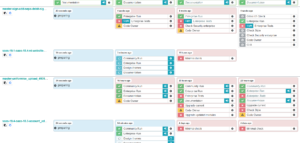
Runbot is more than a collection of demo databases. It is also part of Odoo’s automated testing process. The dashboard can show different checks, such as Community builds, Enterprise-related builds, documentation, upgrade checks, and other test jobs, depending on the selected branch and filters.
A batch groups related builds or checks. A build represents a run for a particular configuration and may contain several sub-builds. The exact structure depends on the branch and checks configured for it.
Green / passed: the checks represented by that status passed for that run.
Red / failed: one or more checks failed. Inspect the build details and logs for installation errors, failed tests, or warnings.
Pending / running: the final result is not yet known.
A passing status is not a guarantee that every possible workflow works. Test coverage, installed modules, configuration, localization, external services, and the specific build all affect what has been verified.
Odoo Runbot Login: Admin, Demo, and Portal Accounts
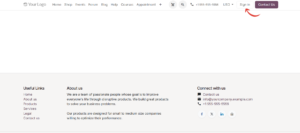
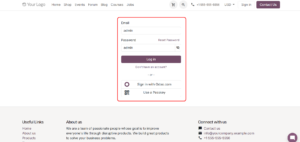
After opening a running Runbot instance, you will see an Odoo login screen. Runbot builds commonly provide three test accounts, where the username and password are the same:
Admin (admin / admin): administrator-level access in the test database. Use it to explore configuration menus and workflows that need broader permissions.
Demo (demo / demo): an internal user with more limited permissions, so you can see how the interface behaves for a regular user rather than an administrator.
Portal (portal / portal): a portal user with restricted access to portal-facing records and pages, without the full backend.
Runbot is shared. Never enter confidential information or make changes you need to preserve. The admin account can change settings and data for everyone using the same instance, so use it carefully.
How to Explore Odoo Applications Using Runbot
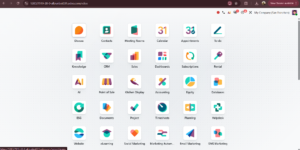
After opening an accessible instance, you can use it to understand standard Odoo navigation and workflows. Available applications depend on the selected build, edition, and installed modules.
CRM and Sales: review leads, opportunities, quotations, customers, and pipeline stages where installed.
Inventory: explore products, warehouses, and stock operations.
Accounting: inspect standard accounting screens if the relevant modules are included; country-specific localization may not be present.
Website and eCommerce: explore pages, product listings, and storefront behavior where available.
Other apps: review anything else from the app dashboard.
Can You Use Runbot to Test Custom Modules?
Runbot is useful for inspecting builds of Odoo’s repositories and configured code branches, but the public dashboard is not a personal development server where anyone can upload a custom module and install it into an arbitrary build.
If you are developing your own module, use a local Odoo development environment or a suitable development platform where you control the source code, addons path, database, and server configuration. For a team project, a dedicated test environment and automated tests are more appropriate than a public Runbot instance.
Odoo’s developer documentation describes automated testing for Python code, JavaScript, and end-to-end tours. Runbot is part of the infrastructure Odoo uses for its own development workflow; it does not replace your project’s testing strategy.
Odoo Runbot vs Demo Database, Odoo Online, and Odoo.sh
| Option | Best for | Caveat |
| Odoo Runbot | Exploring builds and reviewing automated checks. | Availability and contents can change. |
| Shared Odoo demo | A quick product tour. | Access duration and availability depend on the demo service. |
| Odoo Online | Managed hosting for supported use cases. | Not designed for installing arbitrary custom server modules. |
| Odoo.sh | Development, staging, and production workflows using Git branches and custom code. | Subject to plan and configuration. |
| Local installation | Direct control over source code, dependencies, configuration, and database. | You set up and maintain it yourself. |
Choose the tool based on the task: Runbot to inspect available builds, a demo for a quick tour, and a controlled development environment when you need to install custom code or preserve test data.
9. Limitations and Best Practices
- Do not store confidential business data in a public testing environment.
- Do not assume data created in a Runbot instance will remain available; builds and instances can be refreshed or removed.
- Do not use Runbot as a production database or promise continuous availability.
- Verify the exact Odoo version and branch before documenting a feature or taking screenshots.
- Expect available modules and localizations to differ between builds.
- If a build fails, inspect the logs rather than assuming the entire Odoo version is broken.
- For client demonstrations, prepare a backup plan.
- For custom development, use your own repository, database, and test environment.
Frequently Asked Questions
Is Odoo Runbot free to access?
The public dashboard can be accessed through a browser. Availability of individual builds and their access behavior may vary.
Do I need to install Odoo to use Runbot?
No local installation is needed to open an accessible running build in a browser.
Can I test different Odoo versions on Runbot?
The dashboard lists multiple branches and versions when builds are available. Choose the branch you need and verify the build details.
Can I use Runbot for production?
No. Runbot is intended for builds and testing, not dependable production hosting.
Can I install my own custom module in public Runbot?
Do not assume you can upload and install arbitrary custom modules in public builds. Use a development environment you control.
Why is a Runbot build failing?
A build can fail because of test failures, dependency or installation problems, or other checks. Review the status and logs.
Does a green status mean Odoo is bug-free?
No. It means the checks represented by that build passed; it cannot prove every workflow, configuration, localization, or integration is error-free.
Conclusion
Odoo Runbot is a useful resource for exploring Odoo builds, inspecting different branches, and understanding how automated checks are used in Odoo development. It helps beginners become familiar with the interface and lets consultants preview standard workflows without a local installation.
Its purpose, however, differs from a personal development environment or production hosting platform. For lasting test data, custom modules, client-specific configuration, or a controlled release process, choose a suitable local or managed environment.
References
Odoo Runbot dashboard
https://runbot.odoo.com/runbot
Odoo 20 developer documentation: Unit tests
https://www.odoo.com/documentation/20.0/developer/tutorials/unit_tests.html
Odoo 19 developer documentation: Testing
https://www.odoo.com/documentation/19.0/developer/reference/backend/testing.html
Odoo.sh branches (Odoo 19 documentation)
https://www.odoo.com/documentation/19.0/administration/odoo_sh/getting_started/branches.html
Community guide: Runbot overview (unofficial, odoo-development)
https://odoo-development.readthedocs.io/en/latest/ci/runbot.html